How to Add a Steam Game Login Token to a Counter-Strike: Source Server
Adding a Steam game login token to your Counter-Strike Source server is required to enable secure connections to the Steam master server. This allows your server to appear publicly in the server browser and ensures proper authentication for players. While tokens are usually added through the server configuration file, this guide explains how to add a Steam account token using the Apollo Panel.
Obtaining a Steam Game Login Token
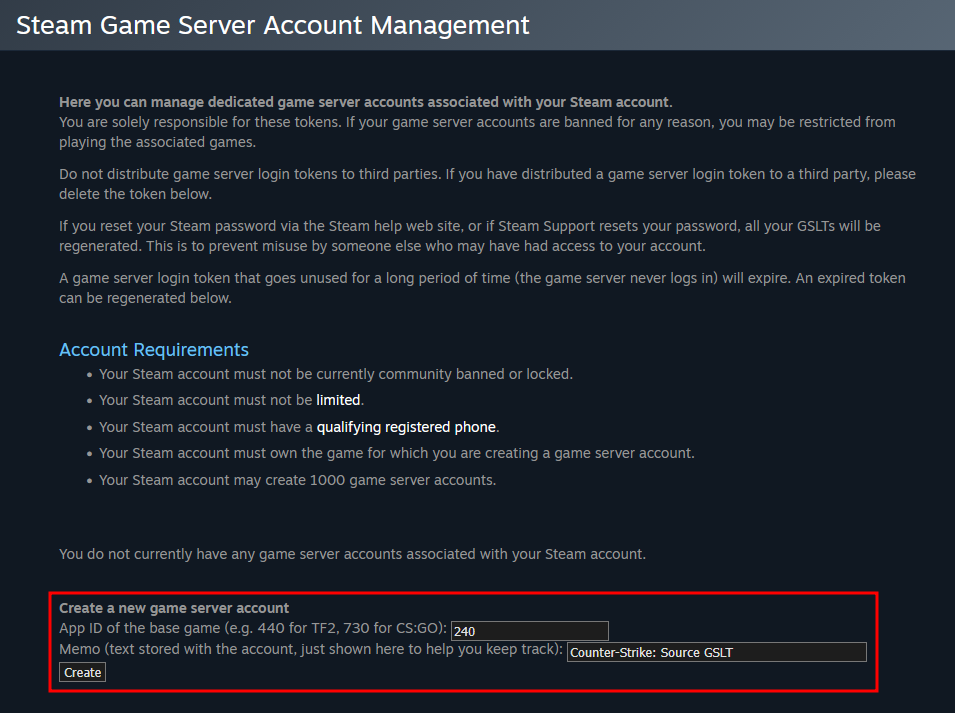
- Log in to your Steam account in the browser and go to the Steam Game Server Account Management page.
- In the "Create a new game server account" section of the page, set the App ID to "240" (which is Counter-Strike: Source's Steam App ID) and the Memo, which will serve as your note to identify which Game Server Login Token is used for, which will help you when managing GSLTs, then click the Create Button.
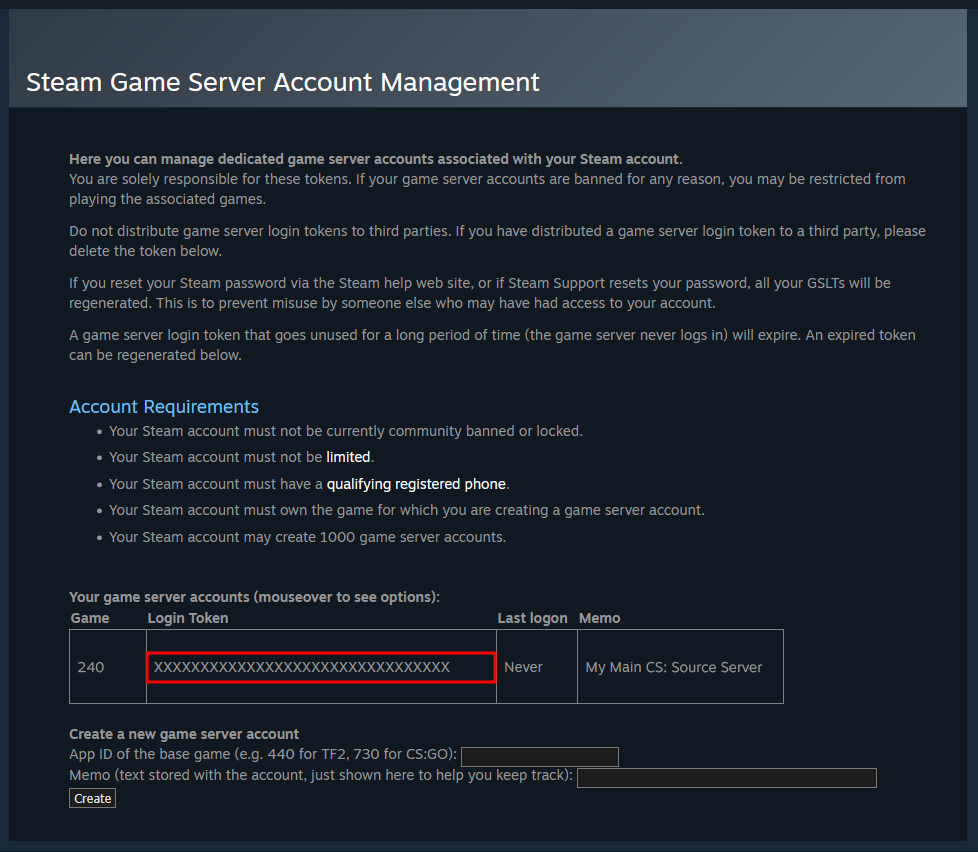
- After clicking create, take note of the Login token from the new game server account, which is also the Steam Game Login Token.
Adding the Steam Game Login Token Using the Apollo Panel
- Open the Apollo Panel, and ensure that your server is offline.
- Go to the Startup Tab and enter the Steam Game Login Token you got earlier.
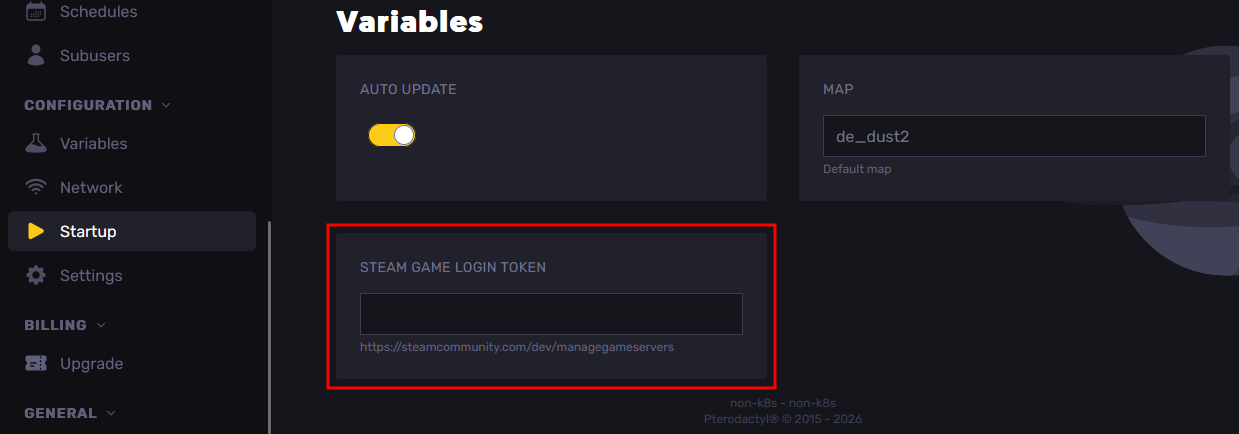
- Start the service, and your Counter-Strike: Source server should now be publicly listed online in the in-game server browser.
Updated on: 02/04/2026
Thank you!