How To Make A Counter-Strike: Source Server
Creating a Counter-Strike: Source server is the best way to enjoy competitive matches with friends, manage your own game modes, and take full control of your multiplayer experience. Instead of hosting it yourself on unstable connections, using a dedicated server, or going through a trusted hosting provider like Sparked Host, you can enjoy instant setup, low latency, and powerful hardware to ensure smooth gameplay and responsive gunplay. Whether you want to create a private match or host a public server with custom maps and plugins, our user-friendly control panel and web interface make configuration fast and straightforward.
In this guide, we'll show you how to create and configure your own Counter-Strike: Source server, explore different server hosting options, and help you choose the best Counter-Strike: Source server solution for your gameplay experience.
Step 1: Decide What Counter-Strike: Source Hosting You Want
The first step to setting up a Counter-Strike: Source server is choosing the right type of hosting based on your needs. Each method provides different levels of control, customization, hardware access, and ease of setup. Whether you're a casual player looking to play with friends or a server owner wanting to run custom game modes and plugins, this step will help you choose the best way to host your own Counter-Strike: Source server.
Managed Counter-Strike: Source Server Hosting
Managed Counter-Strike: Source server hosting is ideal for players who want to skip technical setup like port forwarding and jump straight into matches. With features like instant setup, DDoS protection, automatic updates, and a user-friendly control panel, this option makes it easy to create and configure your server without needing advanced technical knowledge.
At Sparked Host, we provide a secure and optimized environment with high-performance hardware, low ping, and tools like a web interface to manage server settings, maps, plugins, backups, and more. Our support team is available to assist with any issues, including server troubleshooting and config file access.
This option is ideal if you want to play with friends or host a public Counter-Strike: Source server with minimal lag and effort.
Counter-Strike: Source VPS Hosting
VPS hosting offers a balance between flexibility and performance. Your Counter-Strike: Source server operates in a virtual environment, allowing you to access game server files, adjust configuration settings, set custom ports, and manage connected players.
With a VPS, you have more control than managed hosting, including the ability to install plugins, configure advanced server settings, and scale resources as your player base grows. You still get a stable hosting environment, but with extra freedom to customize your Counter-Strike: Source server setup.
This is an excellent option for experienced users who want to manually configure the server or host a custom experience with increased access to system-level settings.
Counter-Strike: Source Dedicated Server Hosting
A dedicated server gives you the highest level of control and performance for your Counter-Strike: Source server. You’ll have full access to all files, ports, and hardware resources, allowing for complete customization. From editing server configuration files and installing plugins to managing map rotations and tick rates, this method offers total control over every detail.
This is the best choice for hosting large-scale Counter-Strike: Source servers with high player slots or maintaining a consistent competitive experience for a community or content platform. With complete control over your dedicated server, you can fine-tune every aspect to ensure optimal performance, low latency, and stable gameplay.
Which Option Is The Best?
Choosing the right Counter-Strike: Source server hosting depends on your goals. If you want to get started quickly with minimal hassle, managed hosting provides instant setup, automatic updates, and an easy-to-use control panel. For users who want more flexibility, VPS hosting allows deeper configuration while maintaining affordability and scalability. If you're building a high-traffic server for an active community, dedicated server hosting delivers maximum power, performance, and full access.
Regardless of your choice, Sparked Host ensures that your Counter-Strike: Source server runs smoothly with top-tier hardware, secure ports, and excellent support. Hosting your own server isn’t just about launching a game, it’s about delivering a competitive and enjoyable experience, building a player community, and having complete control of your server.
Step 2: Buy A Plan
For Managed Counter-Strike: Source Server Hosting
- Go to the Counter-Strike: Source Server Hosting page.
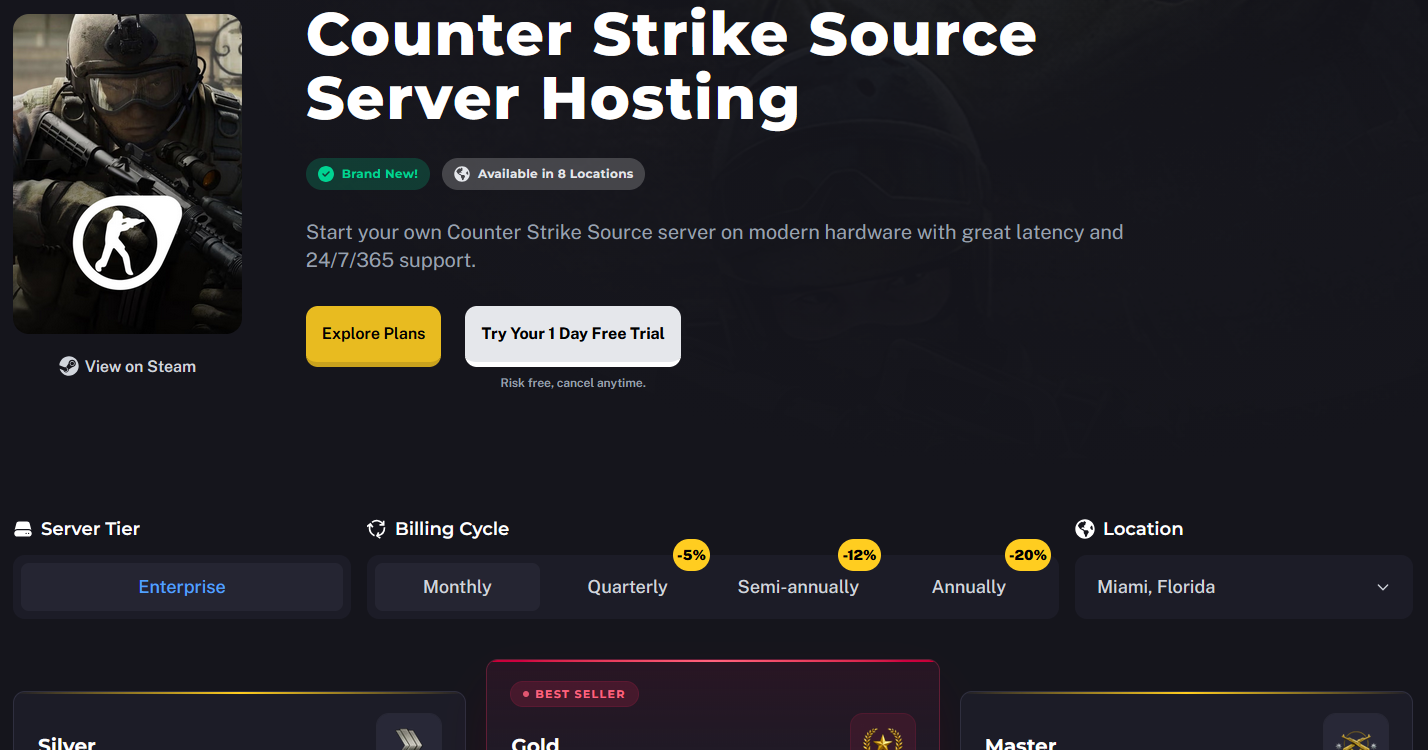
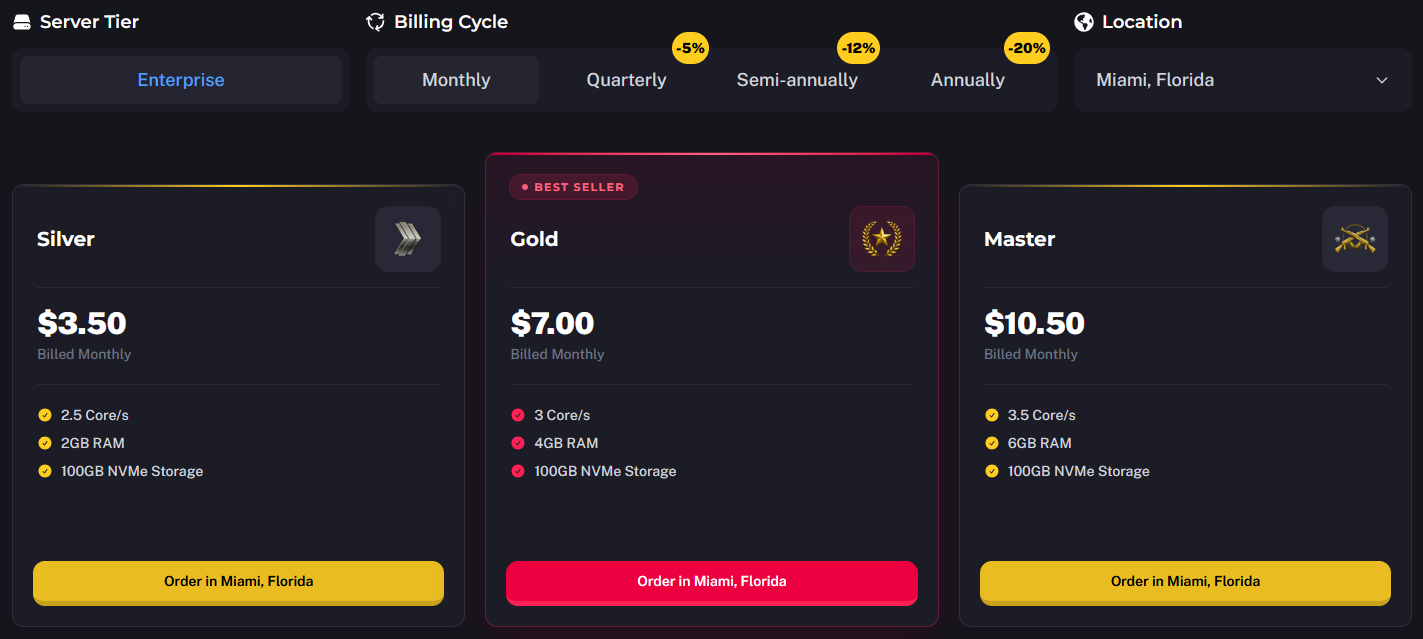
- Select the individual Counter-Strike: Source Server Hosting plan. The prices of each Counter-Strike: Source Hosting plan are scaled according to the resources and RAM they use.
You can also change the Billing Cycle to suit your preference, choose between Monthly, Quarterly, Semi-Annually, or Annually. Longer billing cycles often come with discounted rates, making them a great choice if you plan to host your server long-term.
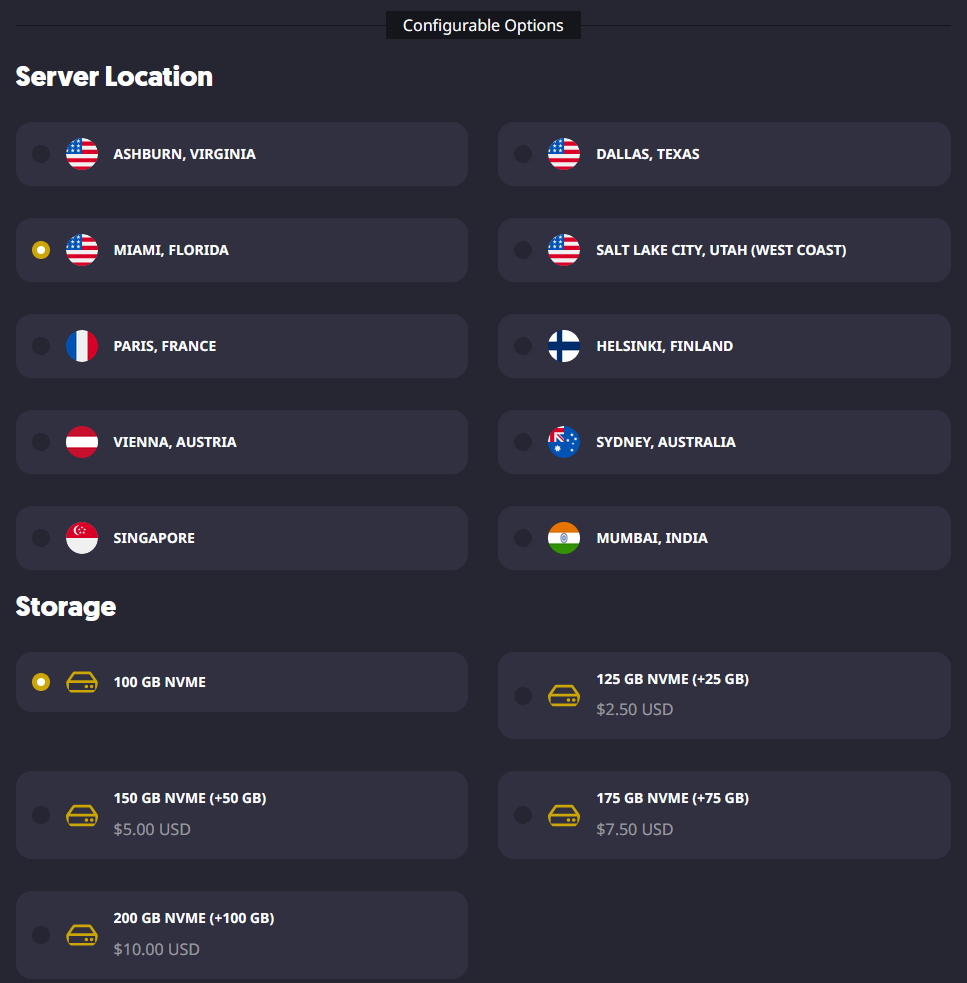
- Once you have selected the plan and billing cycle you want to use, fill out the rest of the configurable options, such as the Counter-Strike: Source Server Location and the number of backups you want.
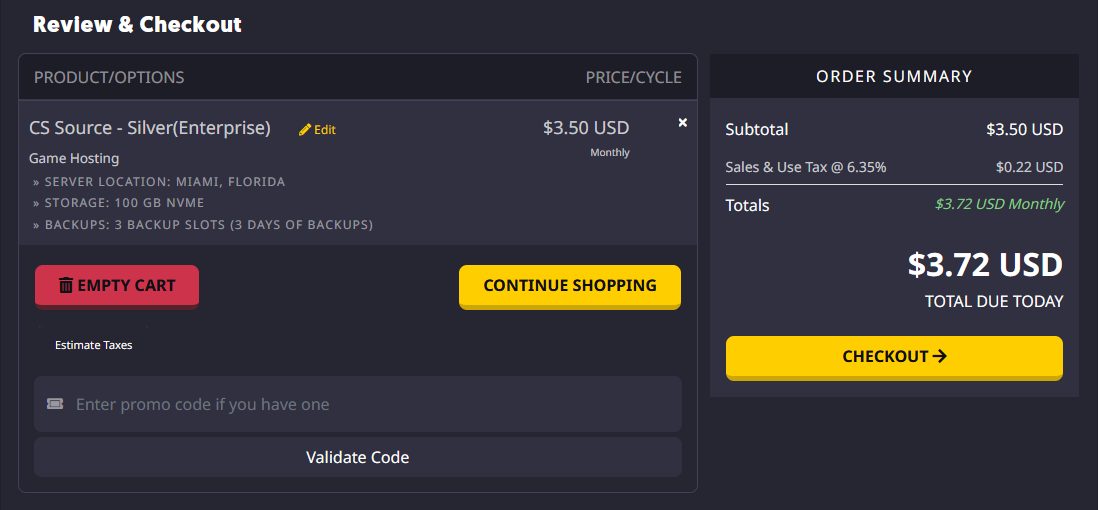
- When you are ready to purchase the services you selected, you can go to your cart to review the selected items and check out when you are ready. Optionally, if you have one, you can also enter a promo code to get a discount on your purchase.
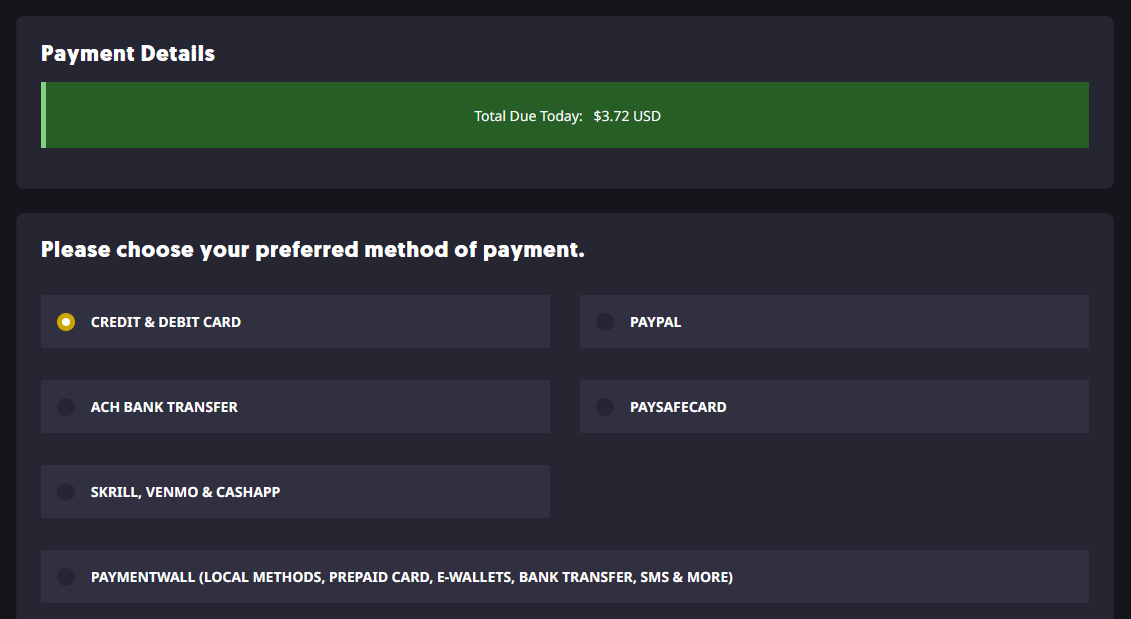
- From there, you can select your preferred payment method and register a Sparked Host Client Area account if you do not already have one.
You can view the different payment methods we accept and their availability on our Payment Methods page.
For Counter-Strike: Source VPS Hosting
- Go to the VPS Hosting page.
- Choose between the Premium and Budget hardware tiers.
Budget Tier: This tier is ideal for small Counter-Strike: Source servers or testing configurations. It delivers reliable performance at a lower cost, making it perfect for hosting a few players, running standard maps, and keeping gameplay smooth for casual matches.
Premium Tier: The Premium Tier offers stronger CPU performance, higher network bandwidth, and improved overall stability. It is designed for larger servers, higher player counts, and more advanced setups, including custom maps, plugins, and fast-paced competitive gameplay.
Choose the Budget Tier if you are hosting a small server or experimenting with settings. Go with the Premium Tier if you plan to grow your player base, run custom maps or plugins, or want consistently smooth gameplay with minimal lag during peak hours.
Each location may use different hardware configurations but offer equivalent performance. You can check the specific hardware used at each location by visiting our Hardware & Locations page.
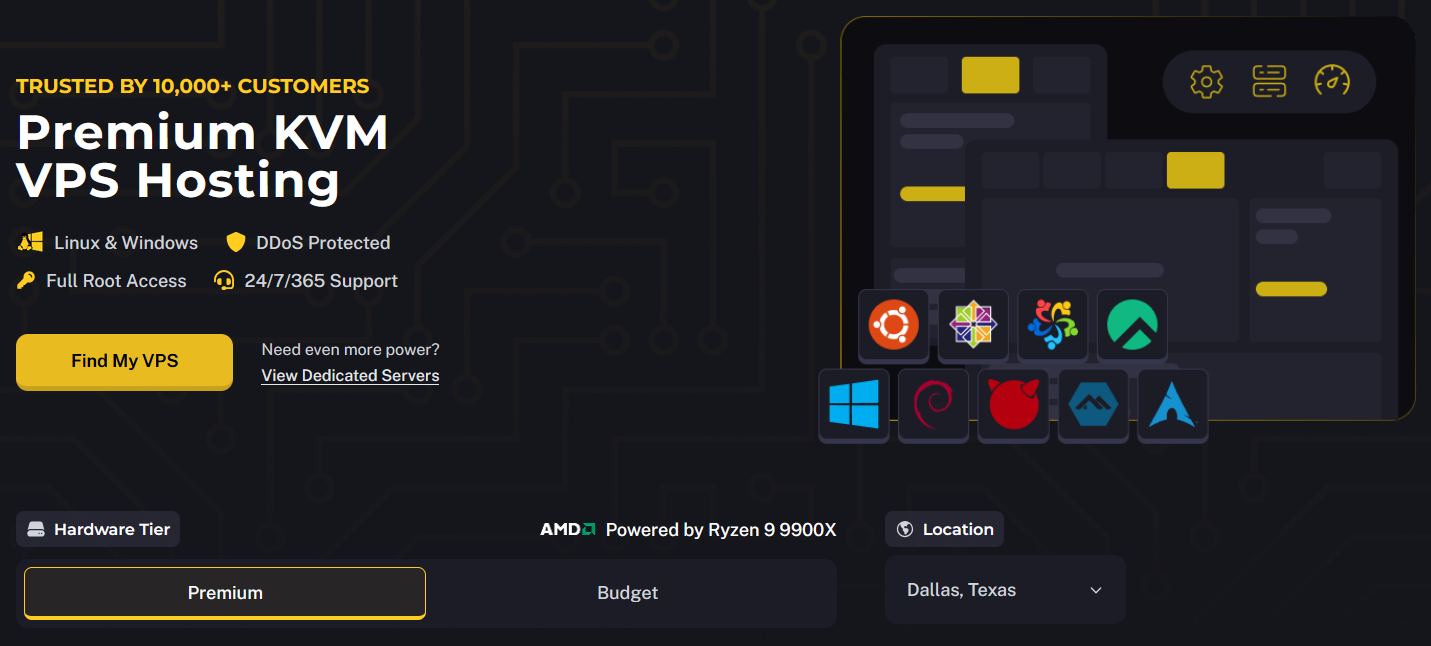
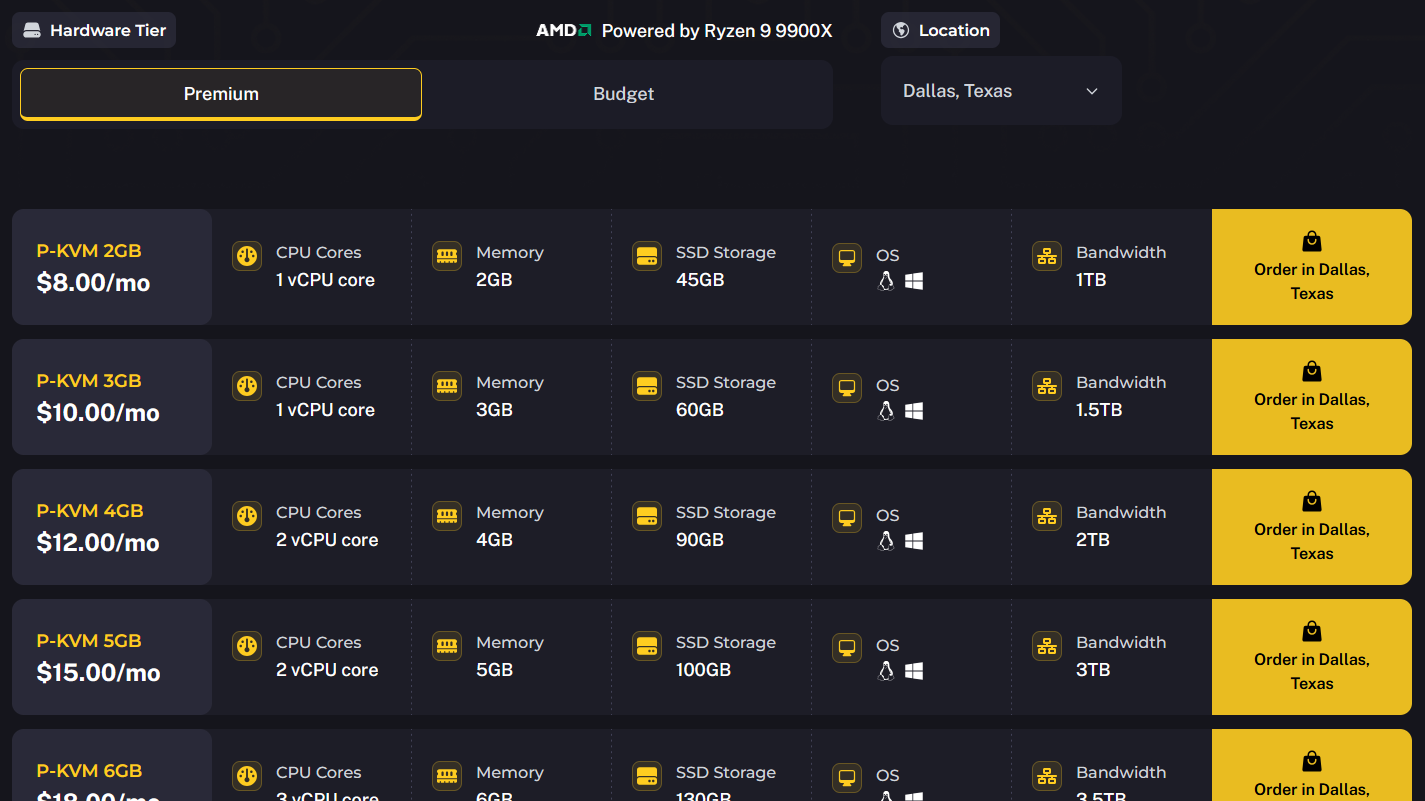
- Once you've selected your preferred Hardware Tier, choose the VPS Hosting plan that suits your needs. Each plan is priced based on the resources and bandwidth it offers.
You can also choose the Server Location that best suits your needs. Sparked Host offers multiple global locations, allowing you to host your VPS Hosting service closer to you or your player base. Selecting a location near your region helps reduce latency and ensures a smoother, more responsive gameplay experience for you and other players.
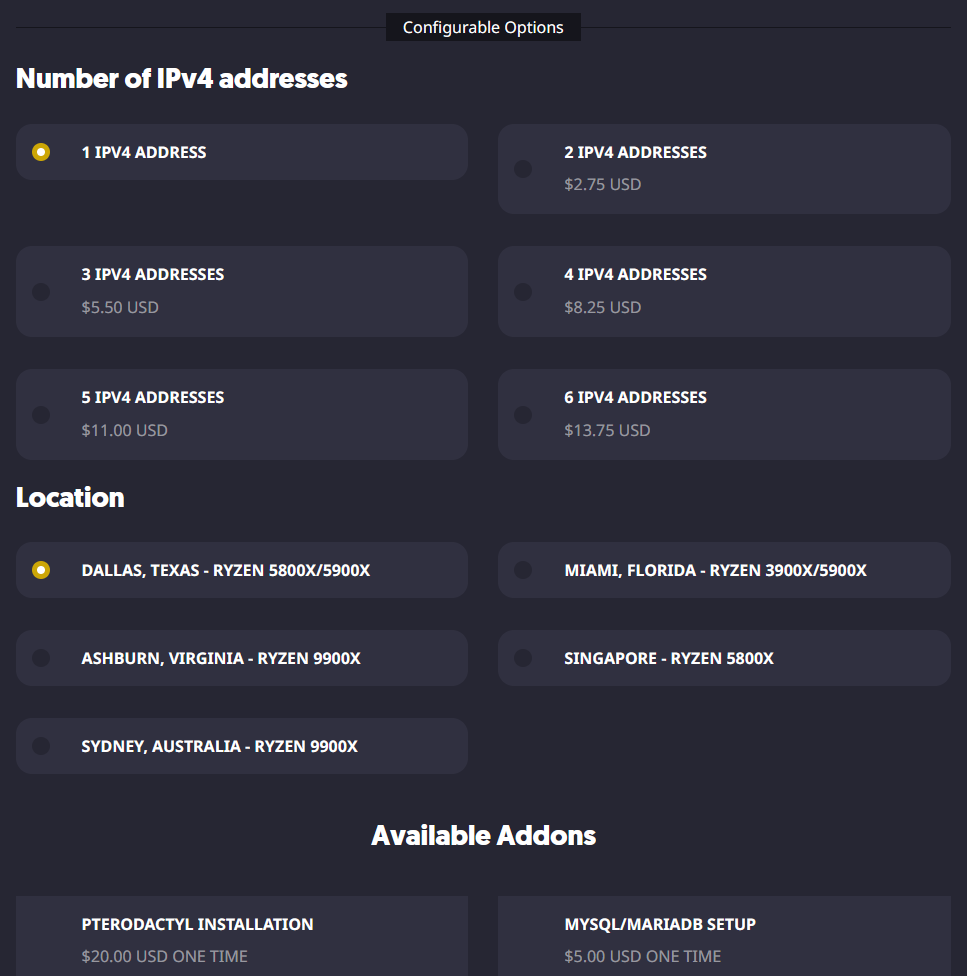
- Once you have selected the plan you want to use, fill out the rest of the configurable options, such as the number of IPv4 Addresses you want, and other additional addons like our "Pterodactyl Installation" and "Security Check" addons.
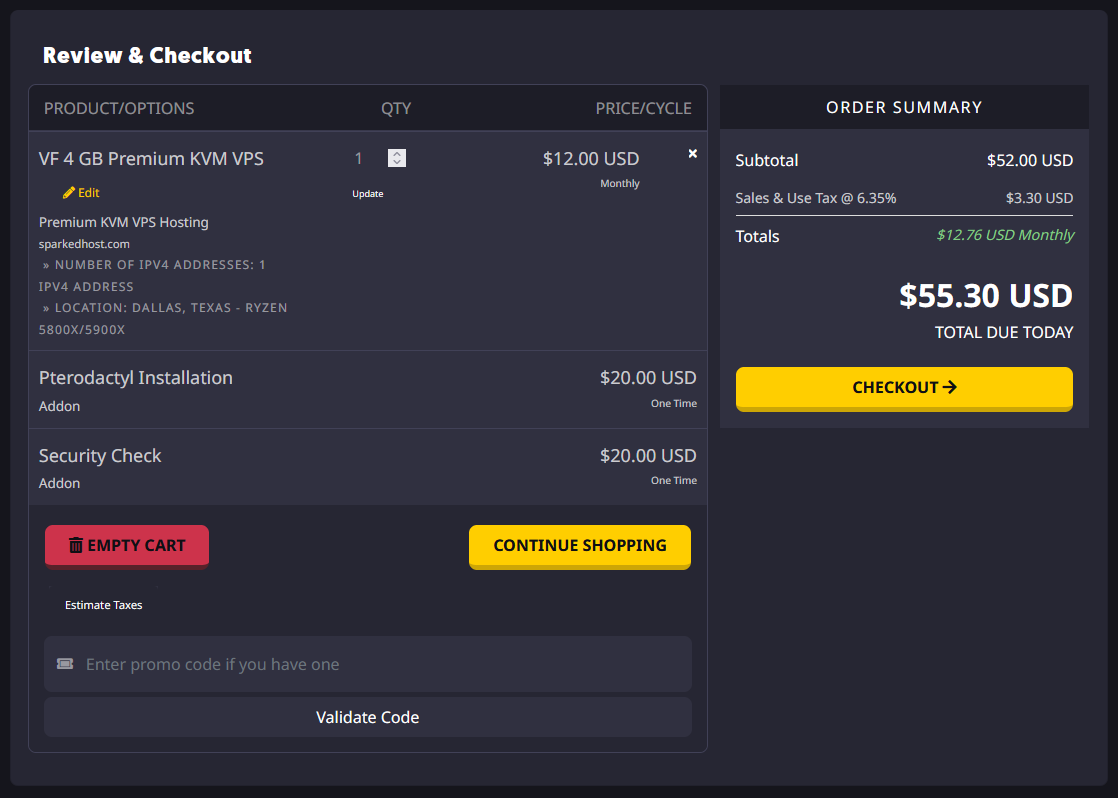
- When you are ready to purchase the services you selected, you can go to your cart to review the selected items and check out when you are ready. Optionally, if you have one, you can also enter a promo code to get a discount on your purchase.
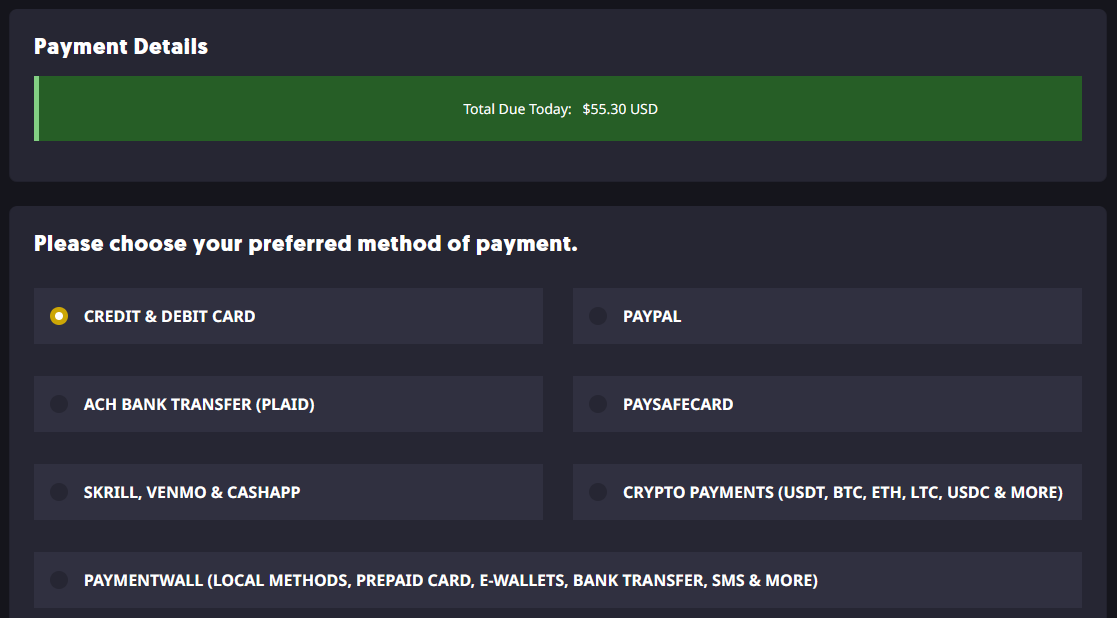
- From there, you can select your preferred payment method and register a Sparked Host Client Area account if you do not already have one.
You can view the different payment methods we accept and their availability on our Payment Methods page.
For Counter-Strike: Source Dedicated Server Hosting
- Go to the Dedicated Server Hosting page.
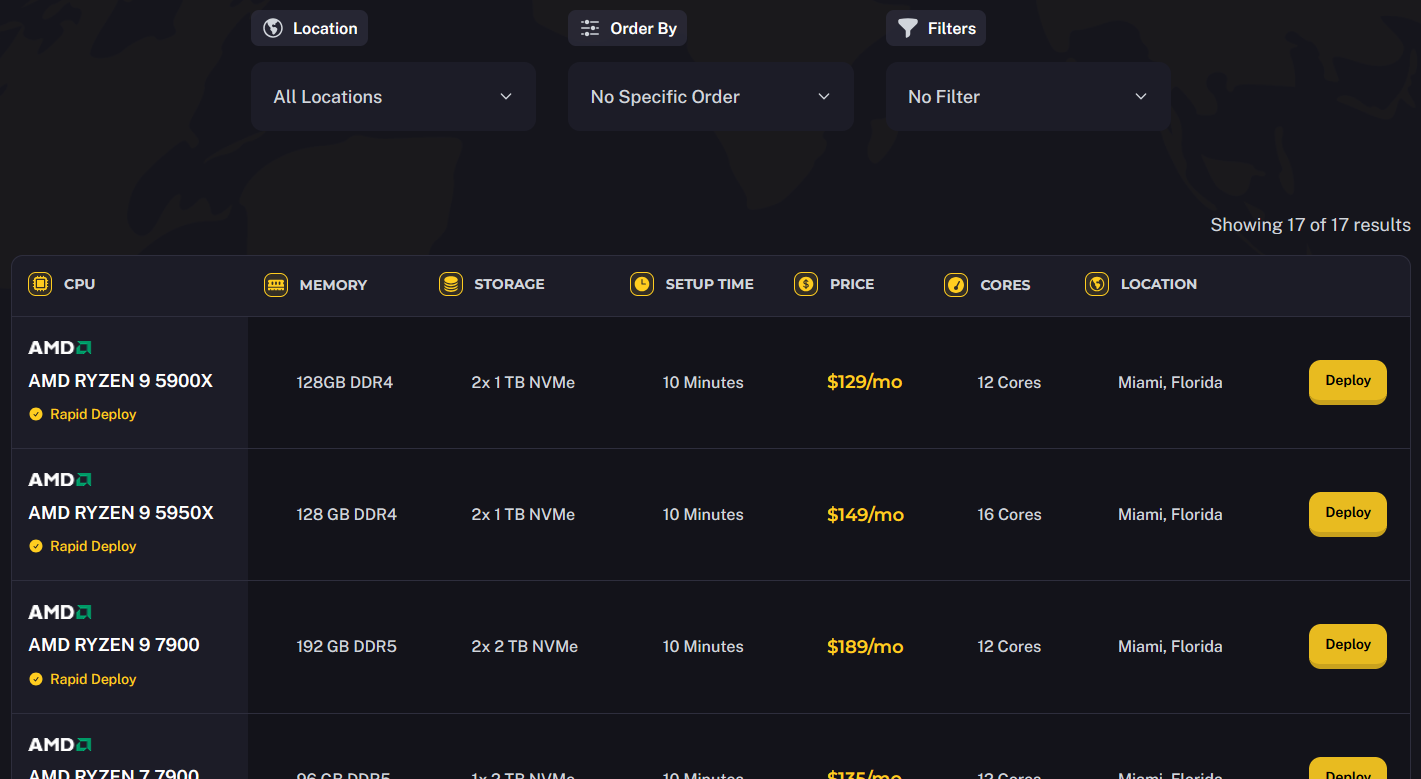
- Click the Deploy button to select the Dedicated Server you want to deploy. You can filter the list by location, order it by highest performance, and even filter it if you wish the server to use an AMD or Intel processor.
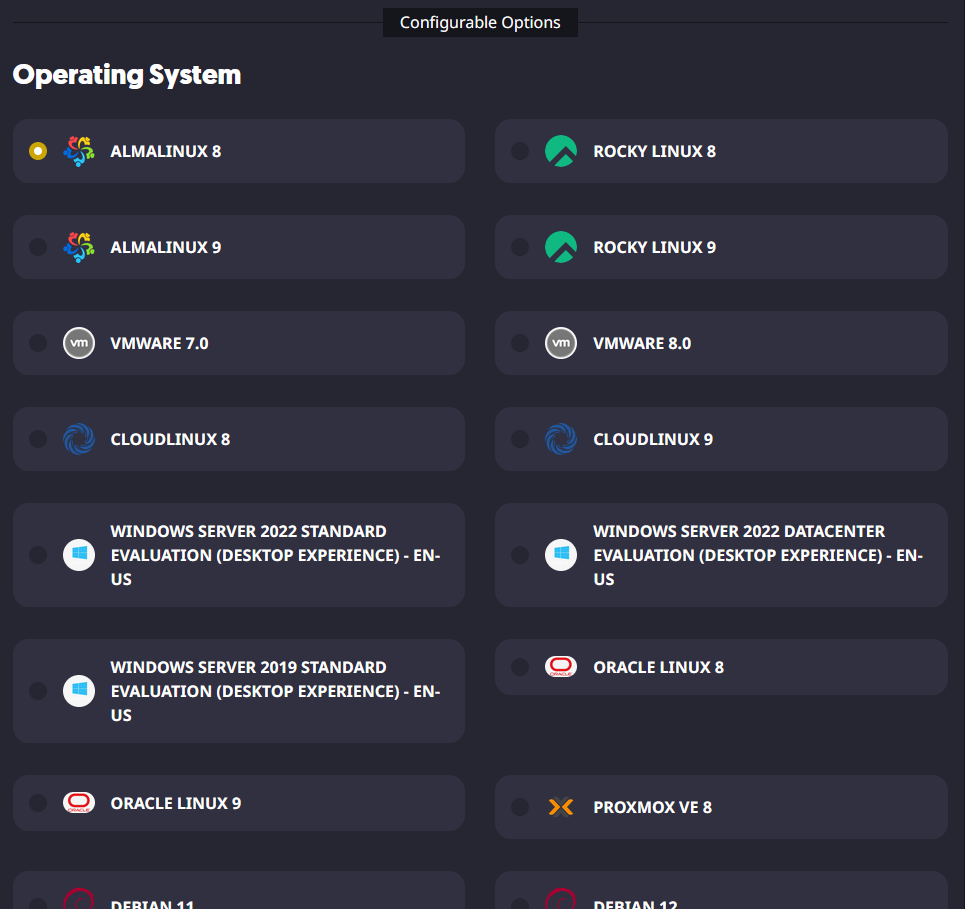
- After selecting the server you want to use, you can configure options such as the OS it should use and use addons such as our "Full Software Support/Managed Dedicated Server" and "Apollo Panel Instance" addons.
- When you are ready to purchase the services you selected, you can go to your cart to review the selected items and check out when you are ready. Optionally, if you have one, you can also enter a promo code to get a discount on your purchase.
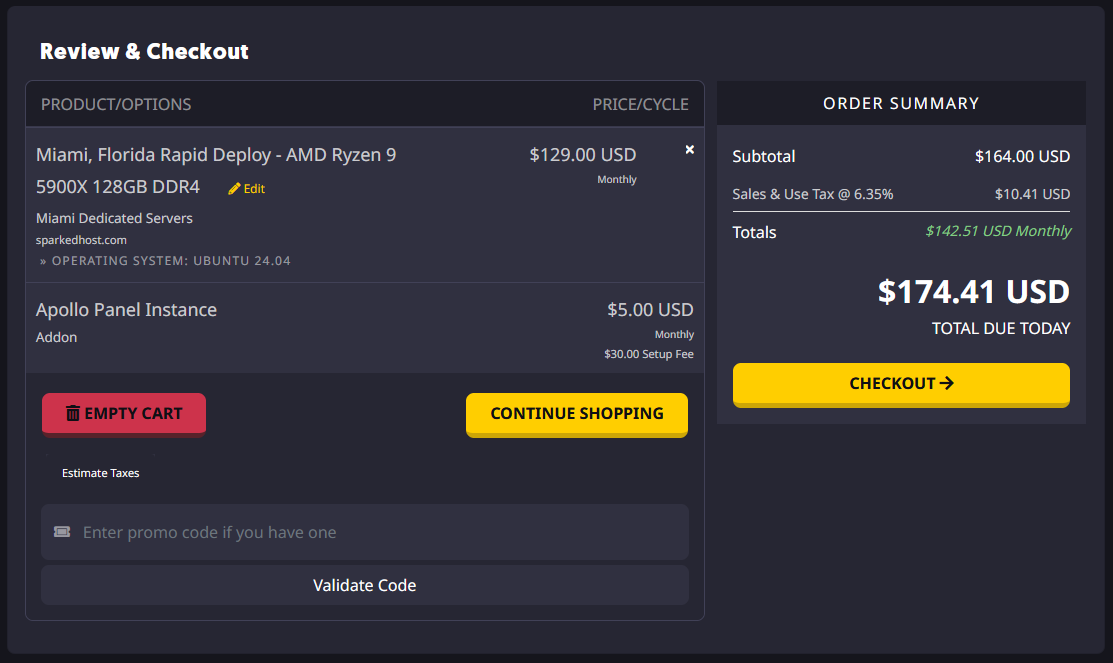
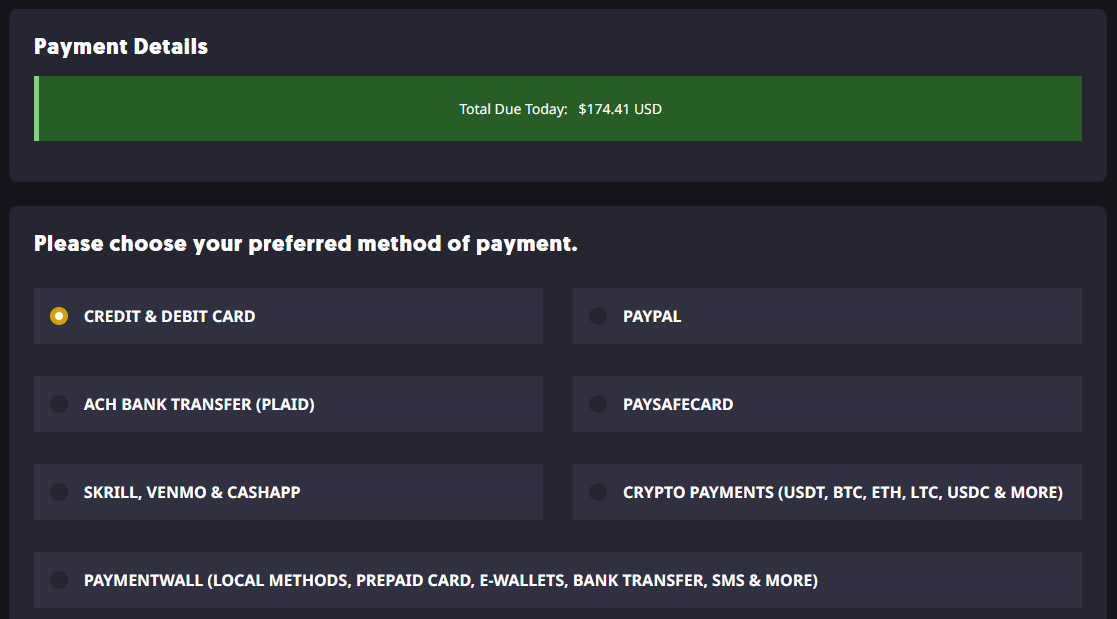
- From there, you can select your preferred payment method and register a Sparked Host Client Area account if you do not already have one.
You can view the different payment methods we accept and their availability on our Payment Methods page.
Step 3: Get Your Login Details
For Managed Counter-Strike: Source Server Hosting
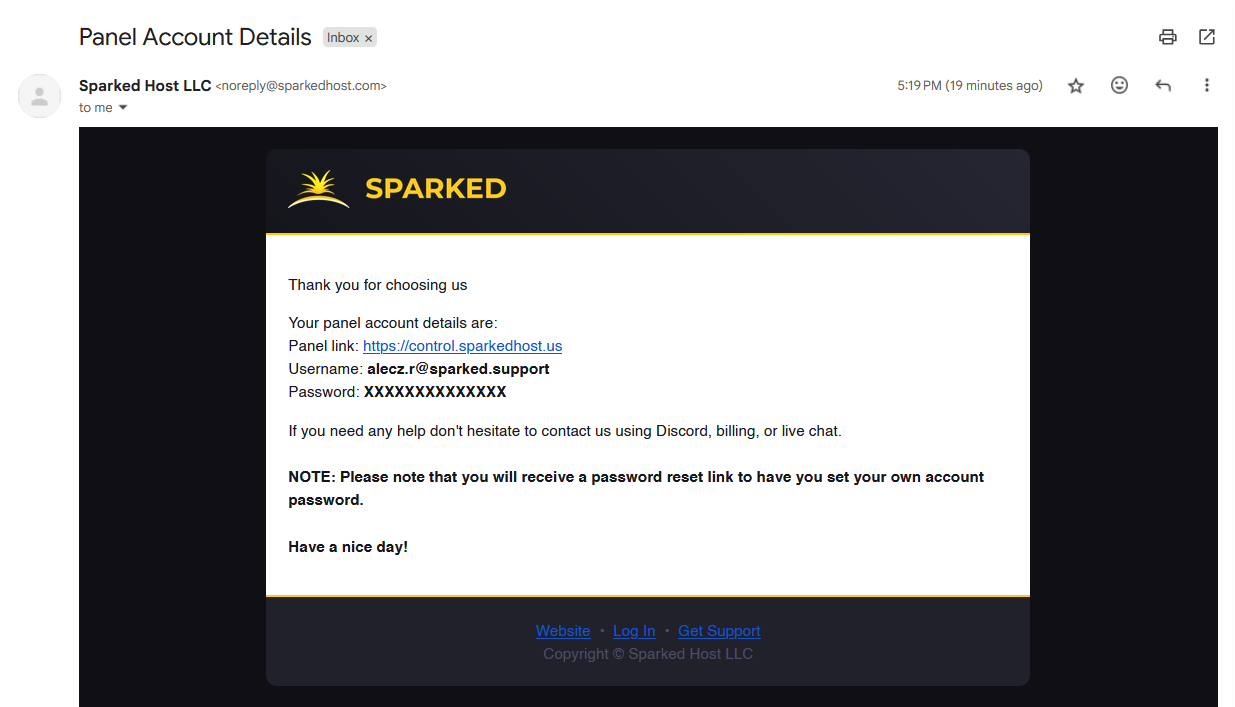
You can find your login details for your Apollo Panel account to manage the game server by looking for an email from us with the subject "Panel Account Details." The email will contain details such as the link to the panel to manage your game server and your Panel Account username and password.
For Counter-Strike: Source VPS Hosting
You will not get an email with your VF Panel login details, just like the email for a Managed Counter-Strike: Source Server Hosting service. Therefore, to get the password for your VF Panel account, you will need to reset it first. You can do so by going to the VF Panel Lost Password page, and then you will be sent an email to reset your VF Panel Account password. The email address will be the same as the one used for your Client Area account.

For Counter-Strike: Source Dedicated Server Hosting
If you purchased a Rapid Deploy Dedicated Server, you can find your login details for your Dedicated Server Manager account to manage the dedicated server by looking for an email from us with the subject "Your Dedicated Server Information." The email will contain details such as the link to the panel to manage your dedicated server, the server's IP Address, and other information.
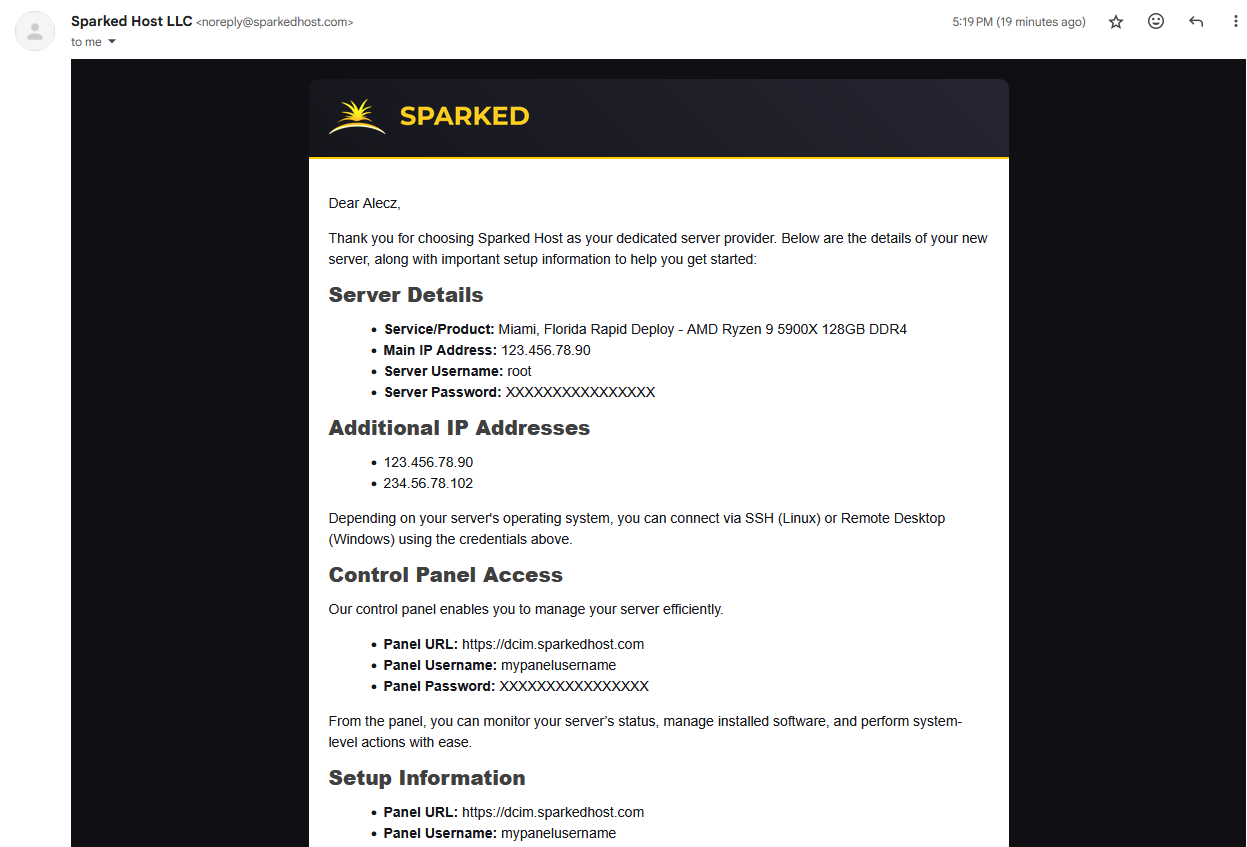
If it isn't a Rapid Deploy Dedicated Server or a custom-built one, you will get the login details from the ticket made for the Dedicated Server.
Step 4: Setup Your Counter-Strike: Source Server
For Managed Counter-Strike: Source Server Hosting
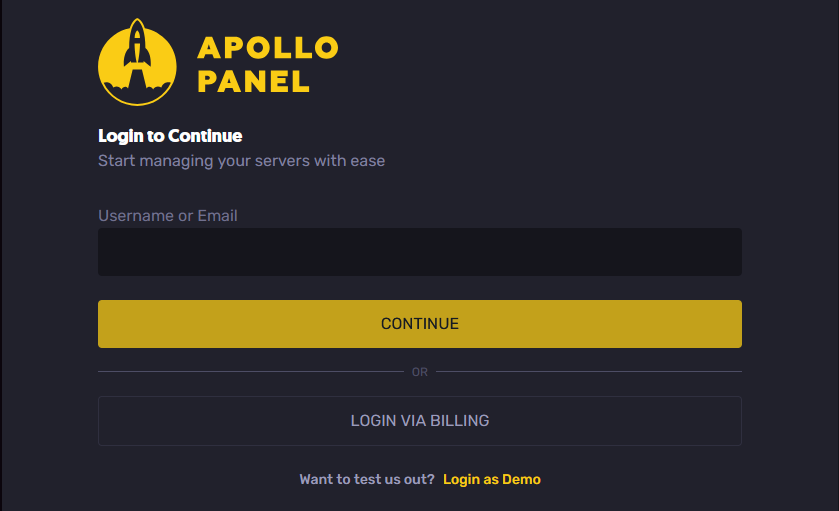
- You can log in to the Apollo Panel with the login details you received earlier or using your Client Area account with the "Login via Billing" button.
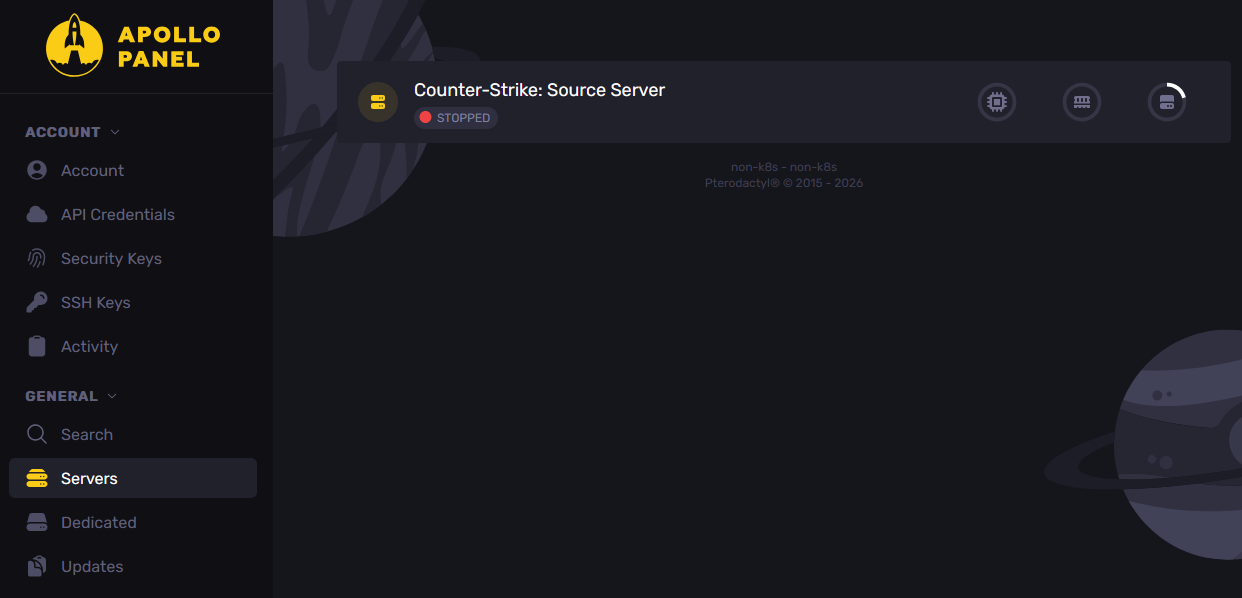
- Select your Counter-Strike: Source Server Hosting service on the Servers page.
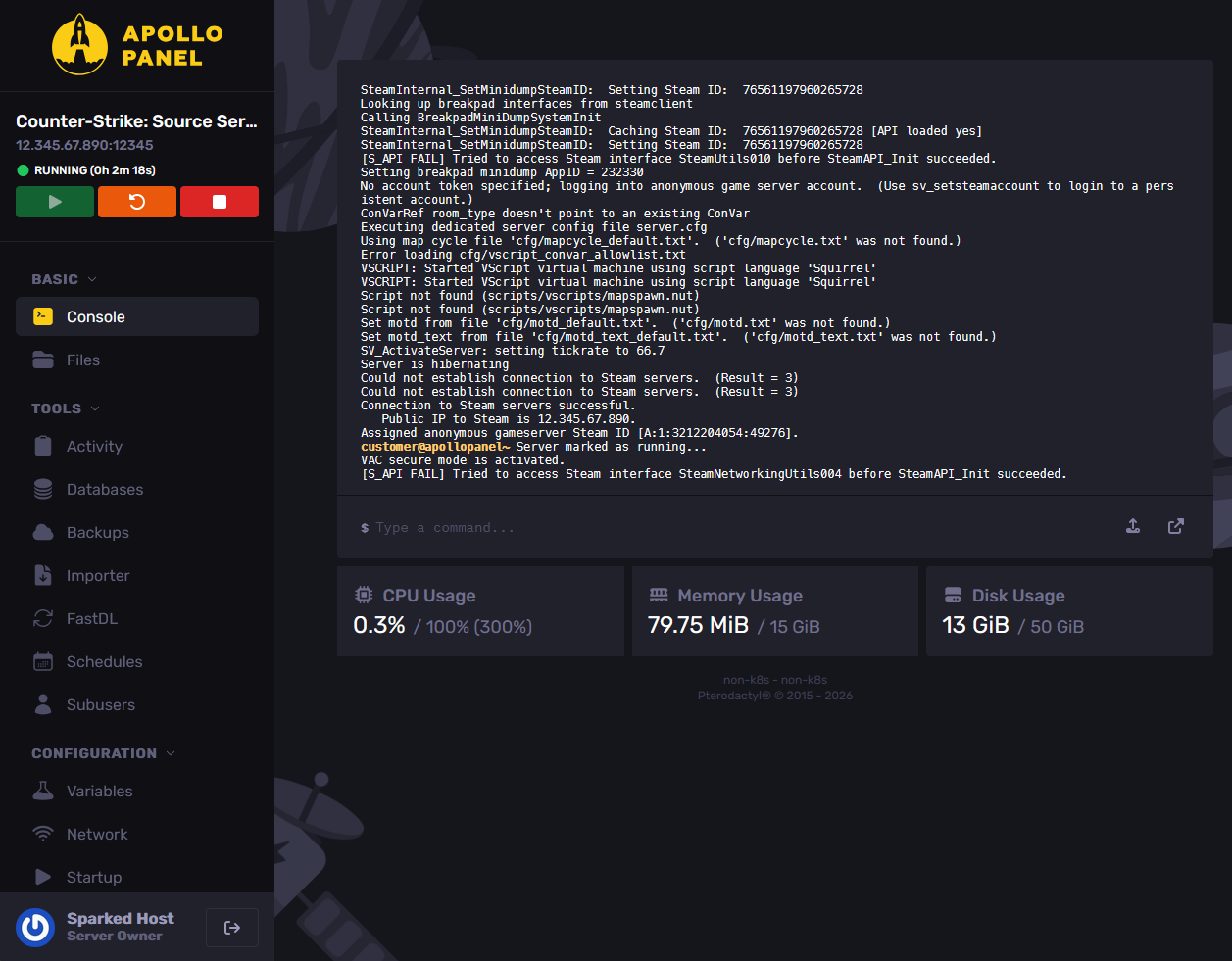
- After configuring all the necessary settings, click the Start button to launch the service and begin enjoying your server once it's up and running.
For Counter-Strike: Source VPS Hosting and Counter-Strike: Source Dedicated Server Hosting
If you use a VPS or Dedicated Server Hosting service, you must manually set up the server to run as a Counter-Strike: Source Server. There are guides from sites like the Counter-Strike: Source Steam Community Guides, which you can follow to install the necessary software and server files to run a Counter-Strike: Source Server on your own server.
Optionally, for Dedicated Servers, you can include the "Apollo Panel Instance" addon in your service order, wherein we will install the Apollo Panel, our sleek, custom-built control panel for Sparked Host users that will allow you to effortlessly manage your server with powerful tools, an easy-to-use interface, and all the features you need to stay in control.
Updated on: 02/04/2026
Thank you!