How To Move Palworld Save To Server
Bringing your Palworld single-player progress to a server is a smart way to keep the adventure going with friends. Moving your save file lets you pick up right where you left off—no need to start over. It’s ideal for players who’ve built up a strong world locally and now want to explore it cooperatively online. With just a few file transfers, your personal world becomes a shared one. This process preserves your base, creatures, and character progress so your hard work doesn’t go to waste when transitioning to a multiplayer setup.
In this guide, we'll show you how to move Palworld save to server, and find all the files you need to transfer any save to your dedicated server and host the best Palworld server with other players!
Transferring a Player Save
- Connect to your server.
- Create a character temporarily.
- Return to the main menu.
- Access the Apollo Panel.
- Stop the server.
- Head over to the Files tab.
- Open the following directory:
Pal/Saved/SaveGames/0/<WorldName>/Players - Copy the player ID.

- Access the Converter.
- Select the world save uploaded to the server.

- Choose the the Co-Op host character to transfer.
- Now, in Step 2 paste the player ID copied.

- Mark the Checkbox and hit Convert.
- Once convereted, install the converted save zip file.
- Extract the zip file into a new folder.
- Open the Apollo Panel.
- Delete the .sav file.

- Upload the converted .sav file inside the Players folder from the zip file.
- Head back to the world folder.
- Delete the
Level.savfile.
- Upload the
Level.savfile from the convereted zip file. - Start the server.
Uploading A Palworld Existing Save To A Palworld Server
To upload an existing world to a Palworld server:
- Search for
%appdata%using "Windows + R" and press enter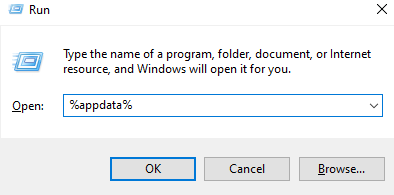
- Once opened, proceed by navigating to the "Local" folder
- Locate the "Pal" folder
- Inside the "Pal" folder, locate and open the "Saved" directory.
- Open the "SavedGames" folder.
- You will see a folder named after your Steam 64 ID. Click on it to access your world file save games, as shown in the example below
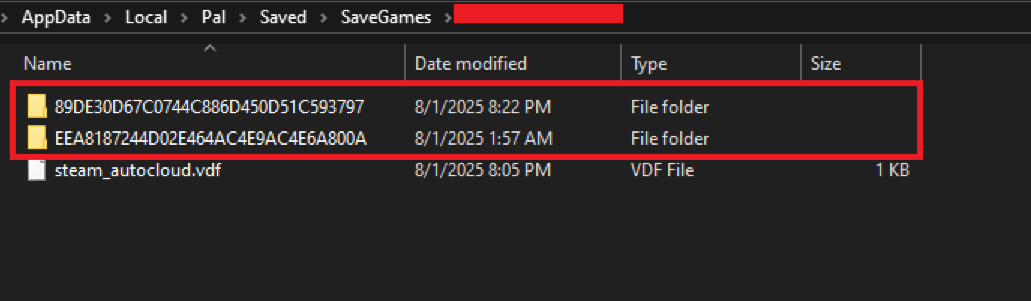
- Open the desired save and compress the files inside.
- Now, head over to your Apollo panel
- Open the Files tab
- Navigate to the following directory:
/home/container/Pal/Saved/SaveGames/0
- Access your save and delete the files inside.
- Upload the compressed file.
- Extract the uploaded zip file.
- Now, start or restart your Palworld server and enjoy your new transferred save!
Downloading A Palworld Save File From A Dedicated Server To A Computer
To download a Palworld server save:
- Access your Apollo panel
- Open the File Manager
- Navigate to the following directory:
/home/container/Pal/Saved/SaveGames/0
- Right-click the folder, and click Archive
- Install the archived file on your local machine
- You've now successfully installed the save folder to your computer
Still have some questions about transferring a Palworld world save?
If you need any further instructions, you can log in and create a ticket here
By: Ali A.
Updated on: 18/08/2026
Thank you!