How to Transfer a World Save to Singleplayer from an Abiotic Factor Server
How to Transfer a World Save to Singleplayer from an Abiotic Factor Server
Players often transfer an Abiotic Factor server world to singleplayer to keep their progress safe and enjoy the flexibility of offline play. Moving an abiotic factor server save from a hosted world or dedicated server into a local world helps preserve player data, savegames, and overall progress without depending on server uptime. It also acts as a reliable backup, making it easier to manage, test, and continue the game locally while keeping world data secure.
Downloading an Abiotic Factor World
- Access your Apollo panel.
- Stop the server.
- Head over to the Files tab.
- Navigate to the following directory:
AbioticFactor/Saved/SaveGames/Server/Worlds
- You should be able to view your worlds.

- Archive and install the desired world file, or you can upload it directly to your local machine using FileZilla. You can follow our guide to use an FTP client here.
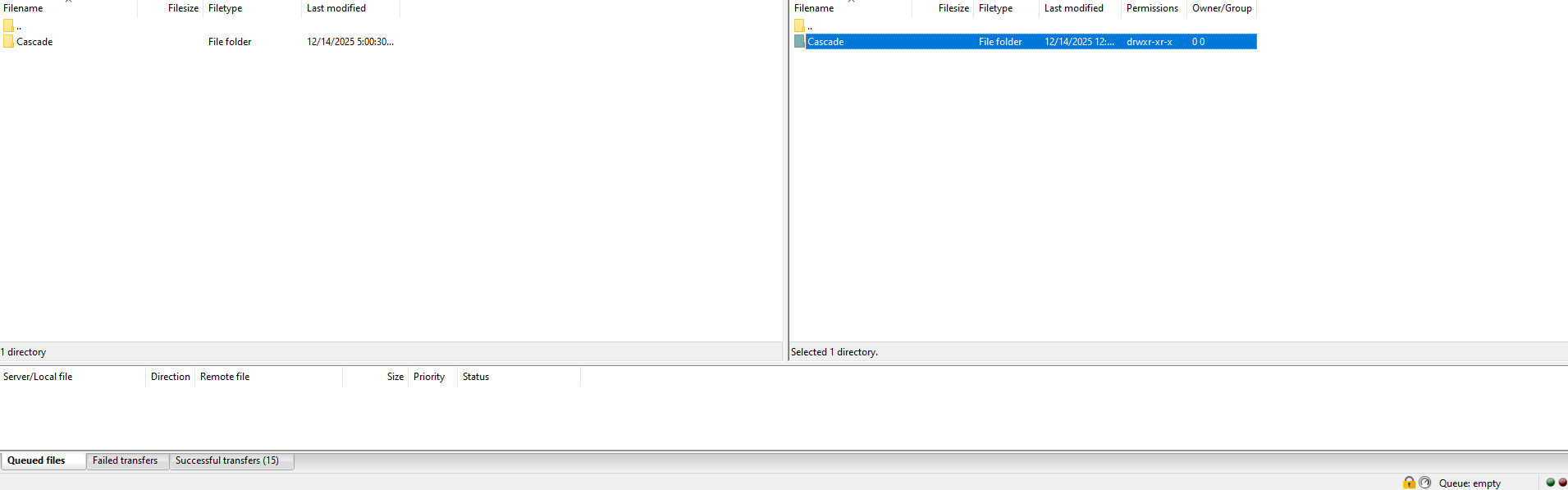
Transferring an Abiotic Factor Server Save
- On your Keyboard, press
Windows + R
- Head over to the following path:
%LocalAppData%/AbioticFactor/Saved/SaveGames
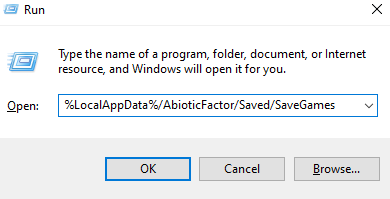
- Find the Steam64 folder desired.
- Open the
Worldsfolder.
- Upload and unzip the installed worlds folder from your server.

- Launch the game, then select the uploaded world from the Load World menu.
- Start playing in the new world with friends!
Still have some questions?
If you encounter any issues or need further support, please feel free to create a support ticket here.
Updated on: 15/12/2025
Thank you!