How to Use the Cluster Feature for Soulmask Servers
How to Use the Cluster Feature for Soulmask Servers
The cluster feature for Soulmask servers allows multiple servers to operate as a single cluster, giving players access to different maps while preserving their character progression and world data. Server owners often use cluster mode to connect a main server with a secondary server, such as the Shifting Sands map, allowing character transfers between worlds without requiring players to start over. This creates a larger, more connected game experience, making it easier for communities to expand beyond a single server while maintaining consistent server settings and player progress. This guide will show you how to use the cluster feature for Soulmask servers.
Main Server
- Open the Apollo Panel.
- Stop the server.
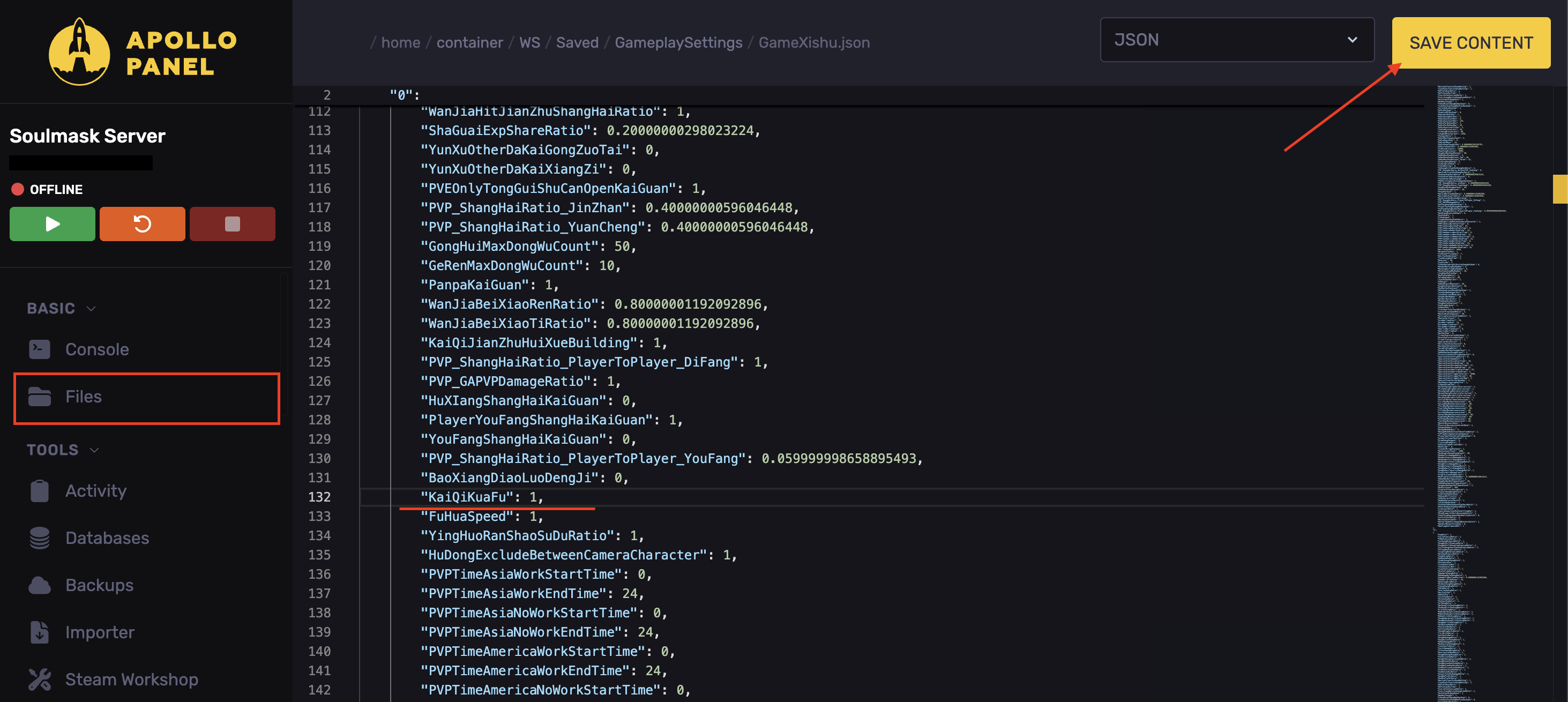
- In the Files tab, navigate to the following directory:
WS/Saved/GameplaySettings/GameXishu.json
- Search for
KaiQiKuaFuand set the value to1
NOTE: Enabling cross-server mode KaiQiKuaFu MUST be done on both servers. Also, IF a password is set. It must be the same password on both servers.
Client Server
- Open the Apollo Panel.
- Stop the server.
- In the Files tab, navigate to the following directory:
WS/Saved/GameplaySettings/GameXishu.json
- Search for
KaiQiKuaFuand set the value to1
Start Server Clusters
- Open the Apollo Panel.
- Head over to one of your servers. We will be using the Main Server in this example.
- In the Soulmask Cluster tab. Select the Client Server and hit Save Cluster.
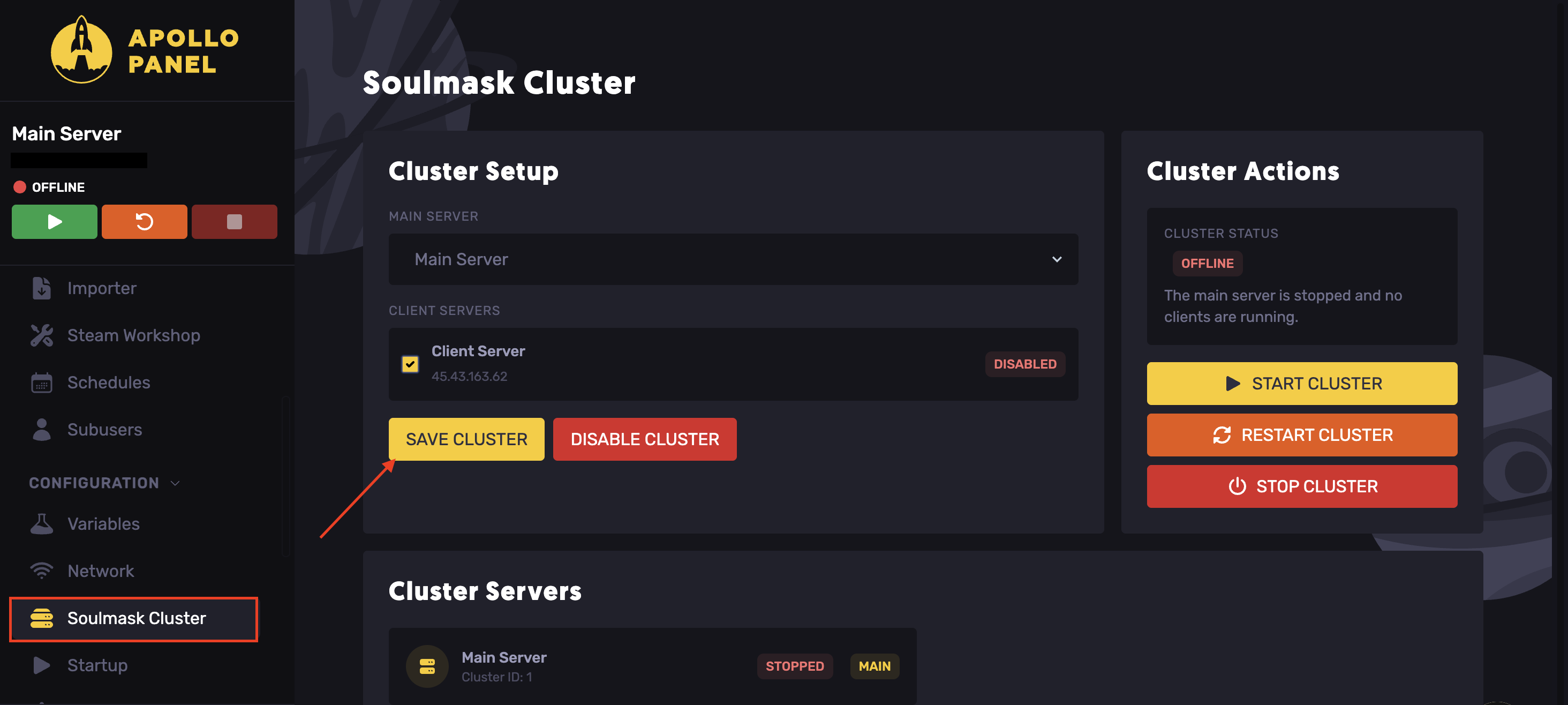
- Once saved, hit Start Cluster.
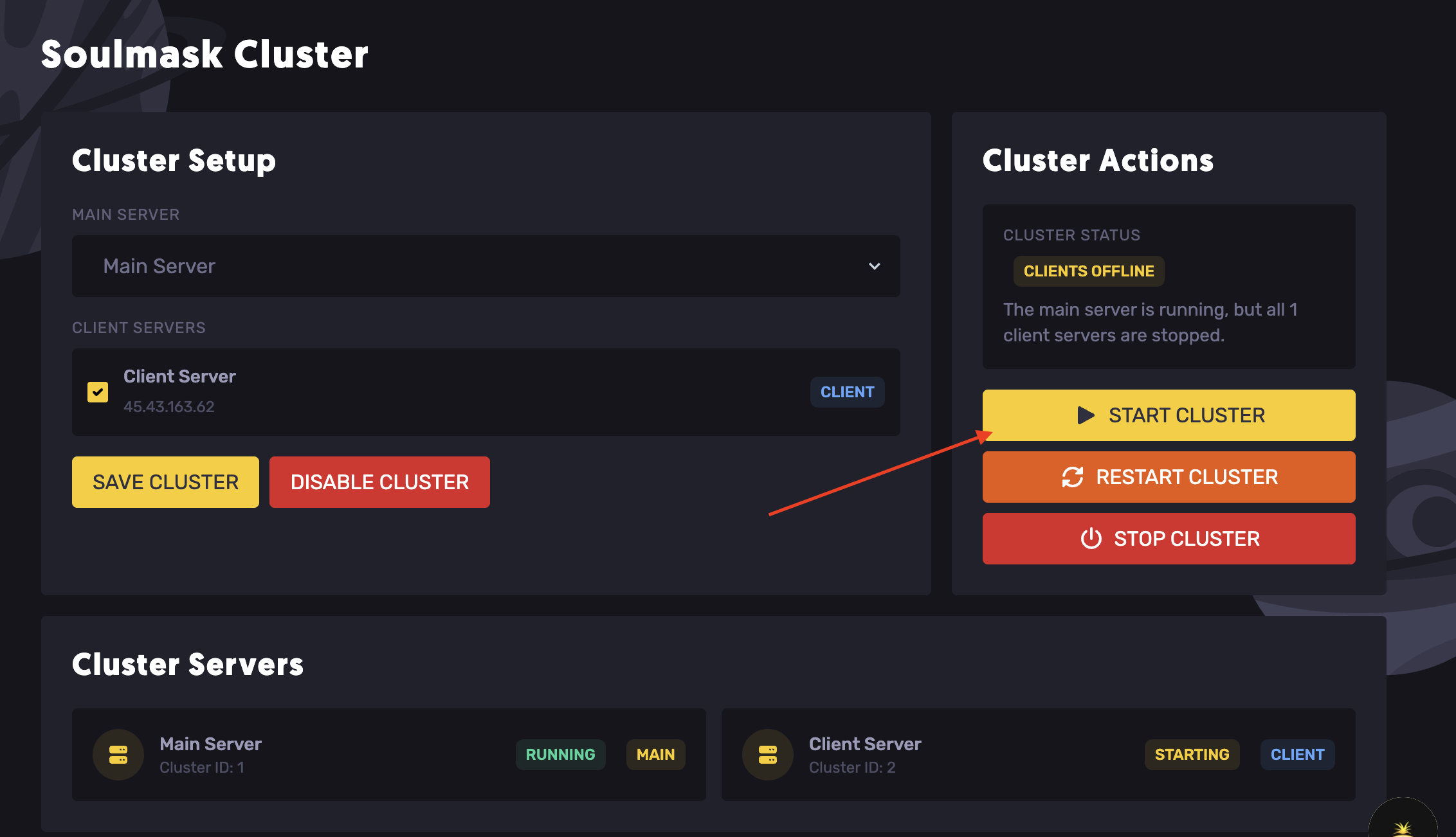
- Wait for both servers to start.
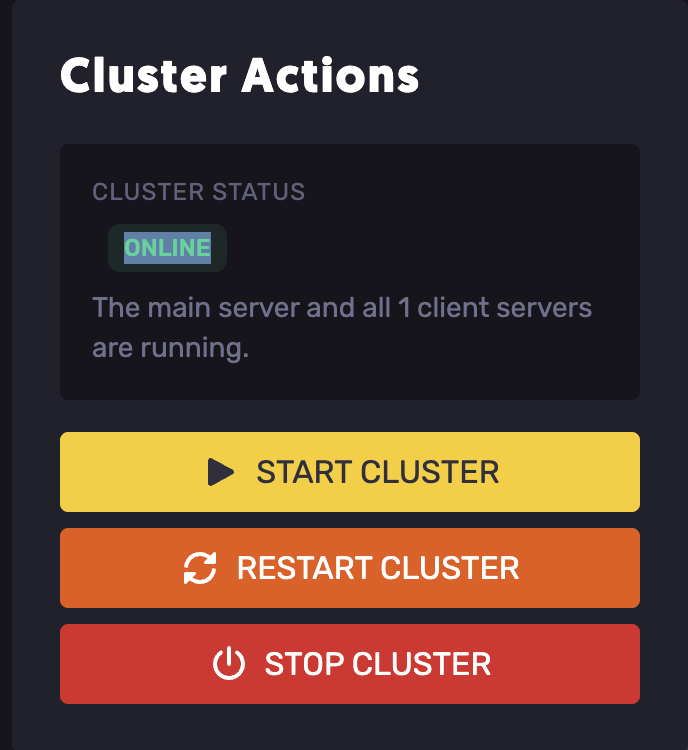
- To confirm that both servers are running. The Cluster status should be Online.
Updated on: 03/06/2026
Thank you!