How To Add Don't Starve Together Server Mods
How To Add Don't Starve Together Server Mods
Don't Starve Together server mods make it easy to customize the game with new features, characters, and community content without changing the default experience. Most setups rely on Steam Workshop content, where the server automatically handles the files and reads each mod’s configuration, version data, and LUA settings. The game simply loads whatever is enabled, and other players can join the server with those mods active, giving everyone a smoother, more personalized Starve Together experience.
Installing Mods on a Don't Starve Together Server
- Open Steam's Don't Starve Together workshop to find all the mods you'd like.
- Search for the new mod you'd like to download, and copy the ID number.

- If you have a workshop collection. You can also copy its ID.
Adding Don't Starve Together Mods
- Access your Apollo panel.
- Head over to the "Files" tab.
- Open the "mods" folder, and navigate to the
dedicated_server_mods_setup.luafile.

- To add mods, paste the line
ServerModSetup("ID number")
- To add the entire workshop collection, paste the line
ServerModCollectionSetup("Workshop Collection ID")
Please note you need to delete the line that includes -- before pasting any lines.
- Here is an example for both lines.

- Click Save Content
- Navigate to the following directory
DoNotStarveTogether/config/server/Master
- Create a file named
modoverrides.lua

- Paste the following line into the
modoverrides.luafile text editor. Make sure to edit and replace the1234with the mod ID.
return {
  ["workshop-1234"] = {
    configuration_options = {},
    enabled = true
  }
}
- To add another mod, copy the existing block, paste it below it inside the
return { }, add a comma after the first block, and replace the workshop ID. Here is an example of 2 mods:
return {
  ["workshop-1234"] = {
    configuration_options = {},
    enabled = true
  },
  ["workshop-1234"] = {
    configuration_options = {},
    enabled = true
  }
}
- If the overworld and caves are split. Create the
modoverrides.luafile within the caves folder, which can be found in the following directory:DoNotStarveTogether/config/server/Caves
To Your Computer
- Open Steam.
- Navigate to the Community tab.
- Search for Don't Starve Together.
- Click Workshop.
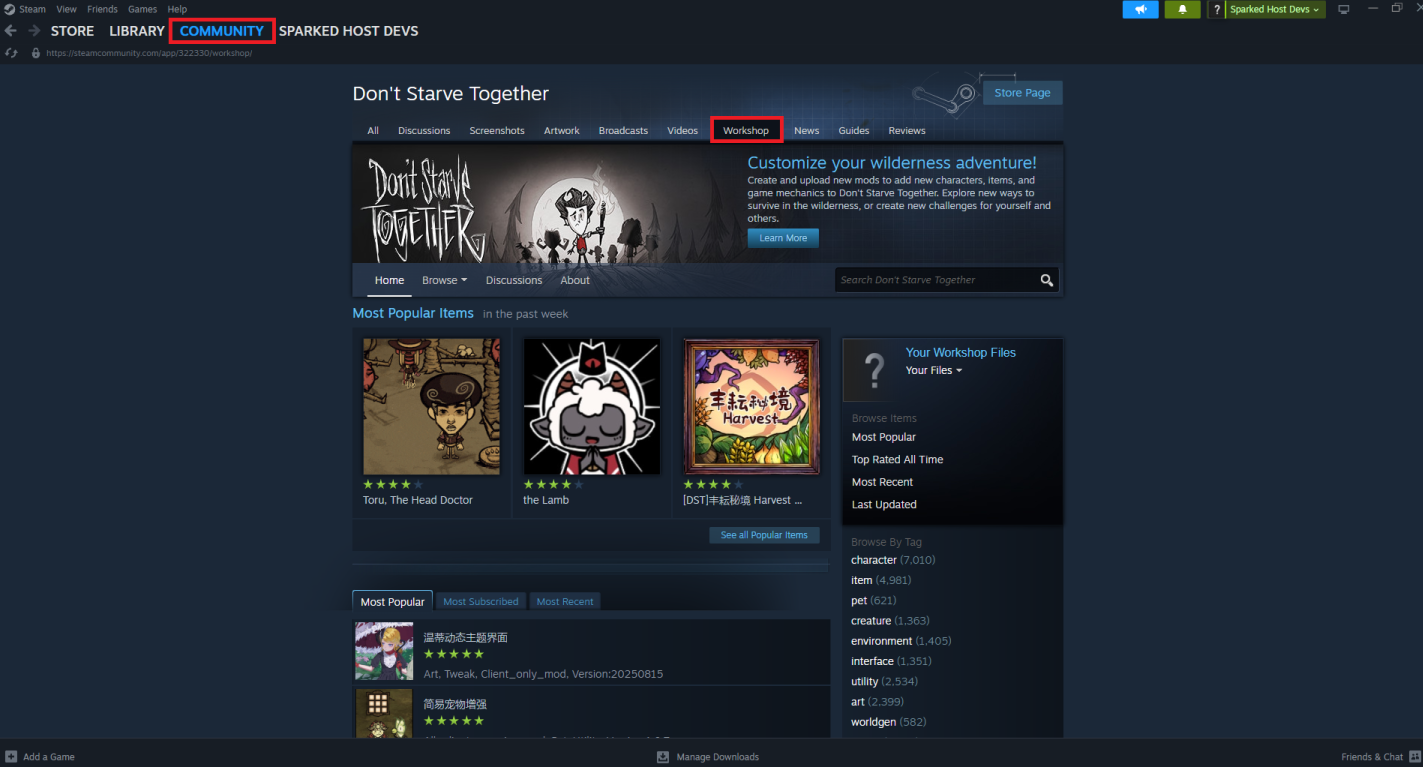
- Subscribe to the desired mod.
- Open Don't Starve Together.
- Head over to the Mods tab.
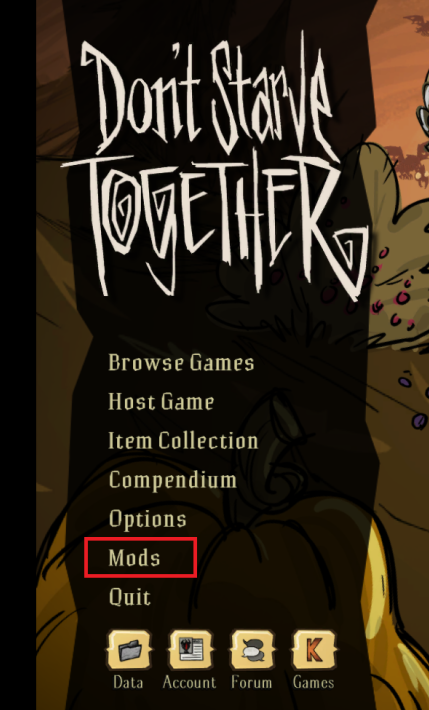
- You should now be able to see all the mods you've chosen.
Removing Don't Starve Together Mods
- Open your Apollo panel.
- Head over to the files manager.
- Navigate to the
modoverrides.luafile.
- Find the mod you'd like to disable, and change
enabled = truetoenabled = false
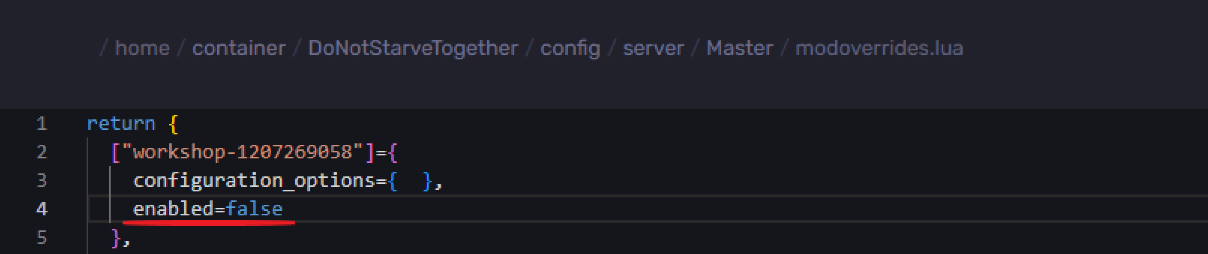
- To enable mods back, you can change
enabled = falsetoenabled = true
To Your Computer
- Open Steam.
- Navigate to the Community tab.
- Search for Don't Starve Together.
- Click Workshop.
- Unsubscribe from the desired mod.
Still have some questions about Don't Starve Together mods?
If you need any further support, you can log a ticket here.
Created by: Ali A.
Updated on: 04/12/2025
Thank you!