How to Change the Map on a BeamMP Server
How to Change the Map on a BeamMP Server
Changing the map on a BeamMP server is a popular way to refresh gameplay and introduce new areas for players to explore. Understanding how to change the map on a BeamMP server helps owners highlight custom maps or switch from default maps, ensuring the map name and map configuration are recognized by the server and the resources client. Properly updating the map file improves the experience for friends and players joining the server, keeping gameplay engaging and smooth.
To change the map on a BeamMP server, follow the steps below:
- Open your Apollo Panel here.
- Stop the server.
- Navigate to the Startup tab.
- Find the Map field, and change it as desired.
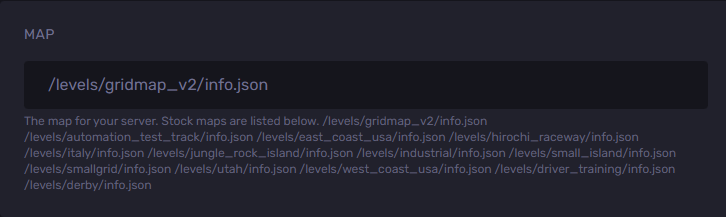
- Start the server.
Default Map Codes
/levels/gridmap_v2/info.json
/levels/automation_test_track/info.json
/levels/east_coast_usa/info.json
/levels/hirochi_raceway/info.json
/levels/italy/info.json
/levels/jungle_rock_island/info.json
/levels/industrial/info.json
/levels/small_island/info.json
levels/smallgrid/info.json
/levels/utah/info.json
/levels/west_coast_usa/info.json
/levels/driver_training/info.json
/levels/derby/info.json
Still have some questions?
If you need any further instructions, you can create a ticket here.
Updated on: 26/12/2025
Thank you!