How to Upload a Save to a Don't Starve Together Server
Uploading a save to your Don't Starve Together server allows you to continue an existing world, restore backups, or transfer progress from a local game to your server. This is commonly done by uploading your save files to the correct cluster directory.
Uploading a Save
- Launch the Don't Starve Together game on your computer.
- Click on the "Data" button on the main menu.
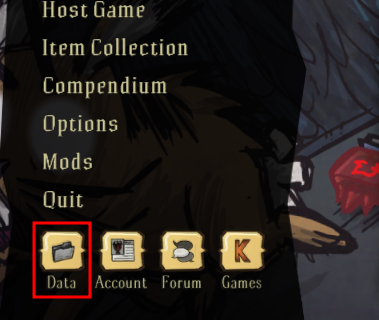
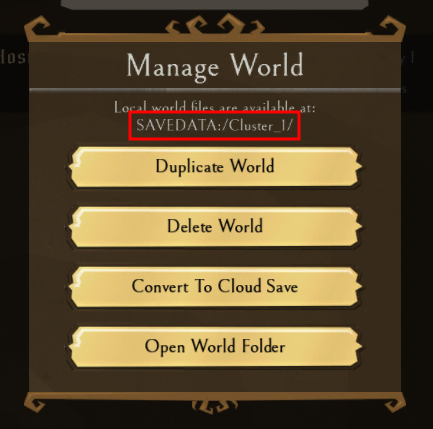
- Compress the desired "Cluster" folder to a .zip file. If you do not know the Cluster folder of your world, you can see its name when you manage the world under "SAVEDATA".
- Open the Apollo Panel, and ensure that your server is offline.
- In the Files tab, go to the "DoNotStarveTogether/config" folder and delete the "server" folder.
- Upload and extract the cluster folder you made in Step 3 into the same directory.
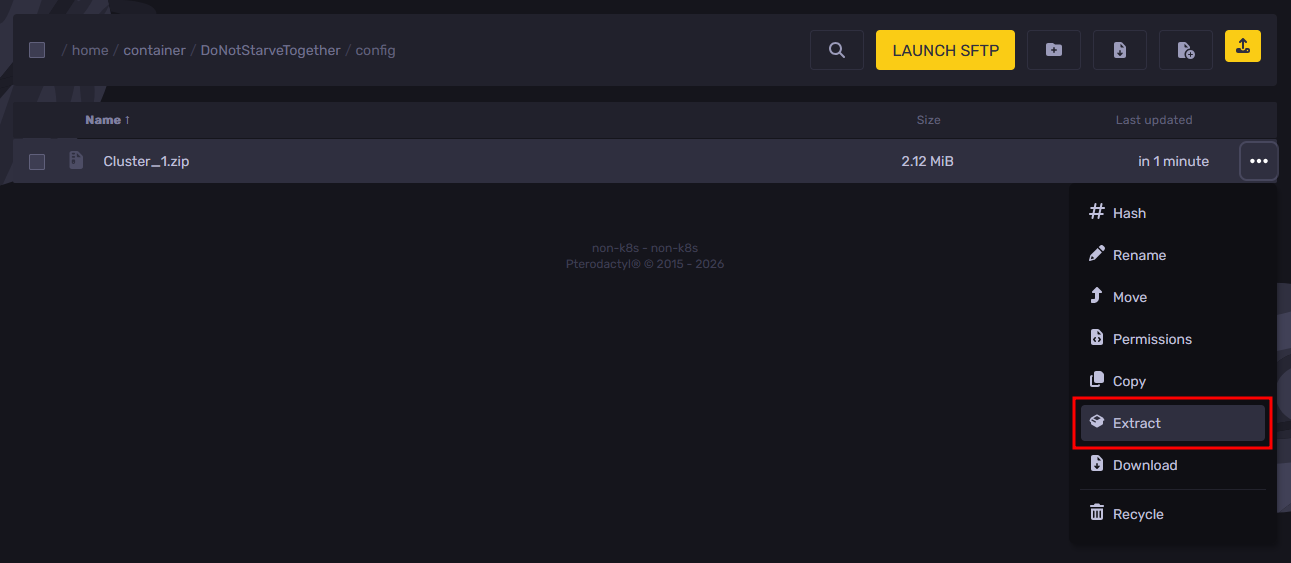
- Rename the extracted folder to "server" instead.
- Enter the "server" folder and edit the "cluster.ini" file.
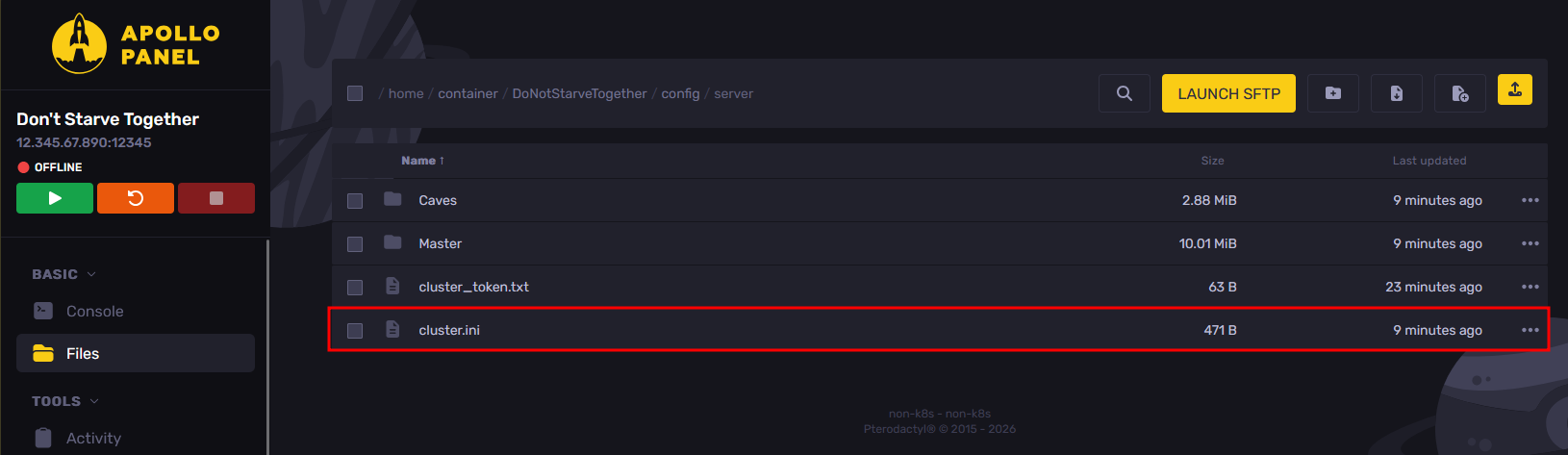
- Set the "cluster_key" setting to be "dst", and remove the "lan_only_cluster" and "offline_cluster" lines.
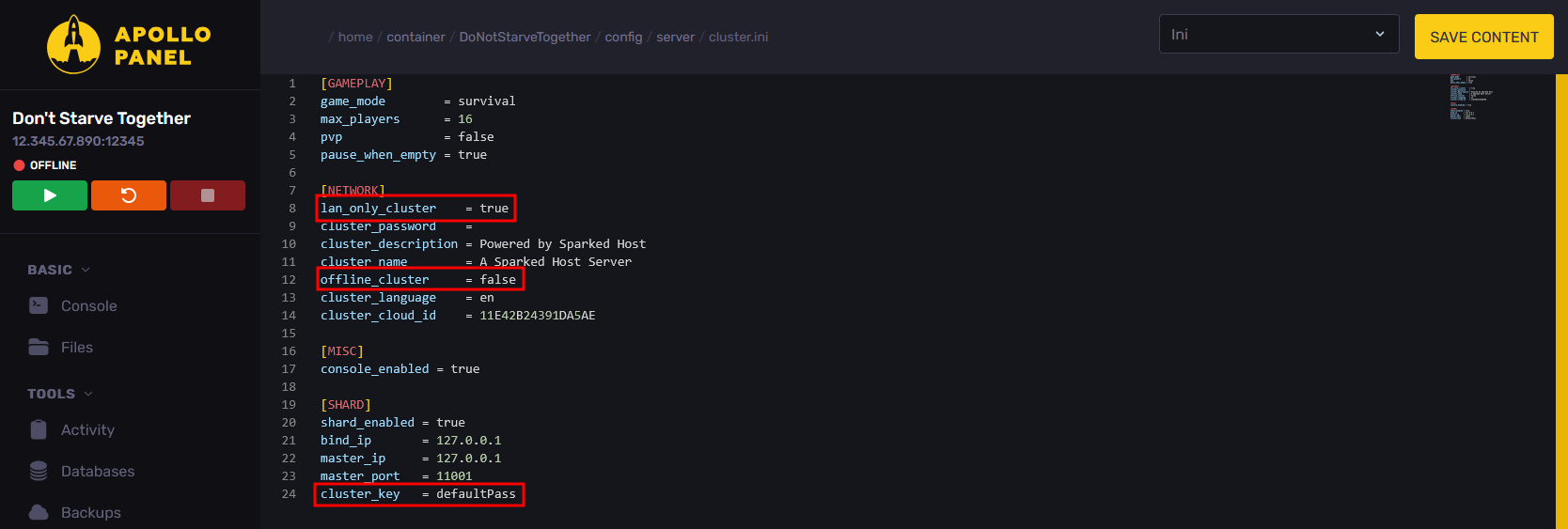
- Start your server, and the uploaded save should now load.
Updated on: 15/05/2026
Thank you!