How to Upload an Xbox Game Pass Save to an Abiotic Factor Server
How to Upload an Xbox Game Pass Save to an Abiotic Factor Server
Uploading an Xbox Game Pass save to an Abiotic Factor server lets players continue their progress in a multiplayer environment while keeping all their world files and player data intact. How to upload an Xbox Game Pass save to an Abiotic Factor server. By transferring a local Abiotic Factor save from your PC to the server files, you can manage an existing world, play with friends, and ensure your progress is preserved. This process provides a simple way to move your savegames from singleplayer or Game Pass to a dedicated server, allowing you to load, play, and manage your world without losing any important data.
Transferring the Abiotic Factor Server Save
To transfer an Abiotic Factor XBox server save, follow the steps below:
- On your keyboard, hit
Windows + R
- Enter
%LocalAppData%/Packages/PlayStack.AbioticFactor_3wcqaesafpzfy/SystemAppData/wgs
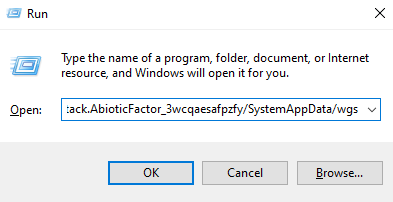
- Open the saves folder.
- Select all the files and archive them.
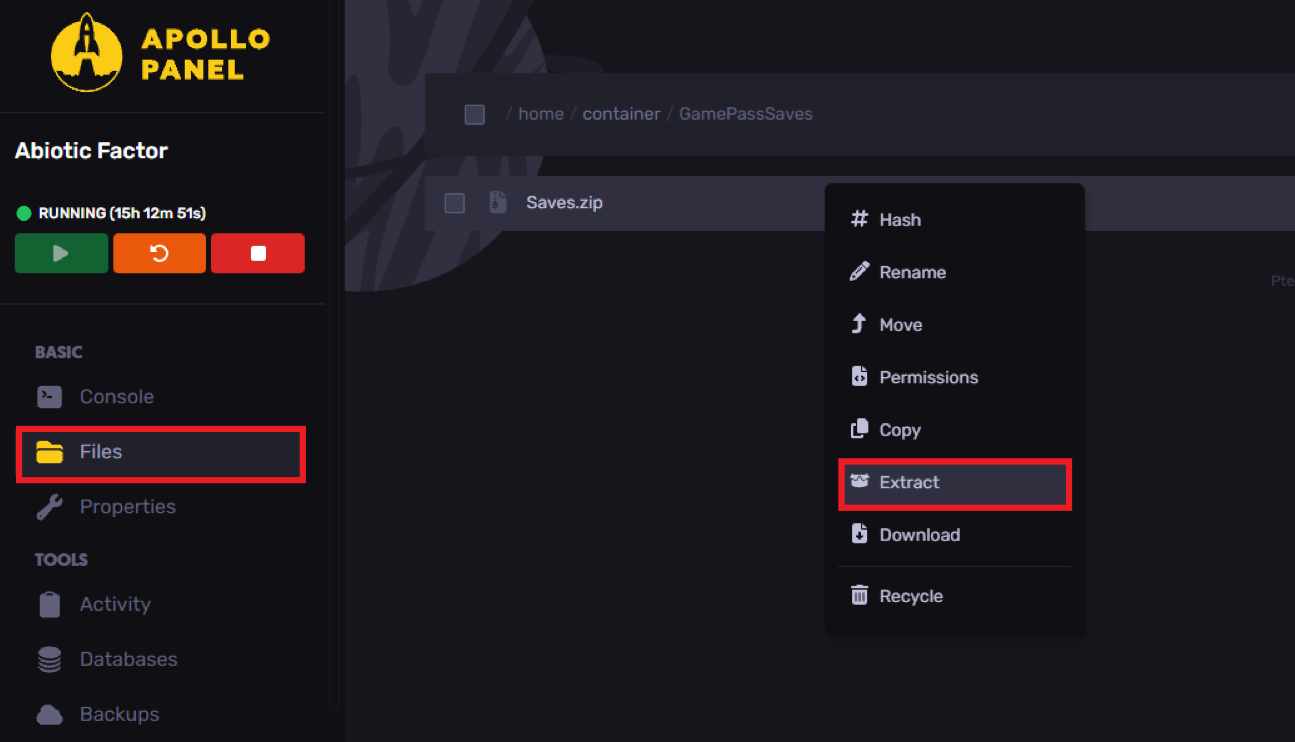
- Access your Apollo panel.
- Stop the server.
- Navigate to the
GamePassSavesfolder.
- Upload the archived file by dragging and dropping it or using FileZilla. You can refer to our guide on using an FTP client here.
- Extract the file uploaded.
- Head over to the Startup tab.
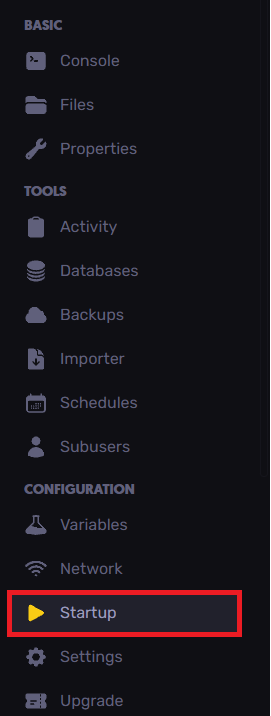
- Choose the desired World Name.

- Start the server.
Still have some questions?
If you encounter any issues or need any further instructions, you can file a ticket here.
Updated on: 15/12/2025
Thank you!