How to Change Maps And Create A Map Rotation in TF2
Knowing how to change maps and create a map rotation in TF2 keeps your Team Fortress 2 server fresh, since players can cycle through default and custom maps without anyone having to switch them by hand. A map rotation is simply a list of map names your server plays in order, and it works with both the maps that ship with the game and custom map files you add yourself.
All the TF2 maps can be found in the directory: `tf/maps`
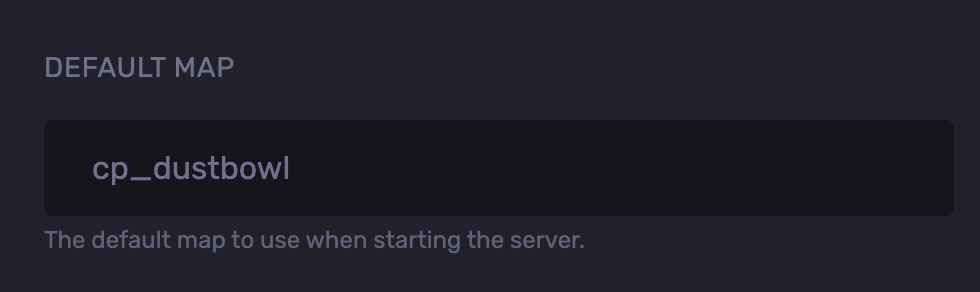
Changing Default Map
- Access the Apollo Panel.
- Go to the Startup tab.
- Adjust the Default Map field.
Changing the Map Right Now
- Access the Apollo Panel.
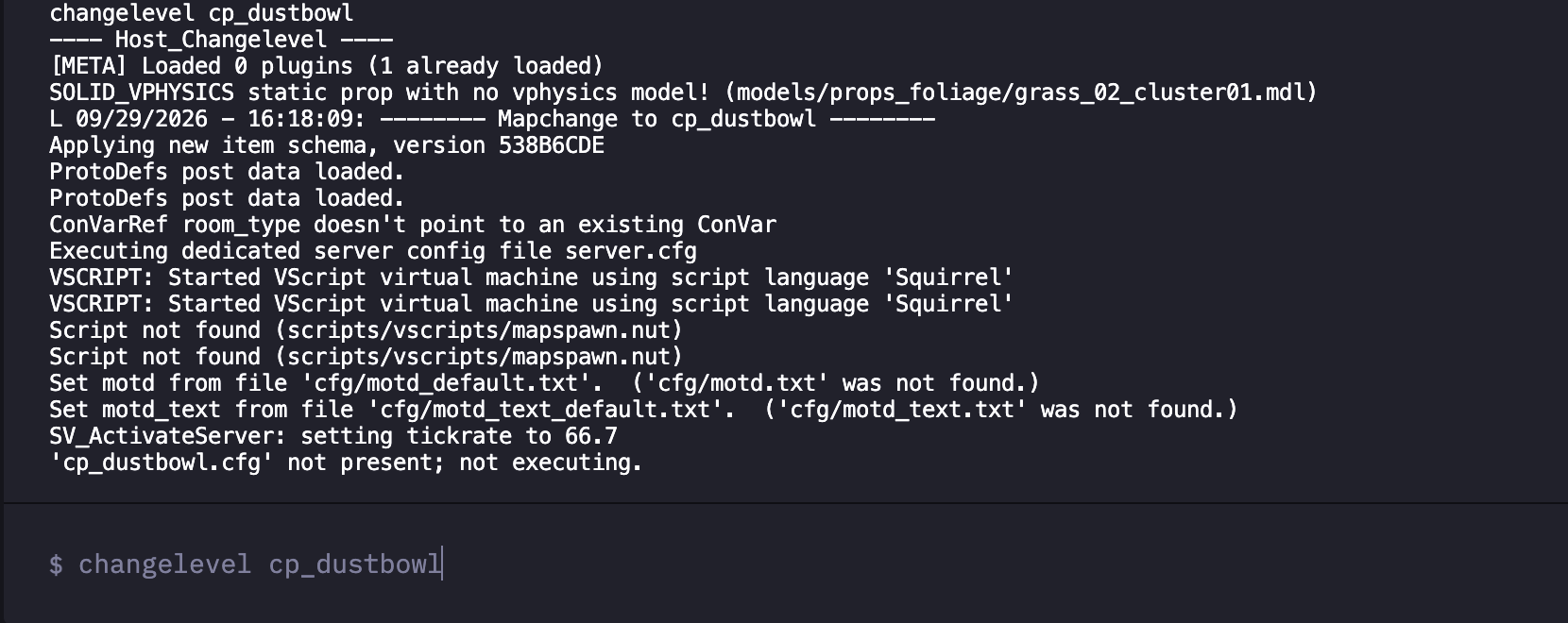
- In the console, type `changelevel <mapname>`
- For example, for the map cp_dustbowl, type `changelevel cp_dustbowl`
Creating Map Rotation
- Access the Apollo Panel.
- Stop the server.
- Go to the Files tab.
- Navigate to the following directory: `tf/cfg`
- Click on New File.
- Add one map name per line as shown in the example below:
   cp_dustbowl
   pl_badwater
   koth_harvest_final
   ctf_2fort
   cp_process_final
- Name it `mapcycle.txt`
- Click Save Content.
- Head back to the `cfg`
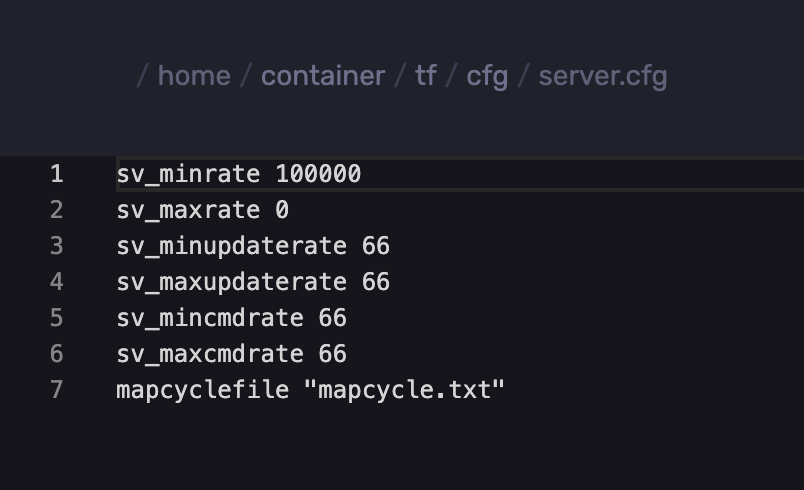
- Open the `server.cfg` file. If it doesn't exist, create it.
- Inside, type `mapcyclefile "mapcycle.txt"`
- Start the server.
Adding Custom Maps
- Download the custom map file ending in `.bsp`.
- Access the Apollo Panel.
- Stop the server.
- Navigate to the following directory: `tf/maps`
- Upload the map.
- Add the exact map name (without .bsp) to your `mapcycle.txt`
- Start the server.
Updated on: 07/10/2026
Thank you!