How To Install Plugins On A TF2 Server
Server owners learn how to install plugins on a TF2 server to turn standard Team Fortress gameplay into a customized community experience. The main motivation is player engagement—letting admins introduce unique game modes, strengthen server control, and keep the game fresh and exciting for friends and regular players.
If your server is not ready yet, the usual setup is to download steamcmd, create a tf2_server folder on your computer, and use it through steam to download the TF2 dedicated server files for your host. This process is fairly simple, usually takes 30 to 60 minutes, and most TF2 dedicated servers run on Linux, though some hosts use Windows.
You must install Metamod:Source and SourceMod to proceed, because Metamod:Source is essential for running plugins on the source engine, SourceMod depends on it, and SourceMod provides the plugin-management tools for TF2. Refer to this guide. Plugins must be in .smx format to work with SourceMod.
Installing Plugins and Using sm_plugins List
- Access the Apollo Panel.
- Go to the Files tab.
- Stop the server.
- Navigate to the following directory: tf/addons/sourcemod
- Open the plugins folder in tf/addons/sourcemod/plugins, the correct place to upload plugin files.
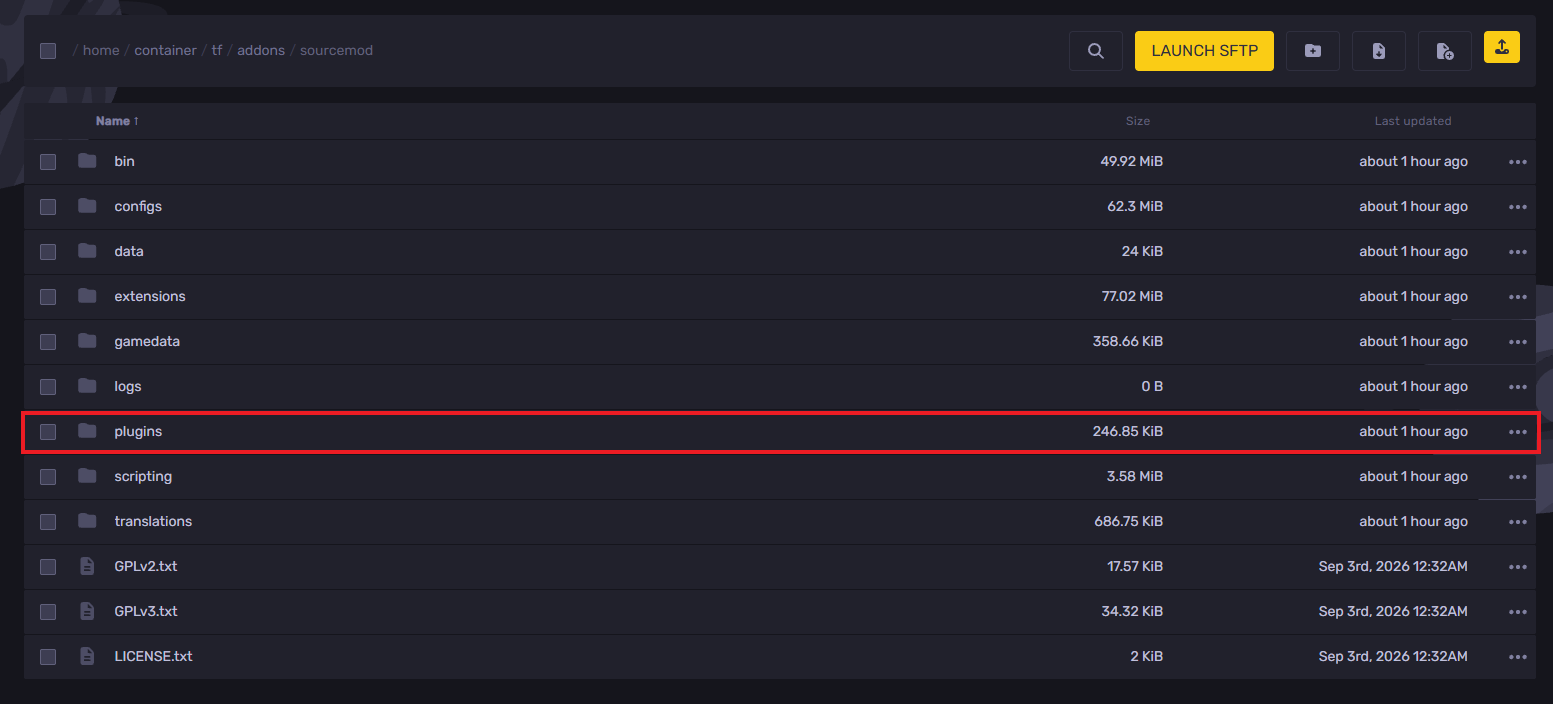
- Upload the .smx plugin file to tf2_server/addons/sourcemod/plugins; on a dedicated server, the proper way is to use a FTP/SFTP client to transfer and place the file.
- FileZilla is a free option: connect with your server IP, username, and password from the host panel, then drag and drop the files from your computer.
- Before moving on, check that the transfer is complete with no failed transfers to avoid things that waste time later.
- Launch or restart the server so the plugin can load and run.
- At this point, use the console command meta version and sm version, then type sm plugins list; plugins marked as Running are working, which helps people confirm the process step by step no matter which plugin you find.
- If there is an error or other load issues, use meta list, check addons/sourcemod/logs, and try sm_reload <plugin_name> to avoid common problems.
- Some plugins from forums or GitHub may include source code you can review, but some also need extra dependencies such as extensions or gamedata, so check the Last Updated date before you add them.
Installing Extensions and How to Install Metamod
- Access the Apollo Panel.
- Go to the Files tab.
- Stop the server.
- Navigate to the following directory: tf/addons/sourcemod
- Open the extensions folder.
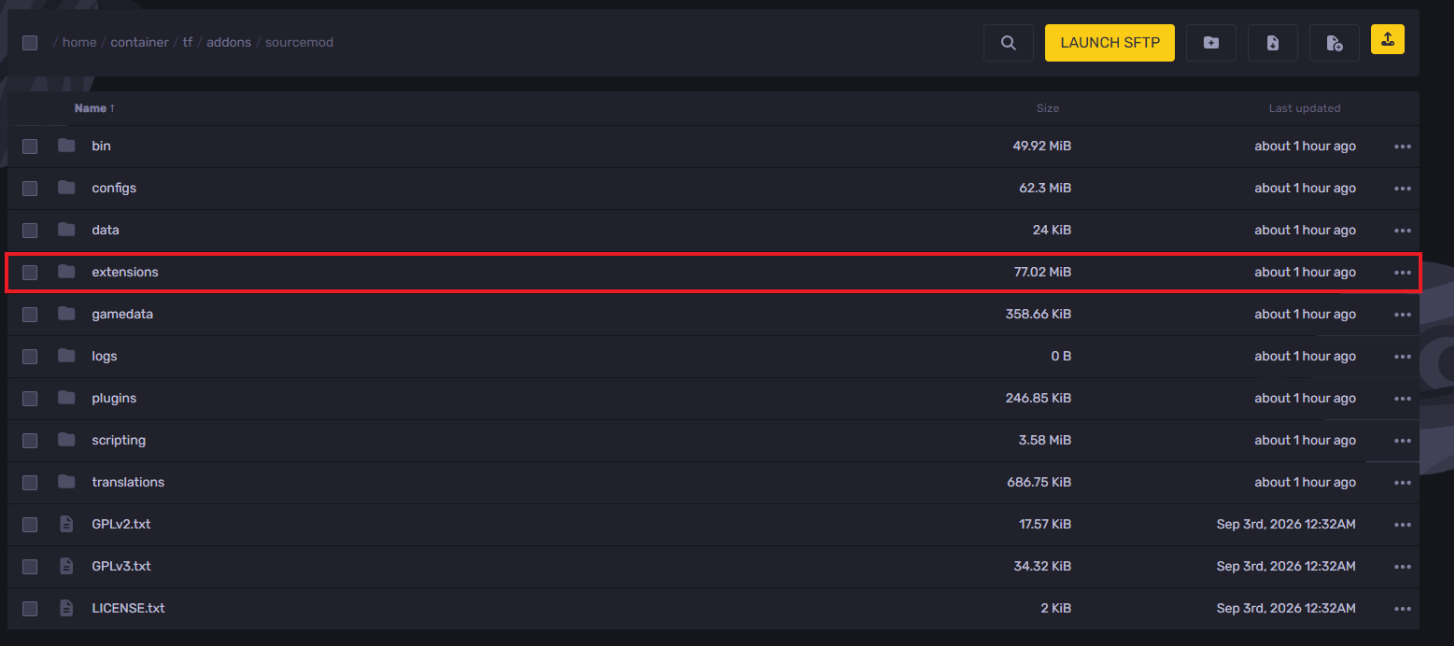
- Upload the .so extension file. Some plugins require matching extensions because of the Source engine.
- Restart the server so the extension can load properly and avoid startup issues.
- Many plugins include or generate a .cfg file on first load; check tf/cfg/sourcemod/ and addons/sourcemod/configs/ for configuration files.
- These files handle plugin setting values such as cooldown timers, and you can edit or create them with a text editor while building out your server.
- Save changes and restart the server to apply the new setting, and remember that each plugin may use its own config and maps-related options.
- Admin access for many plugin commands is set in tf/addons/sourcemod/configs/admins_simple.ini; add your SteamID in that file to create the proper access code.
Updated on: 07/10/2026
Thank you!