How to Add Plugins to a Rust Server (Oxide/uMod)
To add plugins to a Rust server, install Oxide (uMod) first, download the plugin’s .cs file from uMod, and upload it to your server’s oxide/plugins folder. Oxide compiles and loads it automatically, or you can run oxide.reload PluginName in the console. Then check the log for errors and edit the config file the plugin generates in oxide/config.
This guide is for Rust server owners and admins who already have a running server, either self-hosted or on a control panel. It covers installing Oxide, adding and configuring plugins, setting permissions, and fixing plugins that won’t load or cause performance issues. No coding is needed, just file access to your server.
Installing Oxide (uMod) On A Rust Server
- Access the Apollo Panel.
- Stop the server.
- Navigate to the Startup tab.
- Find the Modding Framework field.
- Change it to oxide.
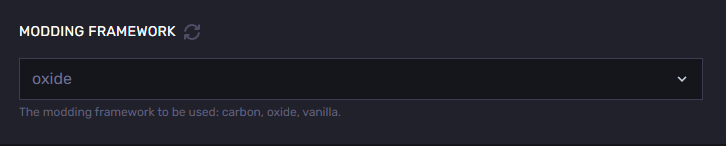
- Start the server.
Adding Oxide Plugins To A Rust Server
- Access the Apollo Panel.
- Stop the server.
- Go to the LaunchPad tab.
- Install the desired plugins.
- Start the server.
Configuring Your Oxide Plugins
- Access the Apollo Panel.
- Stop the server.
- Go to the Files tab.
- Navigate to the following directory: `server/rust/oxide/config`
- Find the config file for the plugin you want to change.
- Open the file and edit the settings you need.
- Click Save Content.
- Start the server.
Updated on: 26/10/2026
Thank you!