How to Port Forward a Rust Server
Port forwarding is what lets players outside your home network reach a Rust server you host yourself. If you’re wondering how to port forward a Rust server, it comes down to opening the right game, query, and RCON ports on your router or modem, pointing them at your PC’s internal IP address, and allowing them through your firewall. Once it’s set up, friends and other players can connect to your server over the internet without any trouble.
Rust Server Ports
Rust uses a few different ports. The defaults are `28015` (UDP) for the game, `28016` (TCP) for RCON, `28017` (UDP) for the query port, and `28082` (TCP) for the Rust+ app.
Port | Purpose | Required? |
|---|---|---|
28015 UDP | Game port (players connect here) | Yes |
28017 UDP | Query port (server list) | Yes, if you want it in the server browser |
28016 TCP | RCON (remote admin) | Only if you use RCON |
28082 TCP | Rust+ app | Only if you use Rust+ |
Step 1: Find Your Internal IP Address
- Press `Windows + R`, type `cmd`, and press Enter.
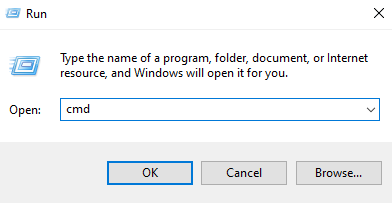
- Run `ipconfig`.
- Find your IPv4 Address (for example, `192.168.1.50`). This is your PC’s internal IP.
Step 2: Give Your PC A Fixed IP
Your router can change your PC’s internal IP, which would break the forwarding rules. Every forwarded port must target the server’s stable LAN address. Use your router’s DHCP reservation (static lease) setting for your PC, or set a static IP in Windows.
Step 3: Forward The Ports On Your Router
- Open your router or modem’s admin page.
- Find the Port Forwarding section. It may be called Virtual Server, NAT, or Port Trigger depending on the brand.
- Create a rule for the game port:
- Protocol: UDP
- External and internal port: `28015`
- Internal IP: your PC’s IP from Step 1
- Create a rule for the query port:
- Protocol: UDP
- Port: `28017`
- If you use RCON, create a rule with Protocol TCP and port `28016`. If you use Rust+, create a rule with Protocol TCP and port `28082`.
- Save the rules and restart the router.
Step 4: Allow The Ports Through Your Firewall
- Open Windows Defender Firewall and go to Advanced settings.
- Choose Inbound Rules and then New Rule.
- Select Port, choose the protocol (UDP or TCP), and enter the port number.
- Choose Allow the connection and apply it to all profiles.
- Repeat for each port you forwarded.
Step 5: Connect And Test
- Start your Rust server.
- Find your public IP by searching “what is my IP” in a browser.
- Ask a friend outside your network to open Rust, press `F1`, and run:
client.connect <your public IP>:28015- If connecting directly works, your game port route is healthy. If the server doesn’t appear in the server list, check the query port (UDP 28017).
Don’t test from your own PC. Many routers don’t loop back to your own public IP, so connect with your internal IP instead.
Updated on: 04/11/2026
Thank you!