All Runescape Dragonwilds Server Settings Explained
RuneScape: Dragonwilds server settings give you control over how your dedicated server runs, from the Owner ID and Server Name that identify it, to the admin and world passwords that manage access, and the Default World Name your players will see. Getting these basics right is what separates a smooth, persistent Dragonwilds server from one that's constantly causing headaches for you and your group.
Owner ID
To get the server running. You must set the player ID in your server settings.
- Launch RuneScape: Dragonwilds and open the Settings menu.
- Scroll to the bottom till you find the Player ID displayed there.
- Click the copy button.
- Open the Apollo Panel.
- Navigate to the Properties tab.
- Find the OwnerId field.
- Paste the Player ID.
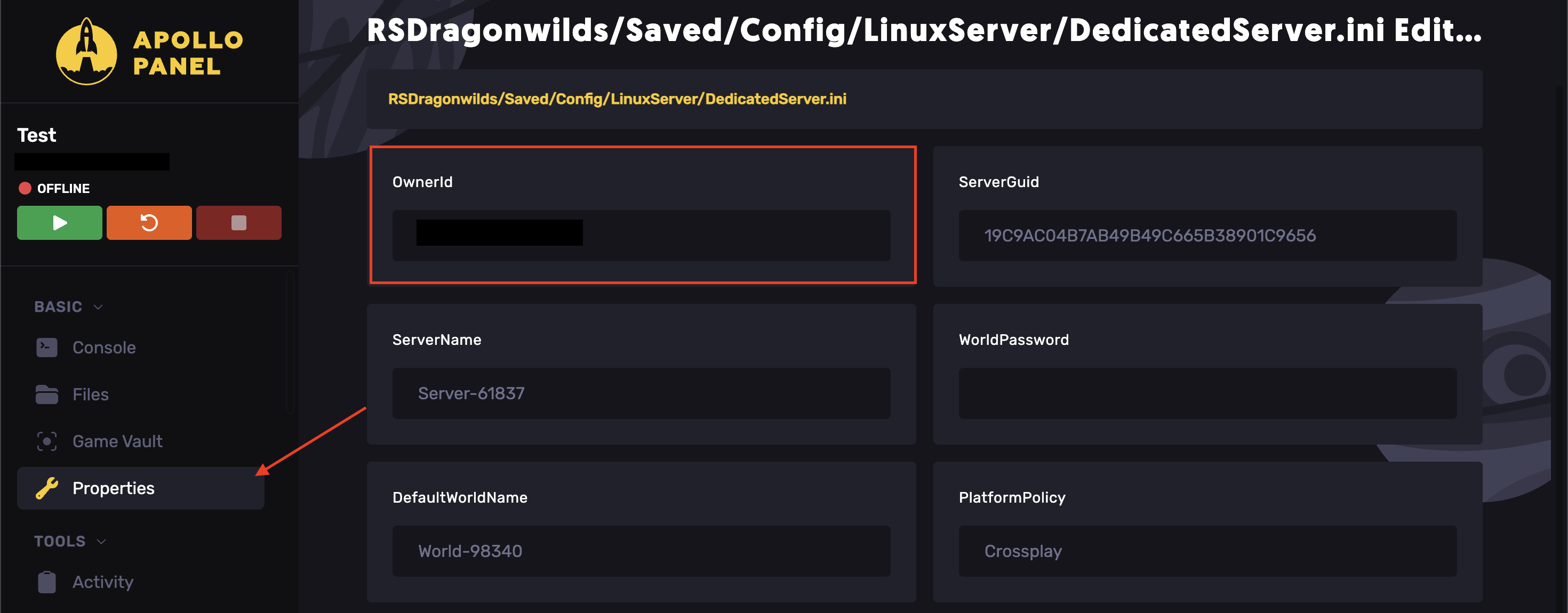
- Start the server.
Crossplay
To enable crossplay:
- Open the Apollo Panel.
- Stop the server.
- Head over to the Properties tab.
- Find the PlatformPolicy field.
- Set it to
Crossplay
- Start the server.
To disable crossplay:
- Open the Apollo Panel.
- Stop the server.
- Head over to the Properties tab.
- Find the PlatformPolicy field.
- Change the value from
Crossplayto the single platform you want to lock the server to. The available options arePC,PlayStation,Xbox, orNintendo. - Start the server.
Server Name, Default World Name, and World Password
Server Name
The name your server shows under in the in-game server browser.
- Open the Apollo Panel.
- Stop the server.
- Head over to the Properties tab.
- Adjust the ServerName field as desired.
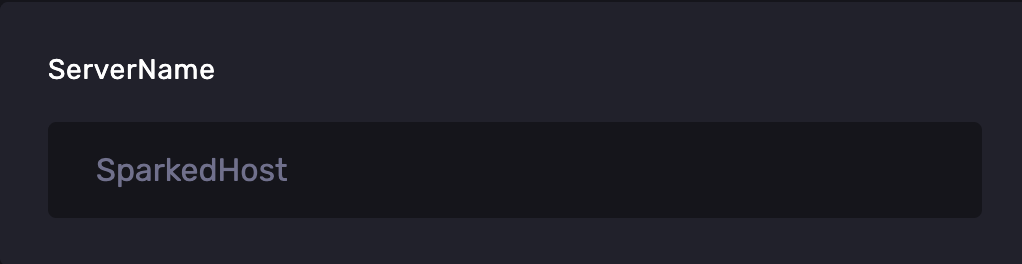
- Start the server.
Default World Name
The name of the world your server creates and loads on startup. NOTE: If you change it after a world already exists under the old name, the server will typically create a new world under the new name rather than renaming the existing one.
- Open the Apollo Panel.
- Stop the server.
- Head over to the Properties tab.
- Find and set the DefaultWorldName field as desired.
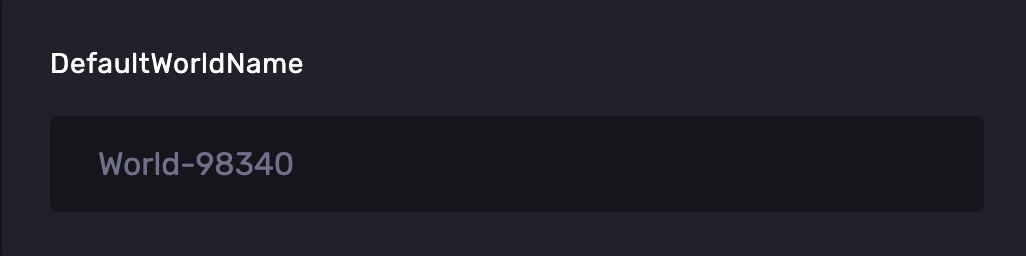
- Start the server.
World Password
The password players need to join your server. Leave it blank for a public server.
- Open the Apollo Panel.
- Stop the server.
- Head over to the Properties tab.
- Find the WorldPassword field.
- Set a secure password.
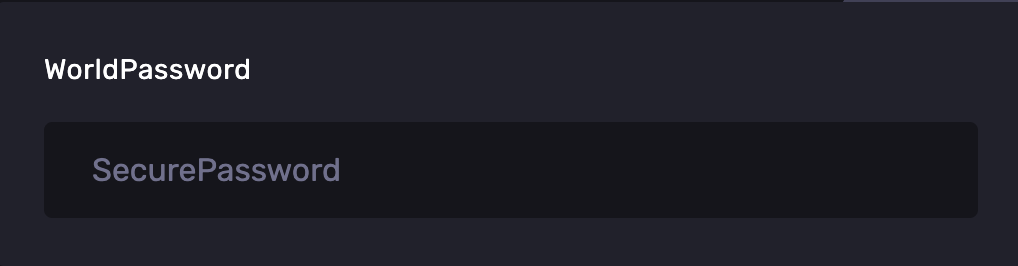
- Start the server.
Admin Password
- Access the Apollo Panel.
- Stop the server.
- Go to the Files tab.
- Navigate to the following directory:
RSDragonwilds/Saved/Config/LinuxServer - Open the
DedicatedServer.inifile. - Adjust the
AdminPassword=field. If it is not visible, add it. - Click Save Content.
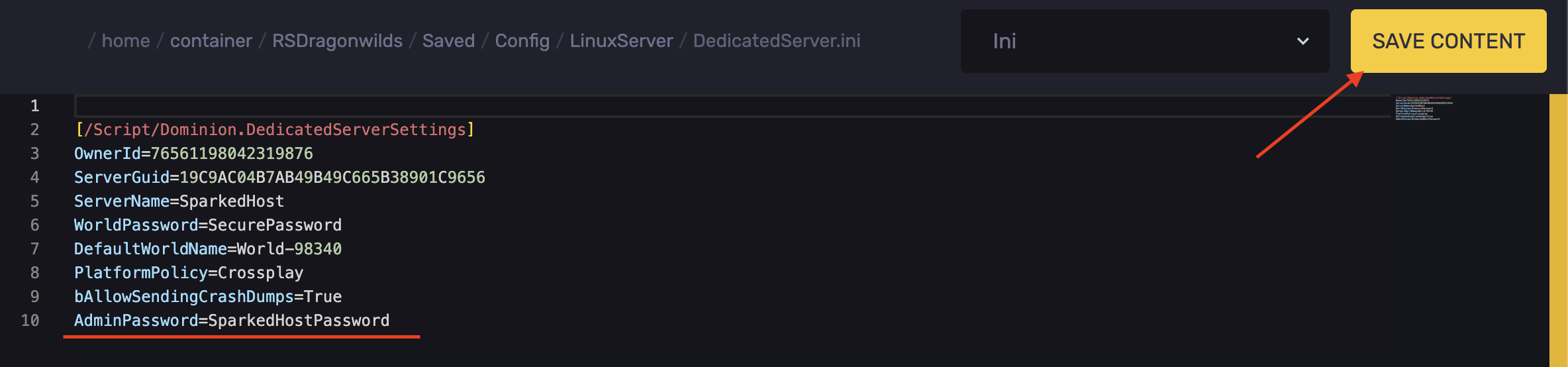
- Start the server.
To use the admin password, do the following:
- Join your server.
- Open the Pause Menu.
- Go to Settings.
- Find the Server Management tab.
- Enter the Admin Password.
Updated on: 22/09/2026
Thank you!