How to Install Mods on FiveM Server
How to Install Mods on FiveM Server
As a mod framework for Grand Theft Auto V, FiveM has a large community of modders and custom content. In this guide, we'll show you how to install mods on your FiveM server, including those that require database tables. MySQL, non-database mods, and other scripts.
Step 1: Downloading Mods
Before adding mods to your server, identify the FiveM mods and custom scripts you'd like to include.
To find new resources, we recommend using the official forum to install mods for your FiveM server. Make sure that all the files you're downloading are on the latest version to avoid bugs. You'll also want to check that your installed mods have .iua resource files.
Other popular sites for finding GTA V mods include GTA5-Mods and NexusMods.
Once you have downloaded your mod and Lua files to your computer, proceed to the next step.
Step 2: Adding Mods To Your Resources Folder
- Access the Apollo Panel.
- Stop the server.
- In the Files tab, navigate to the
resourcesfolder.
- Upload the mods and scripts into the
resourcesfolder.
Take note of your FiveM mod's exact file name. You will need it for later.
- Open the
server.cfgfile.
- On a new line in the
server.cfgfile, add a new line below line #17, text group with the ensure command. After ensuring, enter the name of the FiveM mod's folder you installed, as shown in the example below.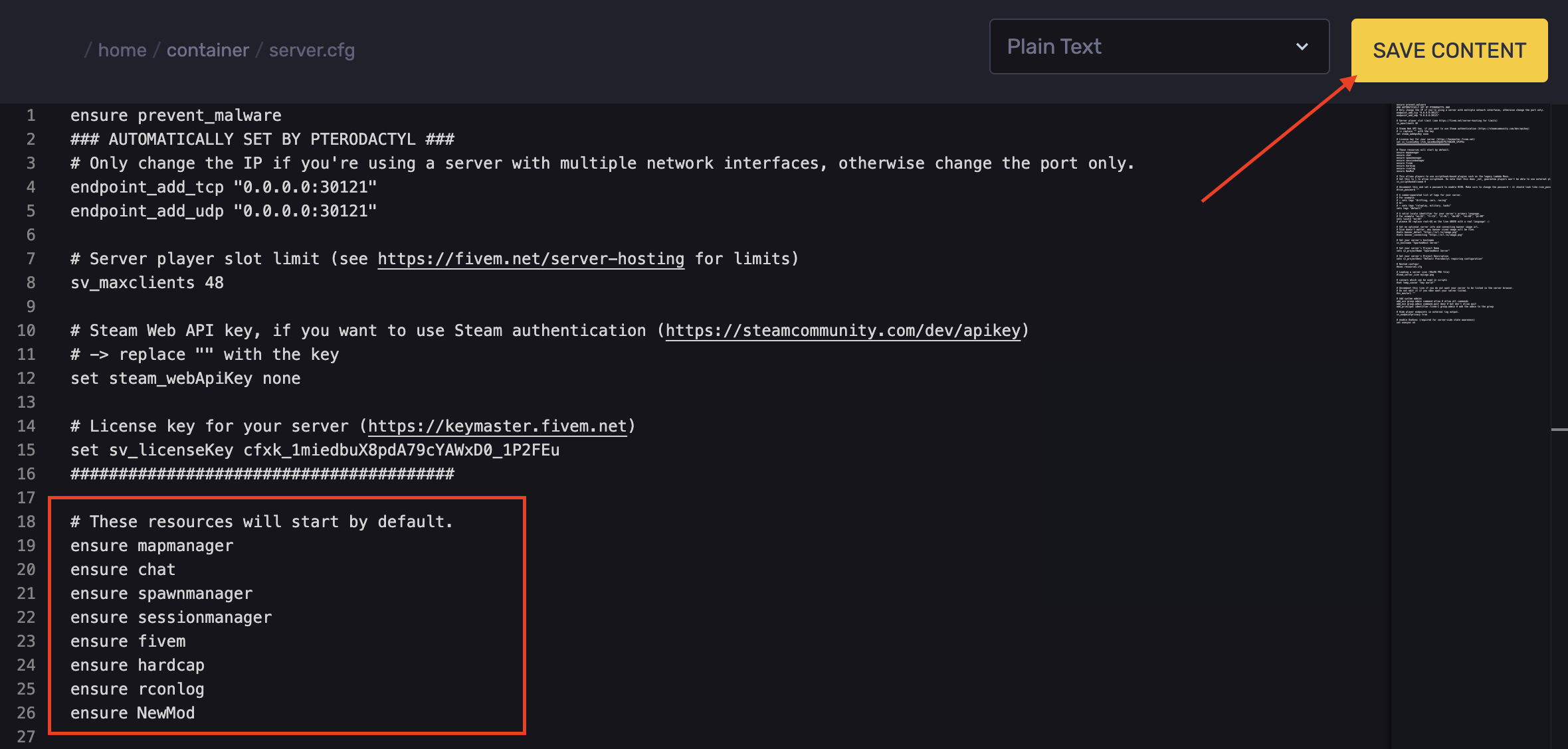
- Hit Save Content.
- Start the server.
Step 3: Linking Your Server Files to a MySQL Database (Optional)
If the mod folder you added to your server requires it, you might need to set up SQL file functionality. Most add-ons that change player data will require some MySQL details.
To start, you'll need to install MySQL Async for FiveM. Complete the installation process for the newest version on your computer, then do the following:
- Open the Apollo Panel.
- Stop the server.
- In the Files tab, drag and drop the "mysql-async" folder from your computer into your
resourcesfolder.
- Add the line "ensure mysql-async" to your
server.cfgfile.
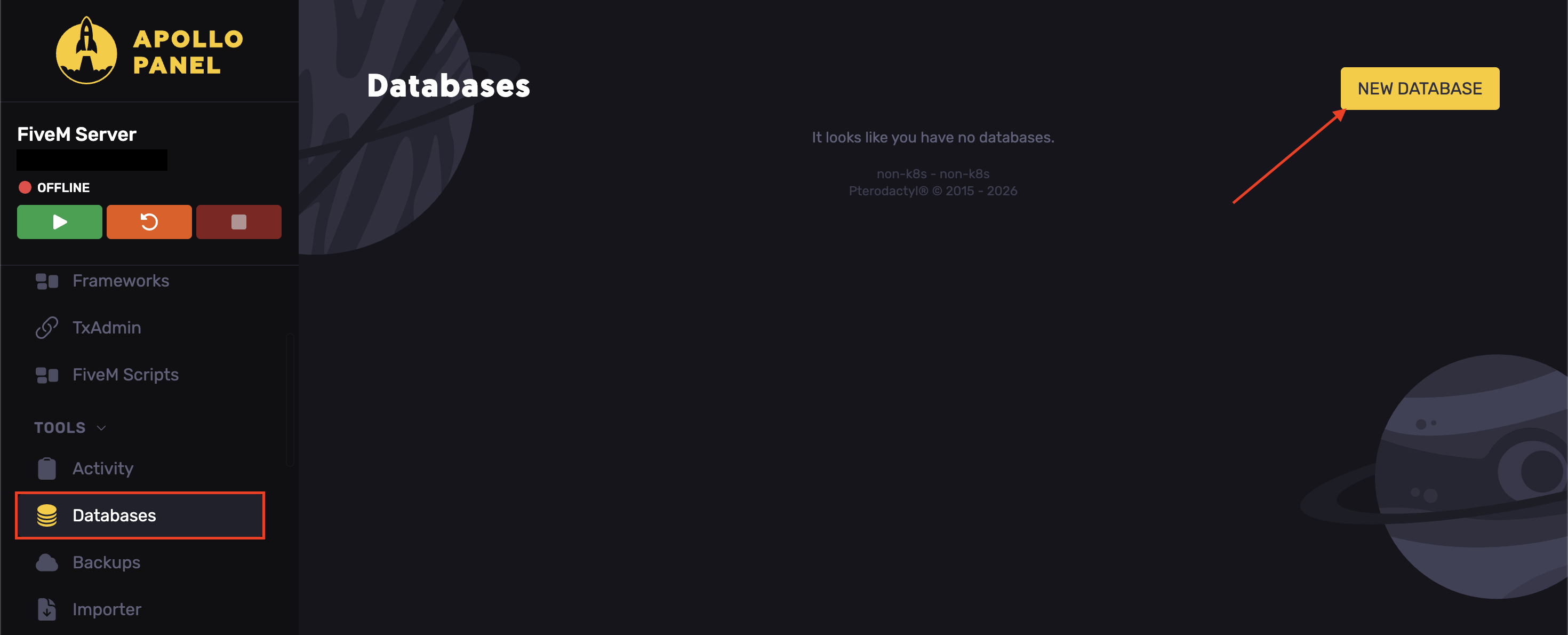
- Navigate to the Databases tab and click New Database.
- Click on the 3 dots and click Copy Connection String.
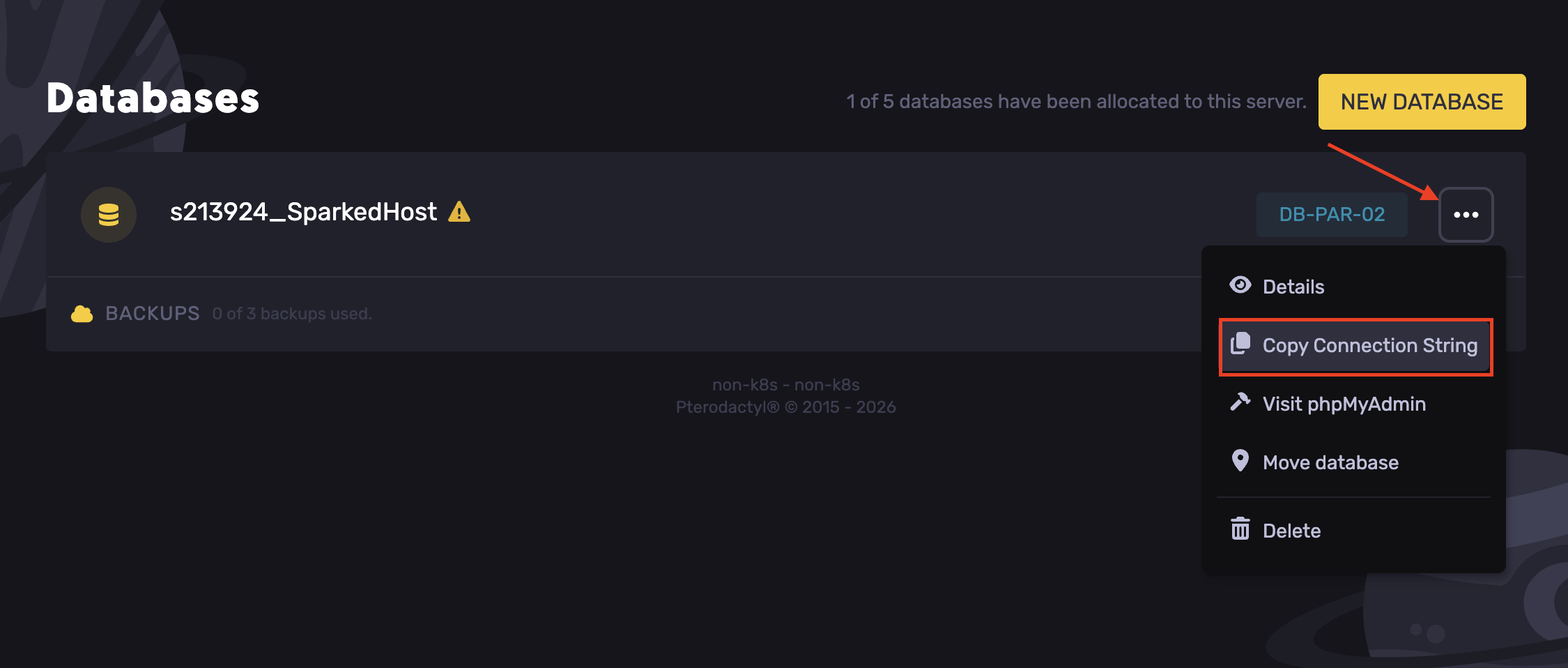
- Head over to the
server.cfgand pasteset mysql_connection_string "COPIED STRING"
- Hit Save Content.
- Start the server.
Updated on: 17/07/2026
Thank you!