How to Install TXAdmin on FiveM Server
What is TXAdmin?
txAdmin is a powerful and user-friendly server management tool designed specifically for FiveM, a modification framework for Grand Theft Auto V. It serves as an all-in-one solution for managing and maintaining your FiveM server, offering features like server monitoring, configuration management, player administration, and more.
Developed by the FiveM community, txAdmin is widely regarded as the go-to tool for server owners due to its simplicity, reliability, and extensive functionality for managing a FiveM server.
How To Set Up TXAdmin
To set up TXAdmin on your FiveM server:
- Access the Apollo Panel.
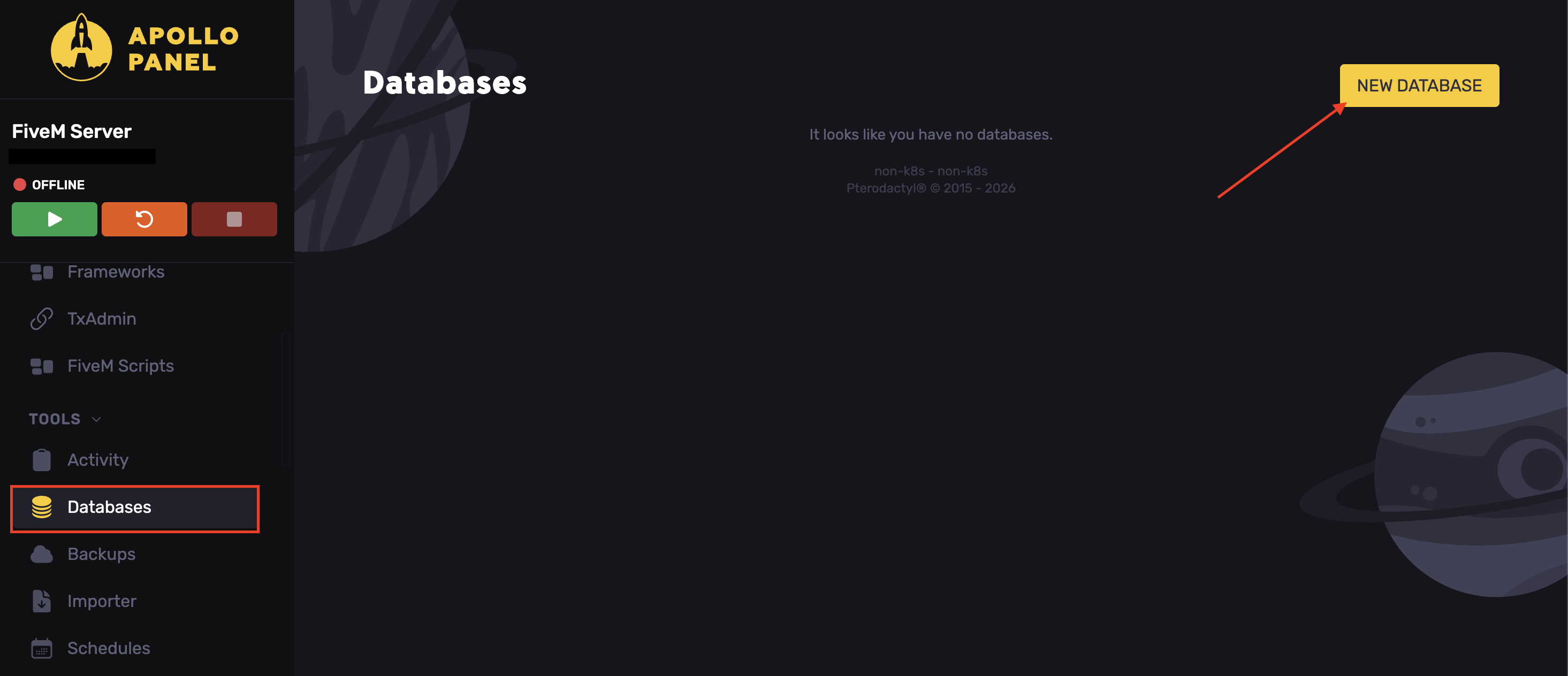
- Open the Databases tab and hit New Database.
- Stop the server.
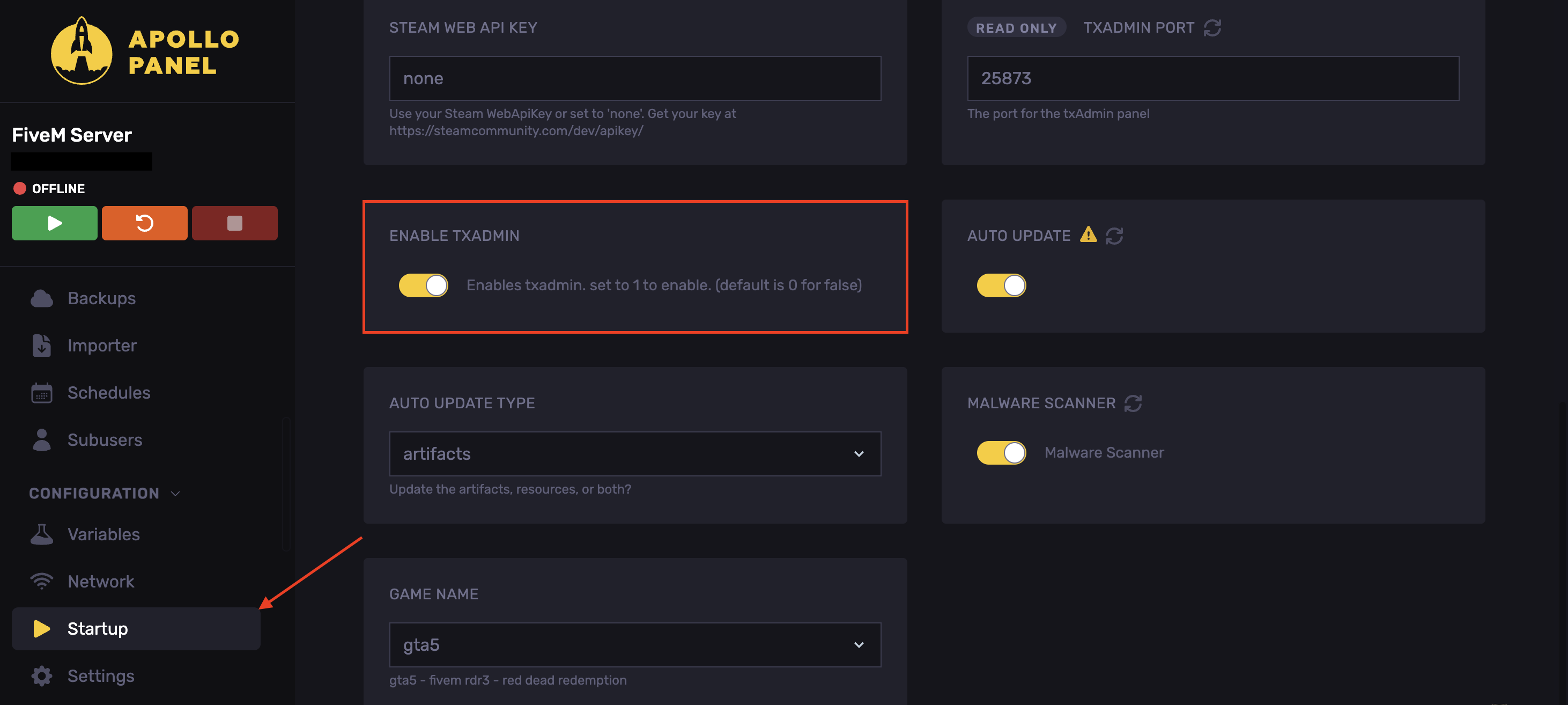
- Ensure you enable TxAdmin in the "Startup" tab.
- After creating the database. On the left side, click TxAdmin.
- Set a server name.
- Choose a deployment type.
- Then we need to select a template. txAdmin by default has 3 templates for FiveM.
- For your server, we will use ESX legacy. The next step will be letting you choose a path. For simplicity, the recommended path is the best.
- Click save, it will take you to a new button recipe deployer.
- Clicking this will take you to a page where you can edit the commands. It will initiate when TxAdmin is installed. It's recommended not to change these lines unless you know exactly what you are doing.
- Click next.
- Now, set your FiveM server's license key.
- If you don't already have a license key, you can get one from here.
- Before we click Run recipe, we need to configure the Database options (advanced); the setup will fail.
- Set the database information in the Database tab.
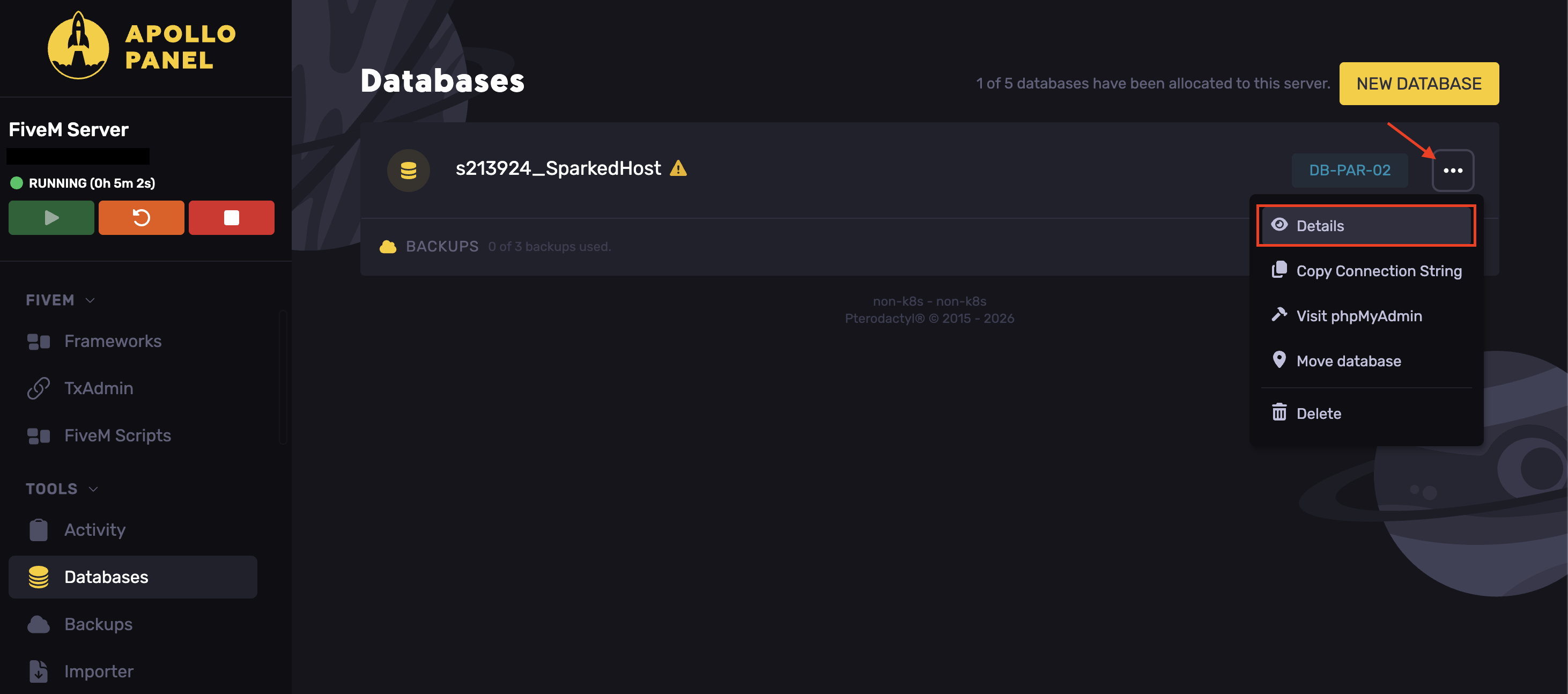
- The port is listed after the : in our endpoint column. Cut and paste the port into the port area ensuring that you remove the :
- For the database name, copy and paste the name of the database you created on your FiveM server.
- Now, click the Run Recipe button on the txAdmin setup page. This will take you to your txAdmin web-based panel.
You have now installed txAdmin on your server. We will now go into some steps on what you can do on it.
How To Use TXAdmin
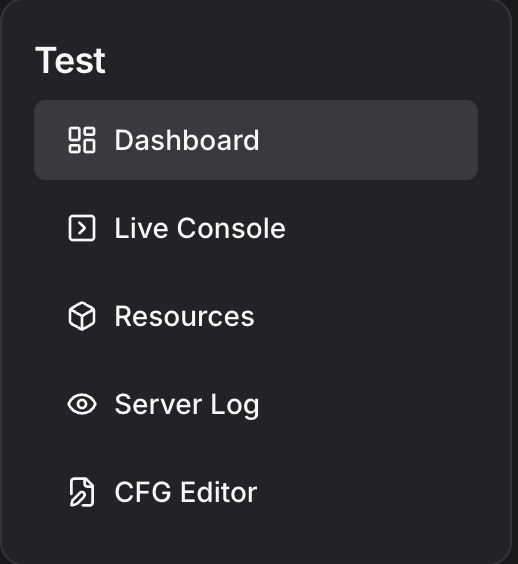
In the txAdmin panel, there are countless features designed for easy FiveM server management, including player management, whitelisting, server configuration files, admins, logs, and more. Below is an explanation of a few of the tabs and what they are for.
Players
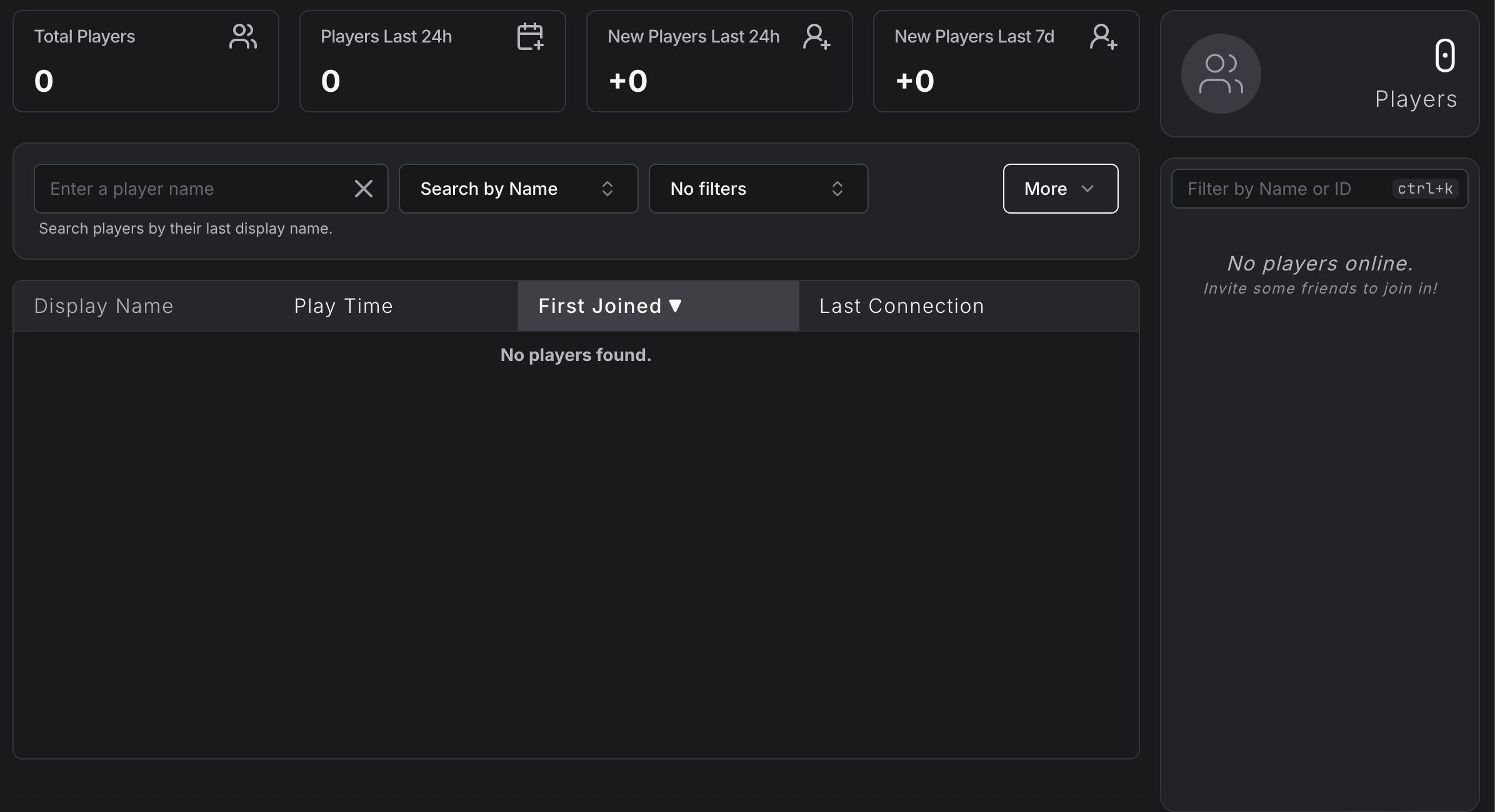
In the players tab, you can see the total player count, total playtime, and the number of whitelists, warns, and bans.
You can also ban players from the web panel; all you need is the player's identifier. You can set a reason and the duration. Below the ban section, we can see the last 20 moderation actions performed (i.e., bans and warns) and the last 30 players.
Whitelists
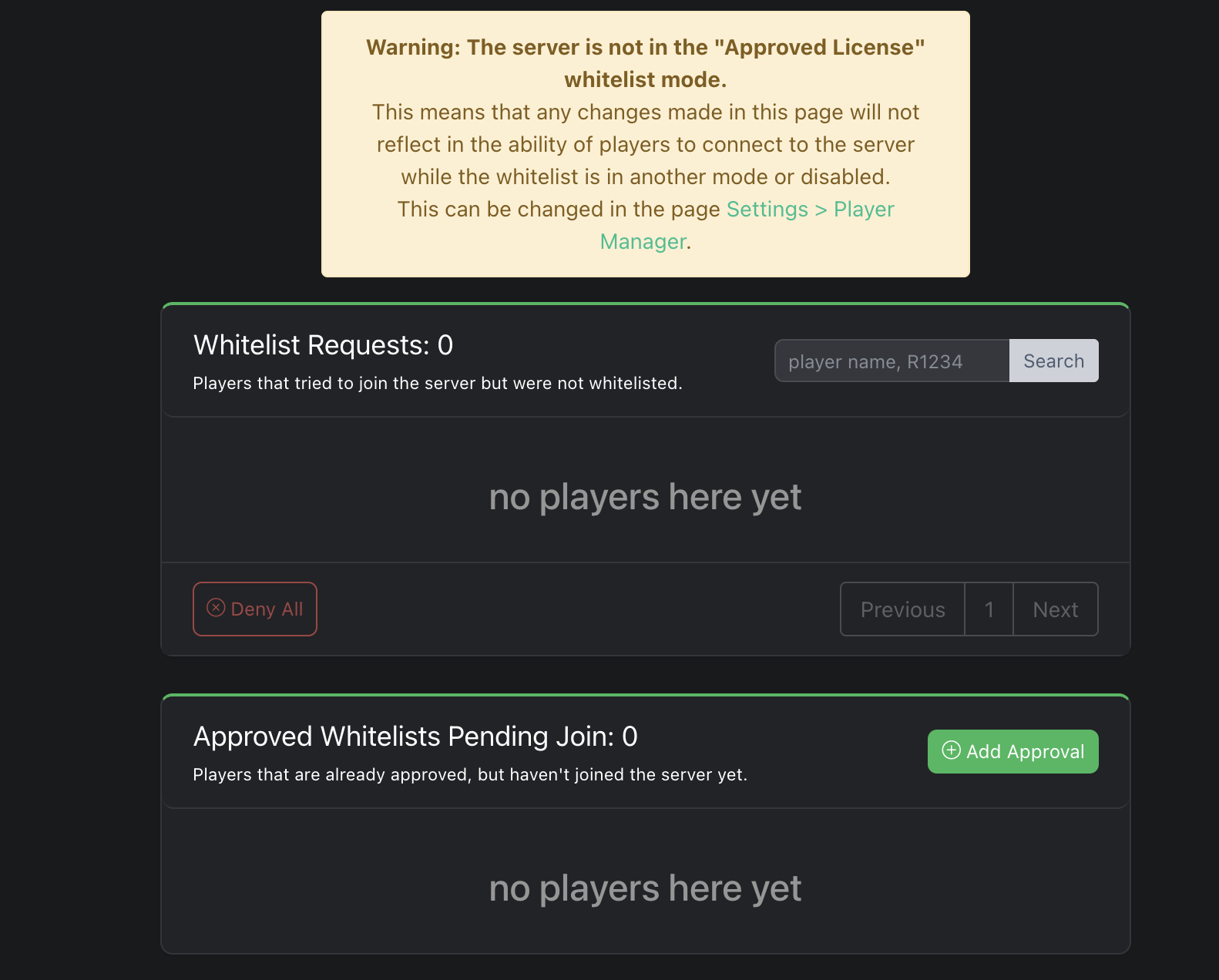
There are 2 options in the white list. You can see players who try to join without a whitelist. You can individually approve players or deny all players. You can also manually add a whitelist to a player who is yet to join the server.
Clicking the add approval button allows you to whitelist players based on Discord, FiveM, license, license2, live, steam, and XBL.
Live Console
The live console tab is exactly what it sounds like: a live feed of all processes on your FiveM server.
Resources
The resources tab doesn't allow you to add resources via the panel, but does allow you to stop them or restart them.
CFG Editor
This tab allows you to manage the configuration of your FiveM servers. Via the web panel.
Diagnostic
The diagnostic tab shows your server's environment and uptime.
Admin Manager
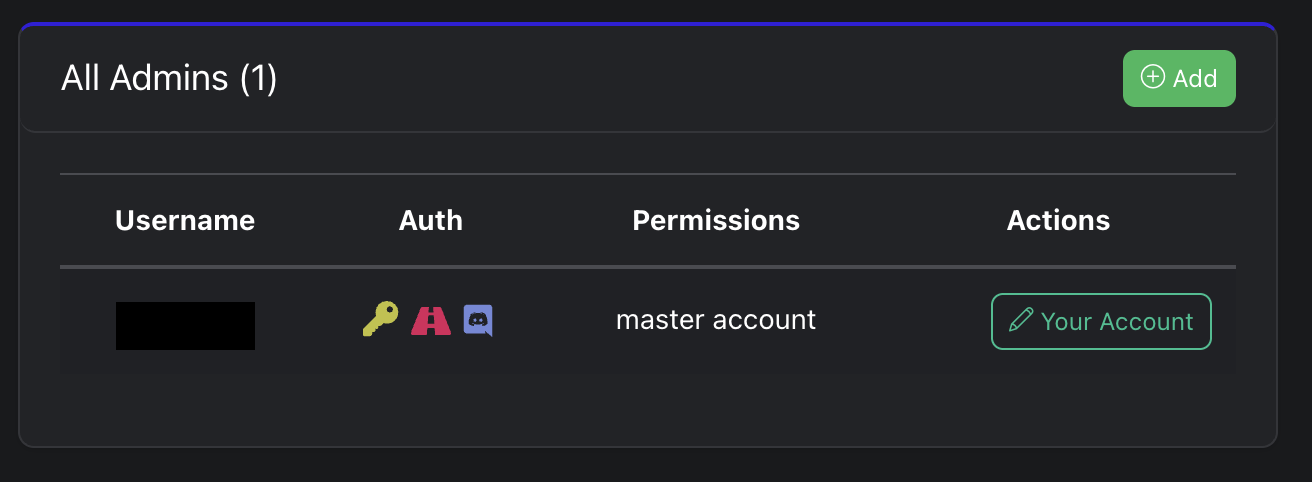
The admin manager tab is one of the most powerful tabs, allowing you to manage your txadmin team. Ensure to only grant permissions to trustworthy people.
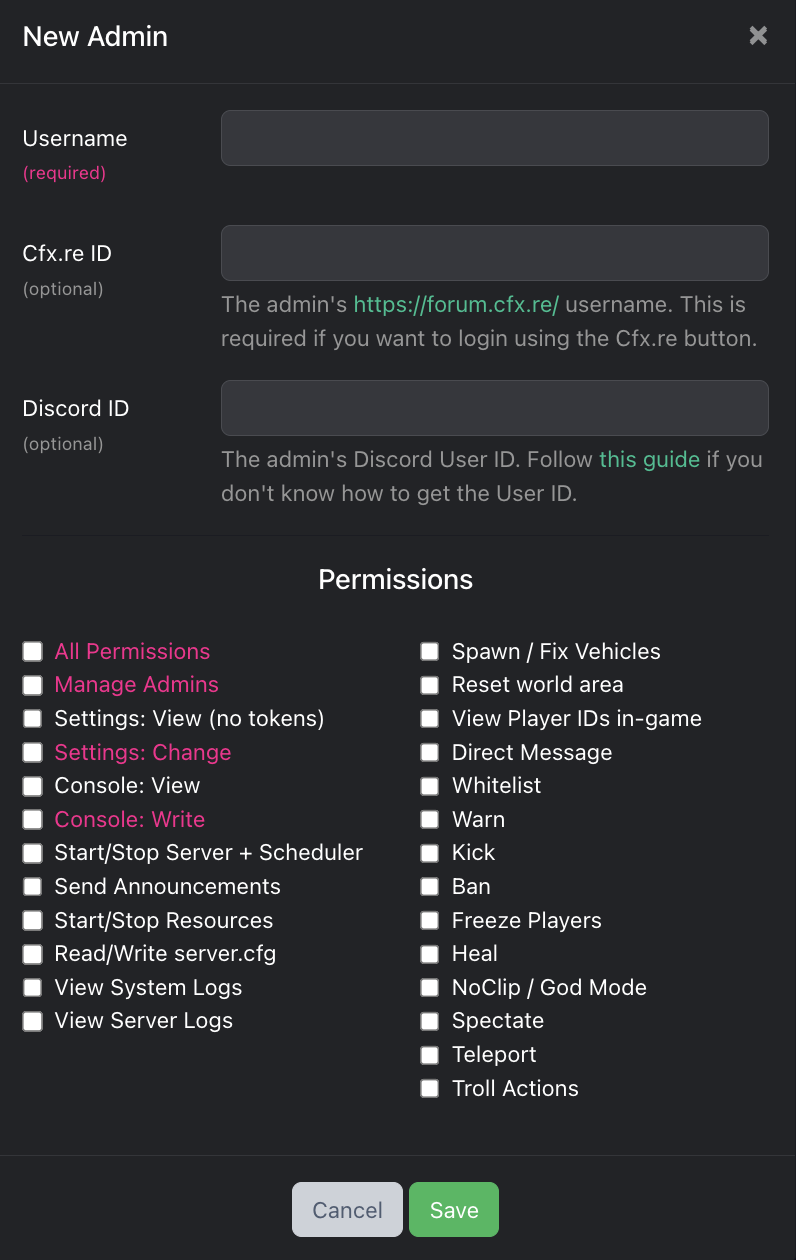
Clicking the Add button opens a pop-up where you can add a person's username, ID, and Discord, and assign the permissions you want to give them.
Settings
The settings tab allows you to configure various features in txadmin for your FiveM server.
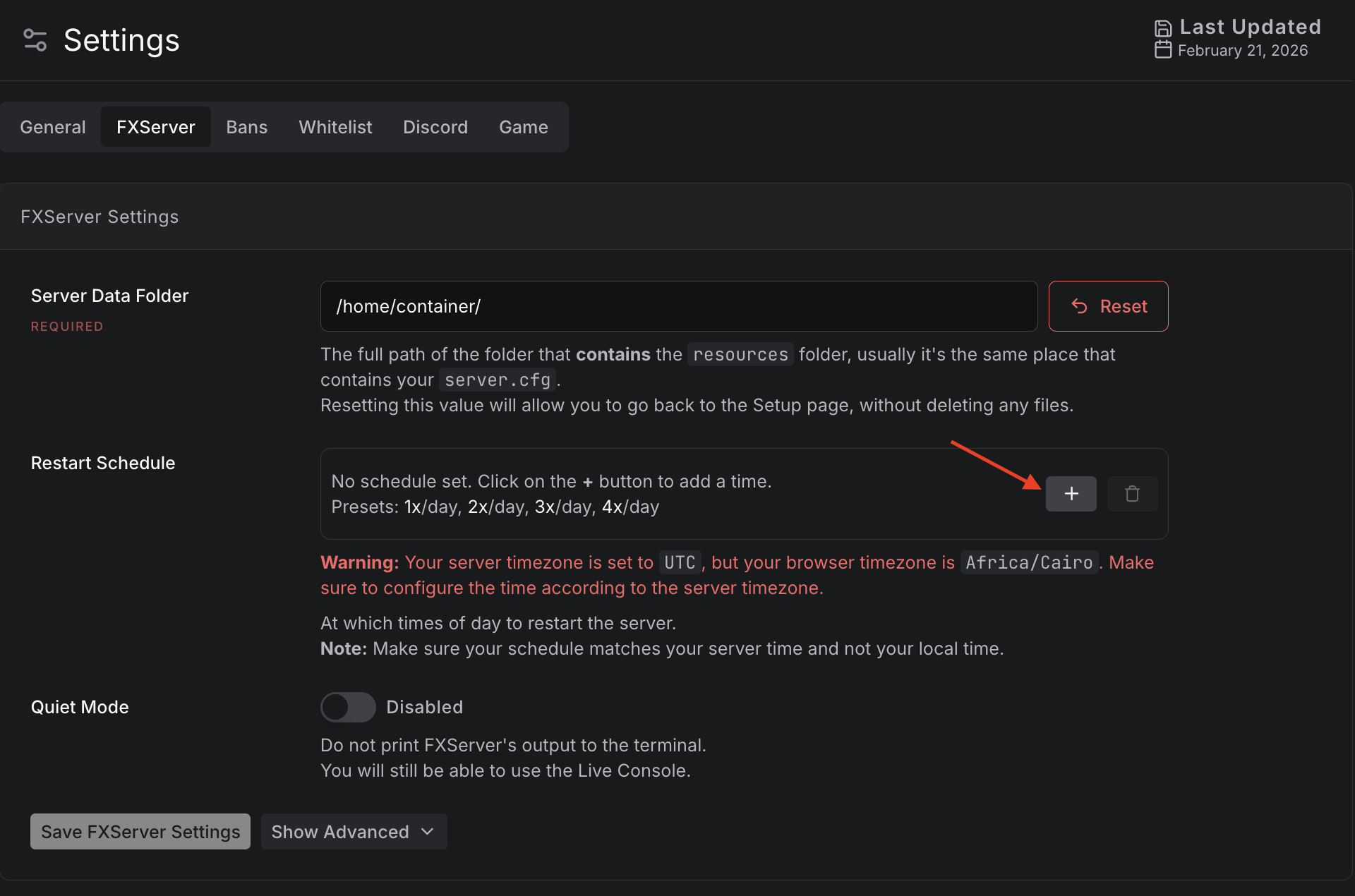
Some settings you shouldn't touch unless you know the exact action to take. For example, the FXServer tab.
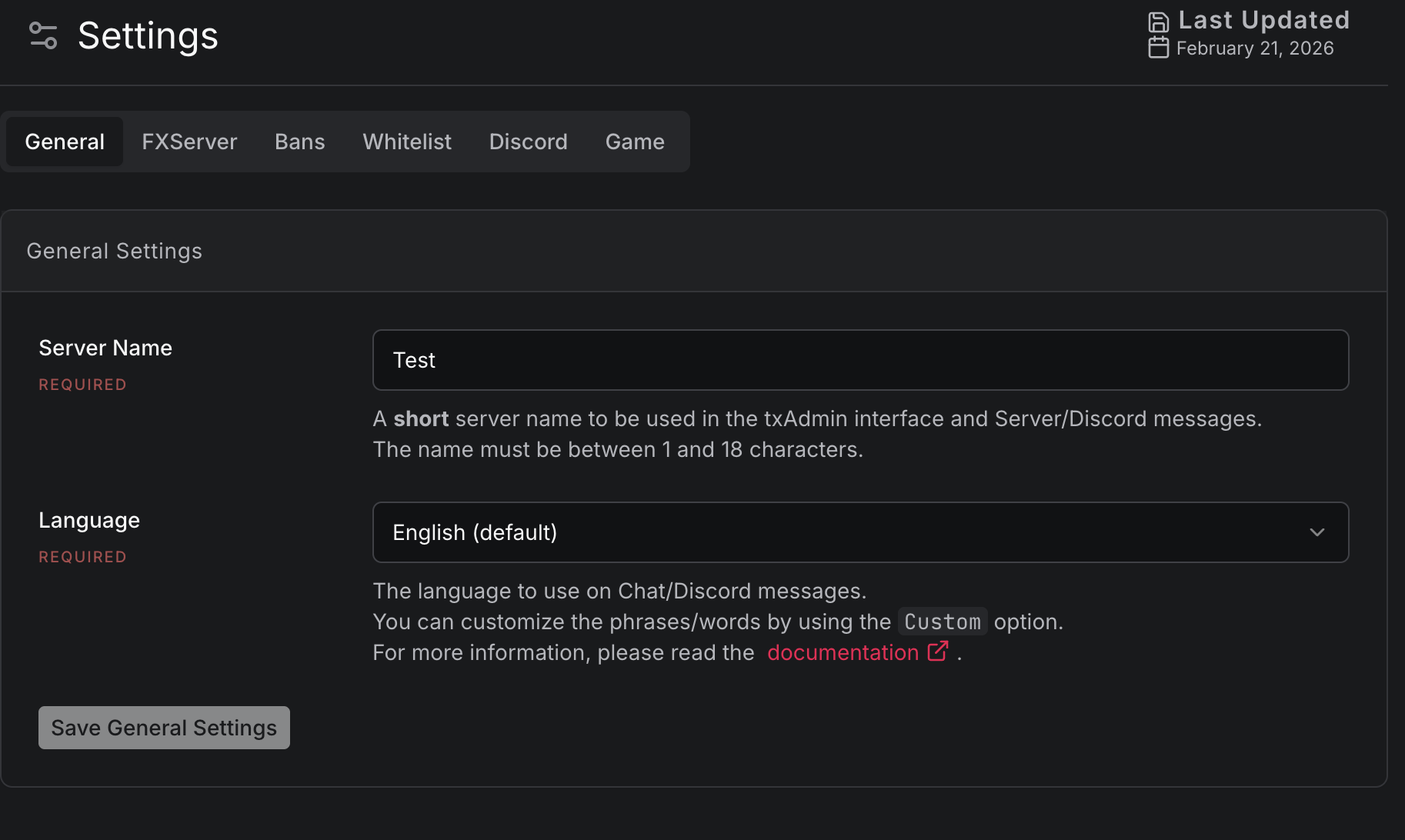
The global tab lets you change the server's name and language.
The Restarter tab lets you restart your server when resource limits are reached or at specific times.
The Player Manager tab allows you to set the whitelist rule and custom whitelist-checking messages. It also allows you to configure ban options, ban matches, and custom ban messages.
The Discord tab is powerful; it lets you add a TXAdmin bot to your server. The bot will broadcast when the server is online, offline, or restarting. The bot also allows you to link custom whitelist roles in Discord to add the user to the whitelist on your FiveM server.
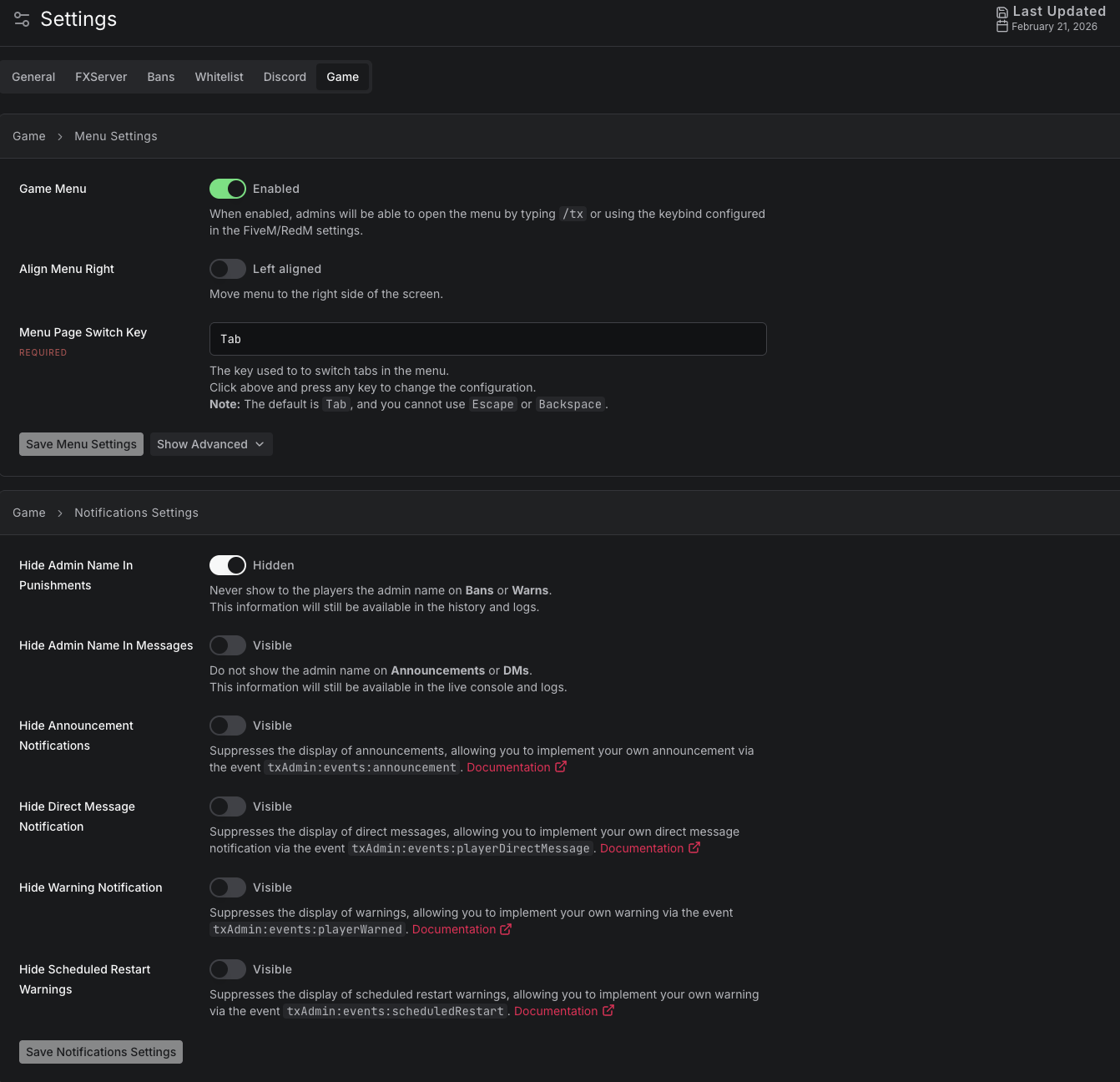
Finally, the Game tab lets you change specific actions that occur in people's games.
How to Link TXAdmin to a Discord Bot
To start, we will need to access Discord's Developer Portal to register a bot.
- In the applications tab, select New Application.

- This will open a pop-up where you can name your bot. For us, it will be SparkedHost FiveM.
- This will open a page where we can customize everything about your bot. The two most important steps are setting your bot's permissions and obtaining the bot's token.
To get your bots' permissions:
- Go to the Bot tab
- Scroll to the bottom to find permissions.
- Set the bot permission integer to 8. Once you view your bot's token, you cannot view it again. So write it somewhere and keep it safe.
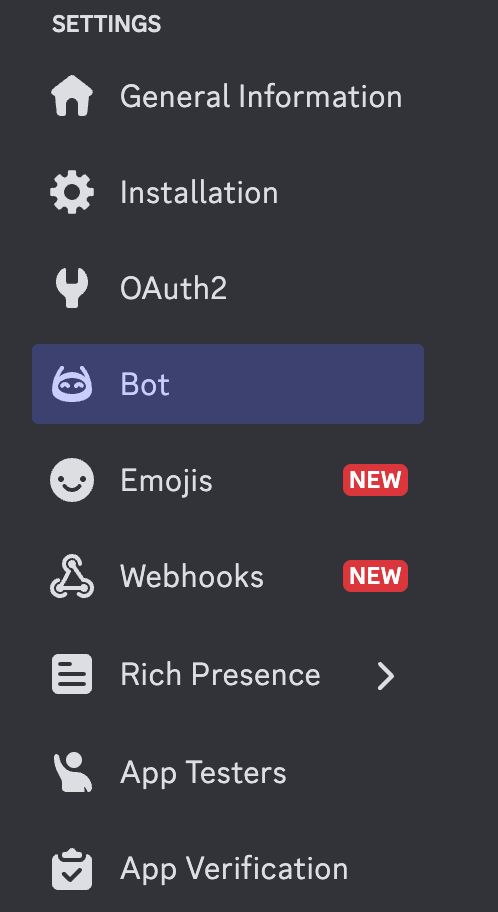
- To get your bot token, click the reset token and copy it down.

- On txAdmin, under the settings tab, then Discord. Turn Enable Bot on.
- Then insert your bot's token into the token field.
- Now, in your Discord server list, right-click the server and copy the server ID. Paste your server ID into the relevant field on txAdmin.
- Right-click your announcements channel and locate the Copy Channel ID button. Paste it into the relevant field on txAdmin.
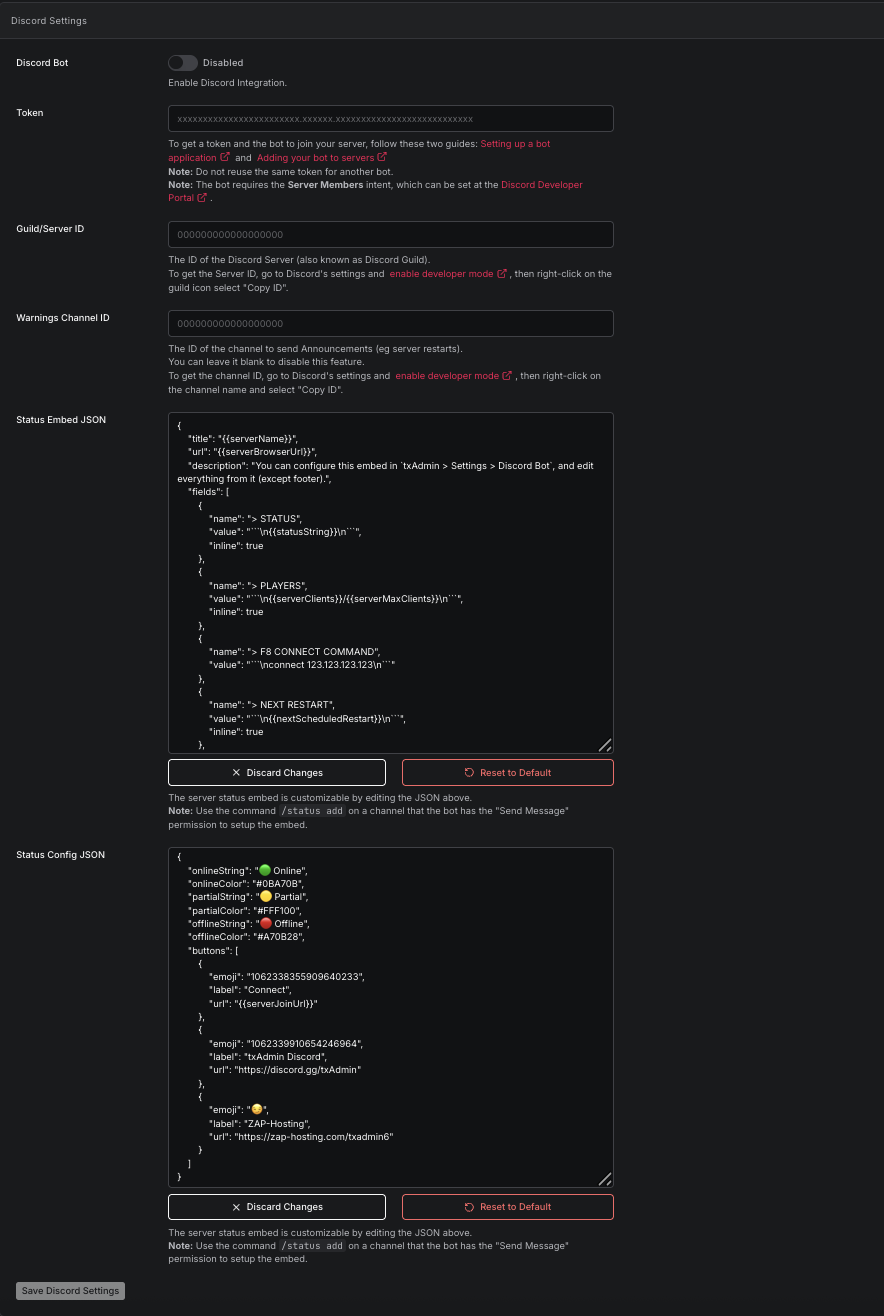
- Save your changes and invite your bot to your server. You have now set up txAdmin and linked it with a Discord bot.
Conclusion
You have now set up txAdmin, a completely free web-based panel for managing your FiveM server. If you require any additional support, please create a ticket on our billing page. If you need txAdmin-specific support, click here to join their Discord.
Updated on: 17/07/2026
Thank you!