How To Fix Core Keeper Multiplayer Not Working
Core Keeper multiplayer not working is a common issue when players try to join a friend's world, whether a Game ID won't connect, a session drops mid-game, or an error message ends things unexpectedly. It can happen across platforms and versions, and it often isn't your setup, since plenty of people report the same issue after an update. The good news is most cases have a fix, workaround, or at least a way to check what's causing it.
Game ID Not Connecting
If the game ID isn't working, make sure you copied and pasted it correctly and that the server has fully started.
- Access the Apollo Panel.
- Start the server.
- Go to the Files tab.
- Open the `GameID.txt` file and use the game ID provided.

Update the Server
- Access the Apollo Panel.
- Stop the server.
- Head over to the Startup tab.
- Enable Auto Update.
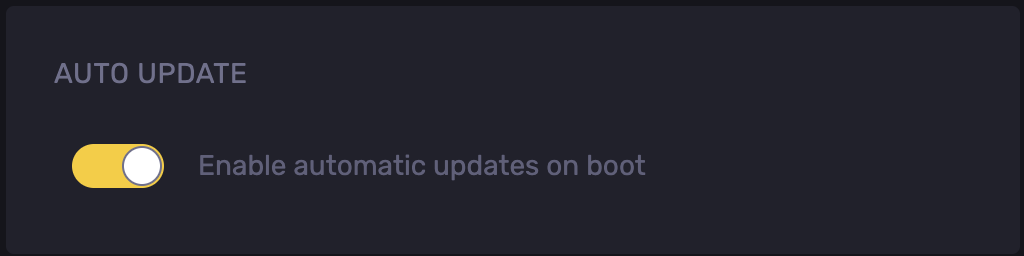
- Start the server.
Toggle Crossplay Off
If you don't want cross-platform players joining, try disabling Crossplay.
- Launch Core Keeper and go to the main menu.
- Open Settings.
- Look for the Crossplay toggle.
- Switch it off.
- Try joining again.
Password Check
Ensure that you use and enter the correct password. To check the password.
- Access the Apollo Panel.
- Navigate to the following directory: `.config/unity3d/Pugstorm/Core Keeper/DedicatedServer`
- Open the `ServerConfig.json` file.
- Use the password set in the `"password":` line.
Disable Mods One by One
If you're running mods, they can sometimes cause connection issues. Try removing your mods and re-adding them one at a time to find the one causing the problem.
- Open the Mods folder, which can be found in the following directory: `.config/unity3d/Pugstorm/Core Keeper/DedicatedServer/mods`
- Remove all mods from the server and disable them in your game client too.
- Try joining again with mods off.
- If it connects, add your mods back one at a time, testing the connection after each one.
- Once the connection fails again, you've found the mod causing the issue.
Check Antivirus, VPN, and Network
Sometimes the issue isn't the game; it's something blocking the connection on your network.
- Temporarily disable your antivirus or VPN and try connecting again.
- Try switching to a different network connection.
- If none of the above work, restart your router and try again.
Updated on: 21/09/2026
Thank you!