Where Does Core Keeper Save Your World? (Core Keeper Save Location)
Knowing your Core Keeper save location matters whether you're backing up progress, recovering a lost world, or sharing your save file with a friend so they can continue on another PC. Since Core Keeper stores each world folder locally rather than in the cloud, your save data sits in a specific path tied to Steam and AppData, which is why players often run into trouble after reinstalling, switching computers, or losing an existing world without a backup.
Local Save Files
- Navigate to the following directory locally:
C:\Users[username]\AppData\LocalLow\Pugstorm\Core Keeper\Steam[SteamID]\worlds
- The
.gzipfiles are the compressed world data files.
Server Save Files
- Access the Apollo Panel.
- Stop the server.
- Navigate to the following directory:
.config/unity3d/Pugstorm/Core Keeper/DedicatedServer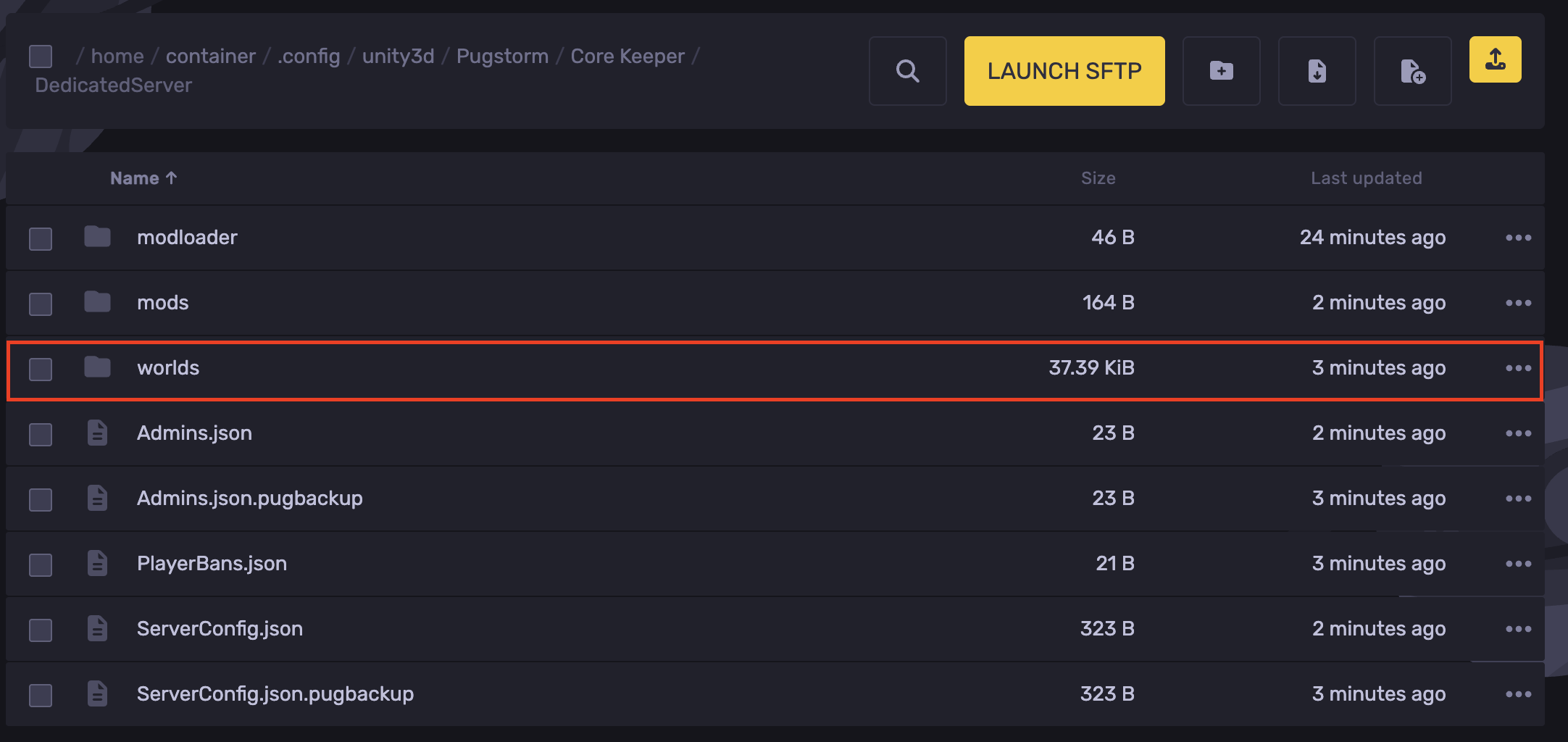
- Open the
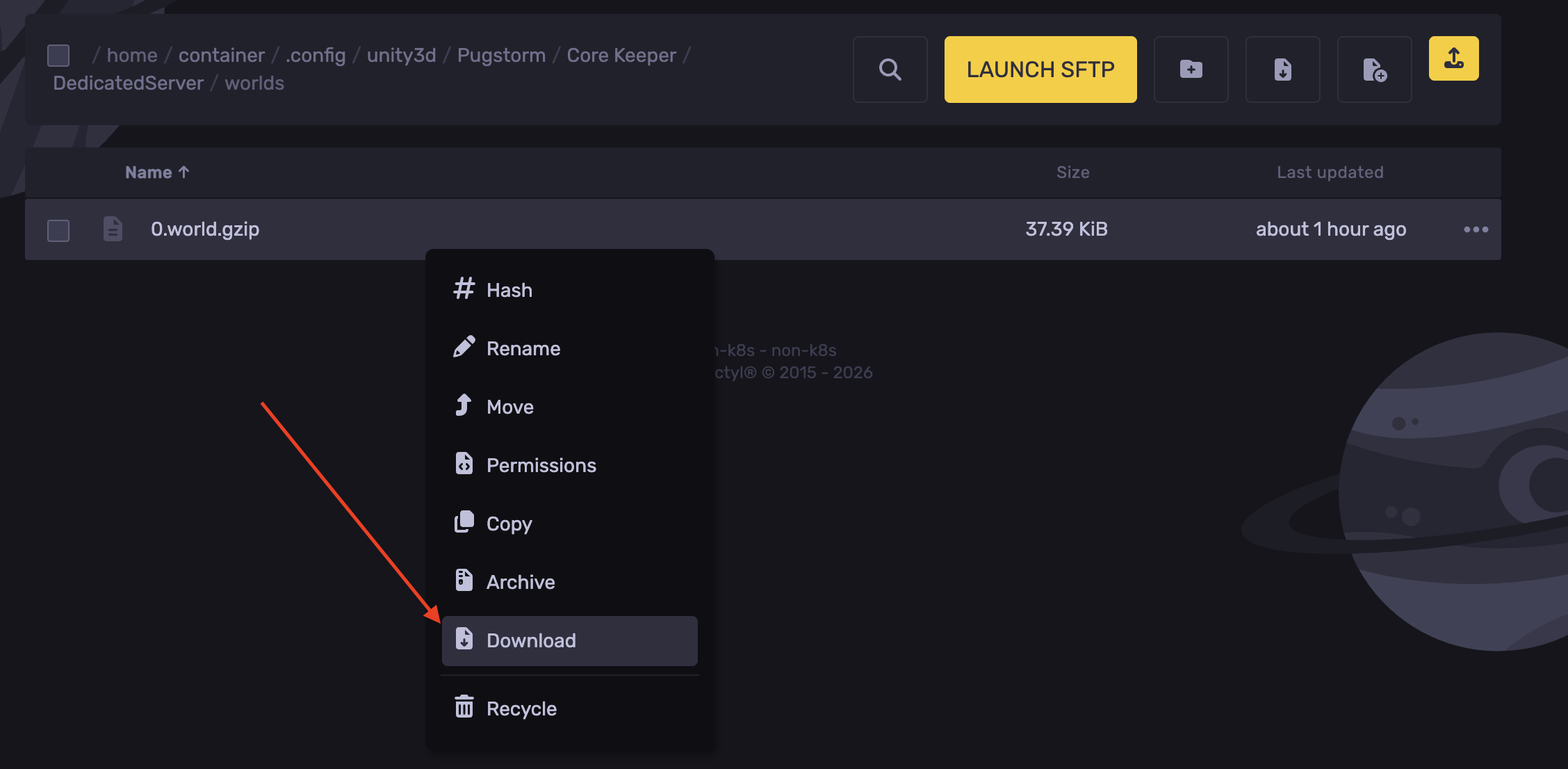
worldsfolder to find the world file.
- Right-click the zip file and hit "Download"
Uploading a Server Save Locally
- Locate the Server Save.
- Navigate to your local files:
C:\Users[username]\AppData\LocalLow\Pugstorm\Core Keeper\Steam[SteamID]\worlds
- Upload the server save to the
worldsfolder.
If they both have the same index number. You can adjust the server's save to a different index number, then upload it.
- You can now launch the game and find the world.
Uploading a Local Save to the Server
Create a backup before proceeding with any steps. Refer to this guide.
- Find the Local Save.
- Access the Apollo Panel.
- Stop the server.
- Head over to the following directory:
.config/unity3d/Pugstorm/Core Keeper/DedicatedServer
- Upload the local save.
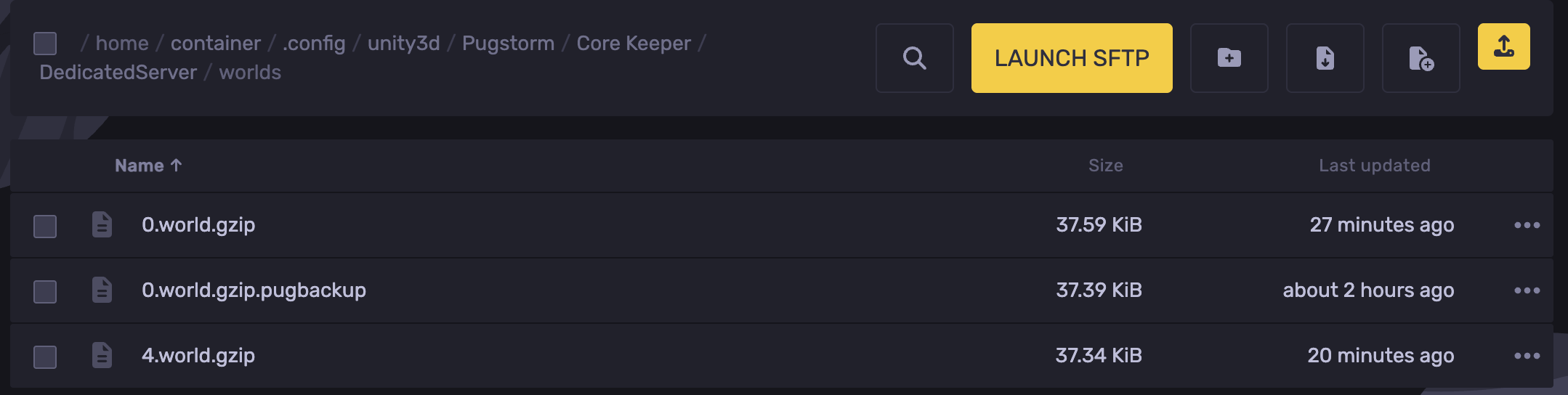
- To switch between worlds. Go to the Startup tab and adjust the "World Index" to match the world index number. In this example, the world file is
4.world.gzipso we will set it to4
- Start the server.
Updated on: 21/09/2026
Thank you!