How To Transfer A Core Keeper World
If you want to transfer Core Keeper world progress to a new PC or move your game onto a server, you can keep everything you've built, explored, or unlocked along the way. It's a handy way to keep playing with your friends without losing anything.
On A Core Keeper Server
Create a backup before proceeding with any of these steps here.
- Locate the local save:
C:\Users\[username]\AppData\LocalLow\Pugstorm\Core Keeper\Steam\[SteamID]\worlds(It will be the.gzipfiles)
- Access the Apollo Panel.
- Stop the server.
- Go to the Files tab.
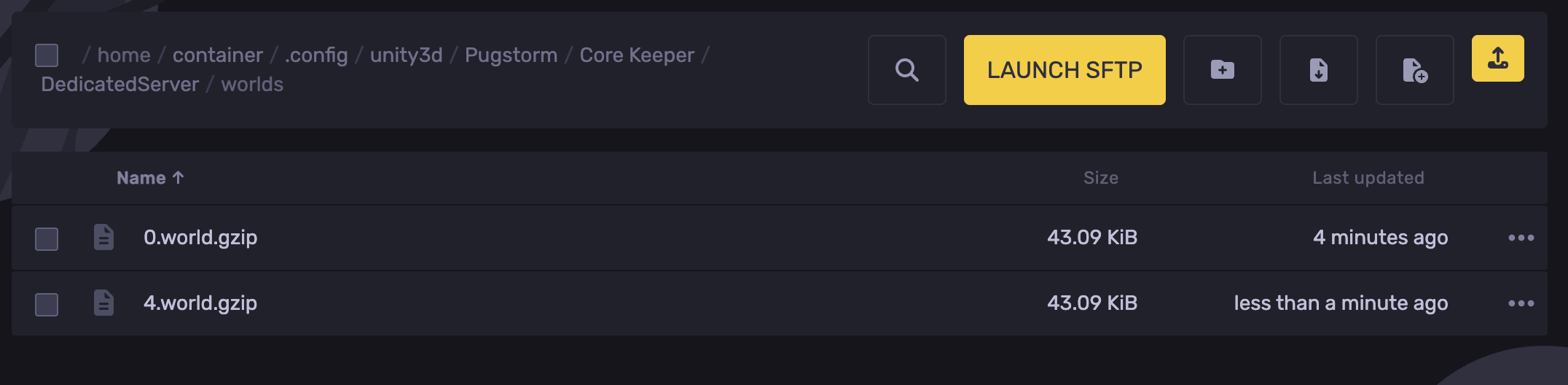
- Navigate to the following directory:
.config/unity3d/Pugstorm/Core Keeper/DedicatedServer
- Open the
worldsfolder.
- Upload the local save.
- Head over to the Startup tab.
- Find the "World Index" field and make sure it matches the uploaded file's number. In this example, the world file is named
4.world.gzipso we will set the number to4
- Start the server.
In Single-Player Core Keeper
- Access the Apollo Panel.
- Stop the server.
- Go to the Files tab.
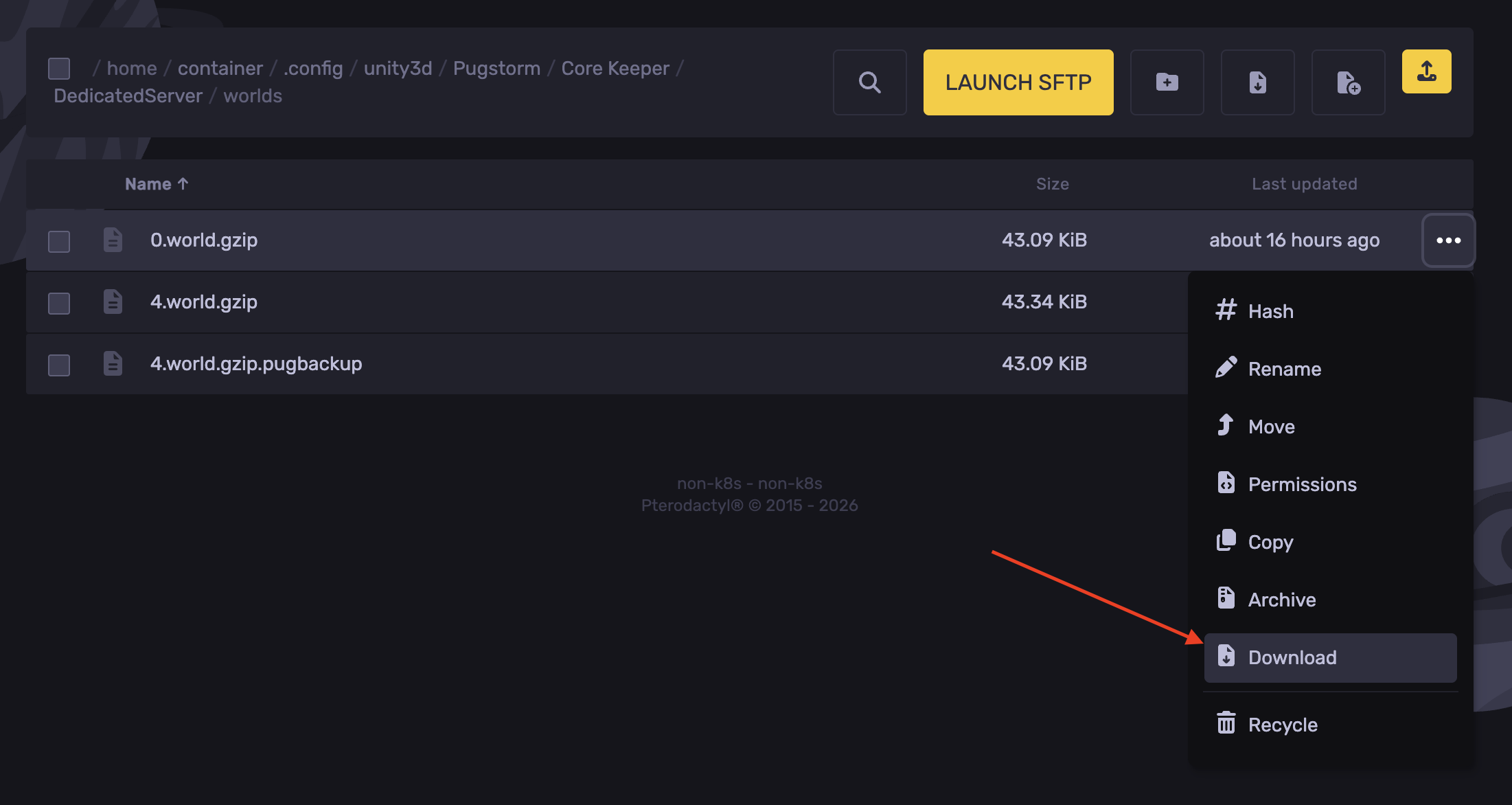
- Navigate to the following directory:
.config/unity3d/Pugstorm/Core Keeper/DedicatedServer
- Open the
worldsfolder.
- Download the server's world save.
- Navigate to your local files:
C:\Users\[username]\AppData\LocalLow\Pugstorm\Core Keeper\Steam\[SteamID]\worlds
- Upload the server save to the
worldsfolder.
- Launch the game and select the world.
Updated on: 08/10/2026
Thank you!