How to Adjust Custom World Properties on a Windrose Server
How to adjust custom world properties on a Windrose server refers to configuring a Windrose dedicated server to fine-tune world settings and overall gameplay behavior across multiple worlds. These custom settings can influence core systems such as difficulty settings, enemy aggression, enemy ship health, co-op scaling, shared quests, and map markers, shaping how the world configuration feels for players. On a Windrose server, each world can have its own world data, save data, and active world state, often stored within world folders or saved save profiles in the default RocksDB, allowing different experiences to exist side by side.
- Open your Apollo Panel.
- Stop the server.
- Go to the Files tab.
- Navigate to the following directory:
R5/Saved/SaveProfiles/Default/RocksDB/version/Worlds/WorldFolder/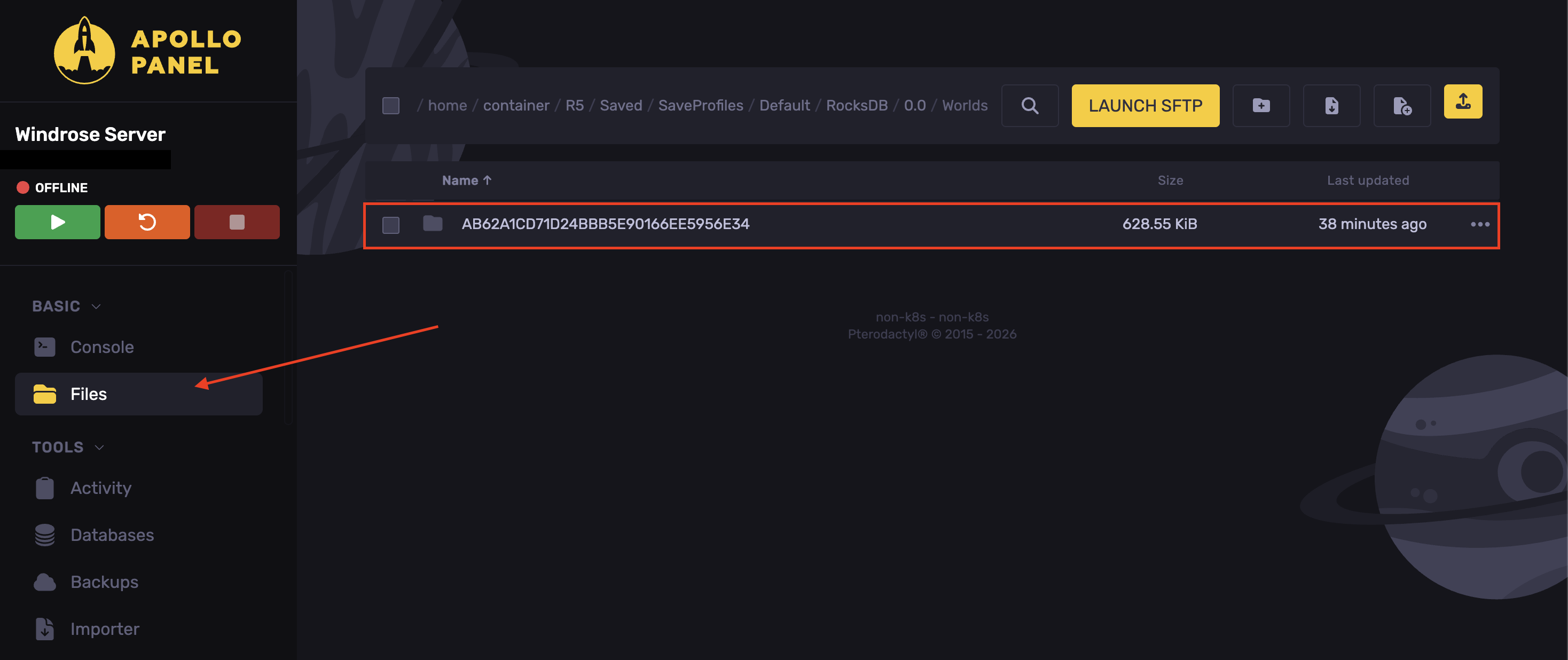
- Inside the world folder, open the
WorldDescription.jsonfile.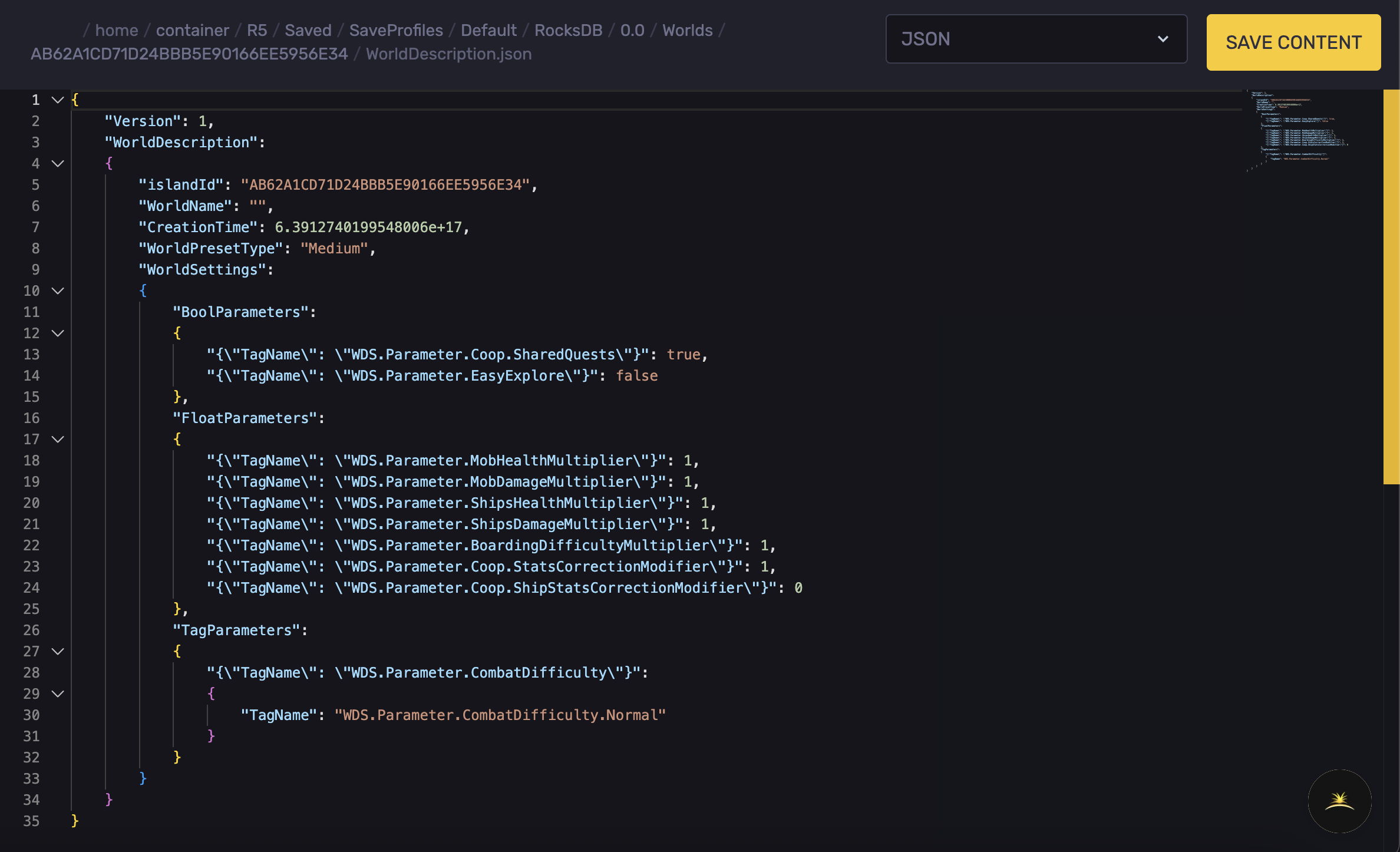
Setting | Values | What It Does |
|---|---|---|
SharedQuests | true or false | Enables or disables shared quest completion for all co-op players. |
EasyExplore | true or false | Enables easier exploration or standard immersive exploration. |
MobHealthMultiplier | 0.2-5.0 | Adjust the amount of health enemies have. |
MobDamageMultiplier | 0.2-5.0 | Multiplies enemy damage dealt. |
ShipsHealthMultiplier | 0.2-5.0 | Multiplies ship durability/health. |
ShipsDamageMultiplier | 0.2-2.5 | Multiplies the ship damage it can deal. |
BoardingDifficultyMultiplier | 0.2-5.0 | Multiplies the difficulty of boarding encounters. |
Coop.StatsCorrectionModifier | 0.2-2.0 | Adjusts player stat balancing in co-op sessions. |
Coop.ShipStatsCorrectionModifier | 0-2.0 | Adjusts ship stat balancing in co-op sessions. |
CombatDifficulty | Easy, Normal, Hard | Sets the overall combat difficulty preset. |
- Click on Save Content.
- Start the server.
Updated on: 15/05/2026
Thank you!