How To Change The Map On A Counter Strike 2 Server
Changing the map on a Counter-Strike 2 server is done to control which environment players load into during gameplay, and how to change the map on a counter strike 2 server refers to selecting or setting a default or custom map such as Dust II or workshop maps. Server owners use this to manage map rotation, keep gameplay engaging, and ensure the Counter-Strike 2 server loads players into the correct match environment for smooth and consistent gameplay.
- Open the Apollo Panel.
- Head over to the Startup tab.
- Find the Map field.
- Enter the desired map.
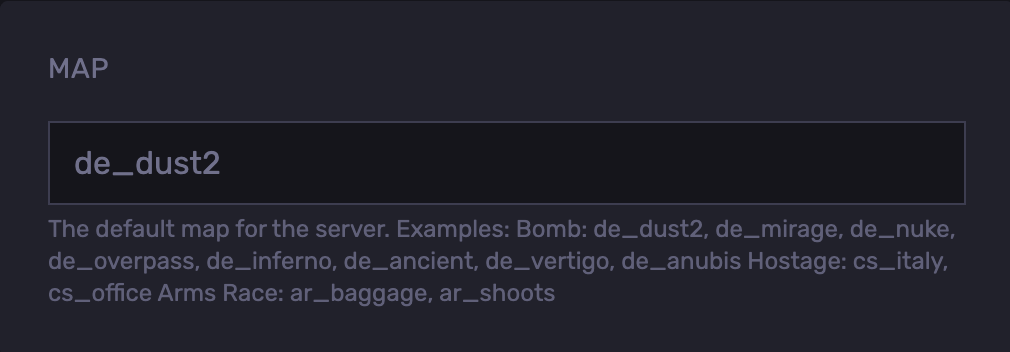
- Start the server.
| Map Command | Map Name |
de_dust2 | Dust II |
|---|---|
de_mirage | Mirage |
de_nuke | Nuke |
de_overpass | Overpass |
de_inferno | Inferno |
de_ancient | Ancient |
de_vertigo | Vertigo |
de_anubis | Anubis |
cs_italy | Italy |
cs_office | Office |
ar_baggage | Baggage |
ar_shoots | Shoots |
Changing the Map Using the Console
NOTE that after this change, the map will revert to the default map when the server restarts.
- Open your Apollo Panel.
- In the console, type the following command to change the map:
changelevel \[Map Code\]
Updated on: 02/06/2026
Thank you!