How To Join A Counter Strike 2 Server
How To Join A Counter Strike 2 Server
Knowing how to join a Counter-Strike 2 server is important for players who want access to community servers, custom gameplay features, workshop maps, and highly detailed maps beyond standard matchmaking. Many users connect to a Counter-Strike 2 server through the community server browser, developer console, or by using a server’s IP address inside the Steam client. The community server browser button and favorites tab make it easier to save servers for later reference, while enabling the in-game console provides a faster way to join a CS2 server directly. This process helps players quickly locate active game servers, connect with friends, and enhance their overall Counter-Strike 2 gameplay experience.
Steam
- Open the Apollo Panel.
- Start the server.
- Copy the server's IP address.
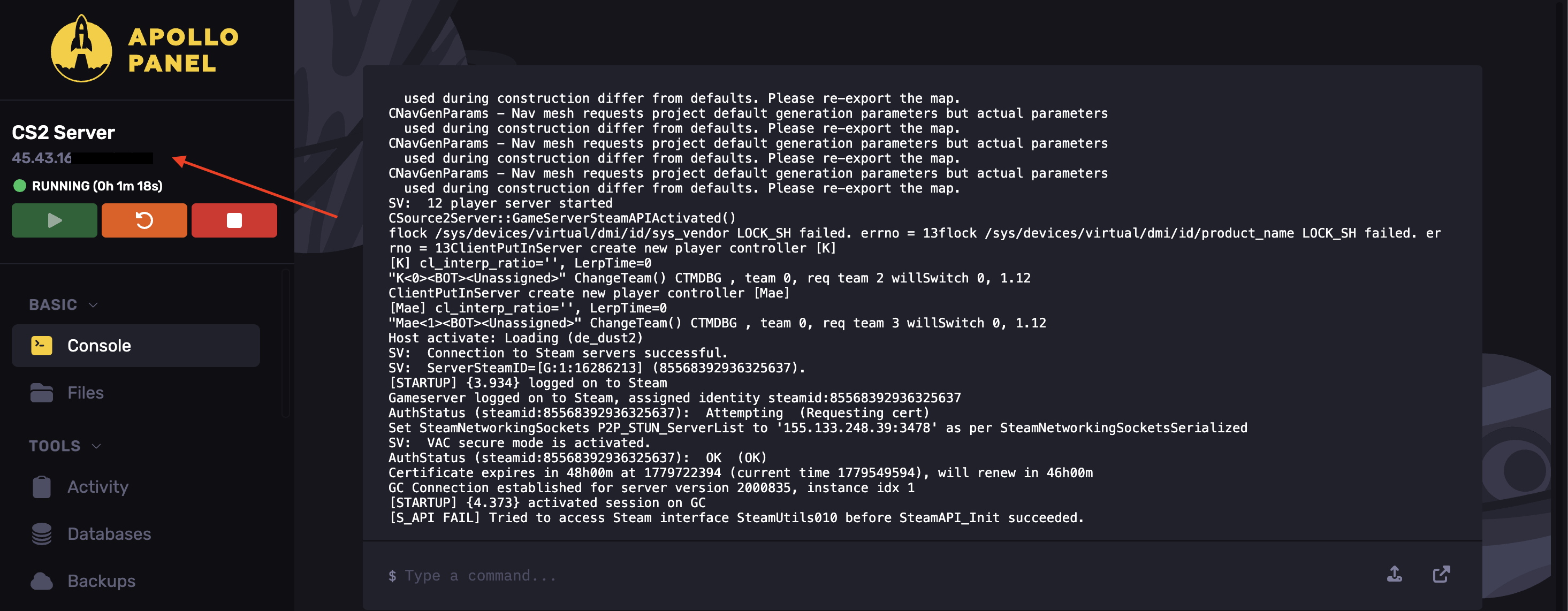
- In the Steam menu, select View and then Game Servers.
- Head over to the Favorites tab and click the Add Server button.
- Paste the server's IP address.
- You should now be able to select the server and click on the Connect button.
Console
Ensure you refer to the guide on How to Enable the Developer Console on Counter Strike 2
- Open the Apollo Panel.
- Start the server.
- Copy the server's IP address.
- Set a server password in the Startup tab. Refer to this guide to set a password.
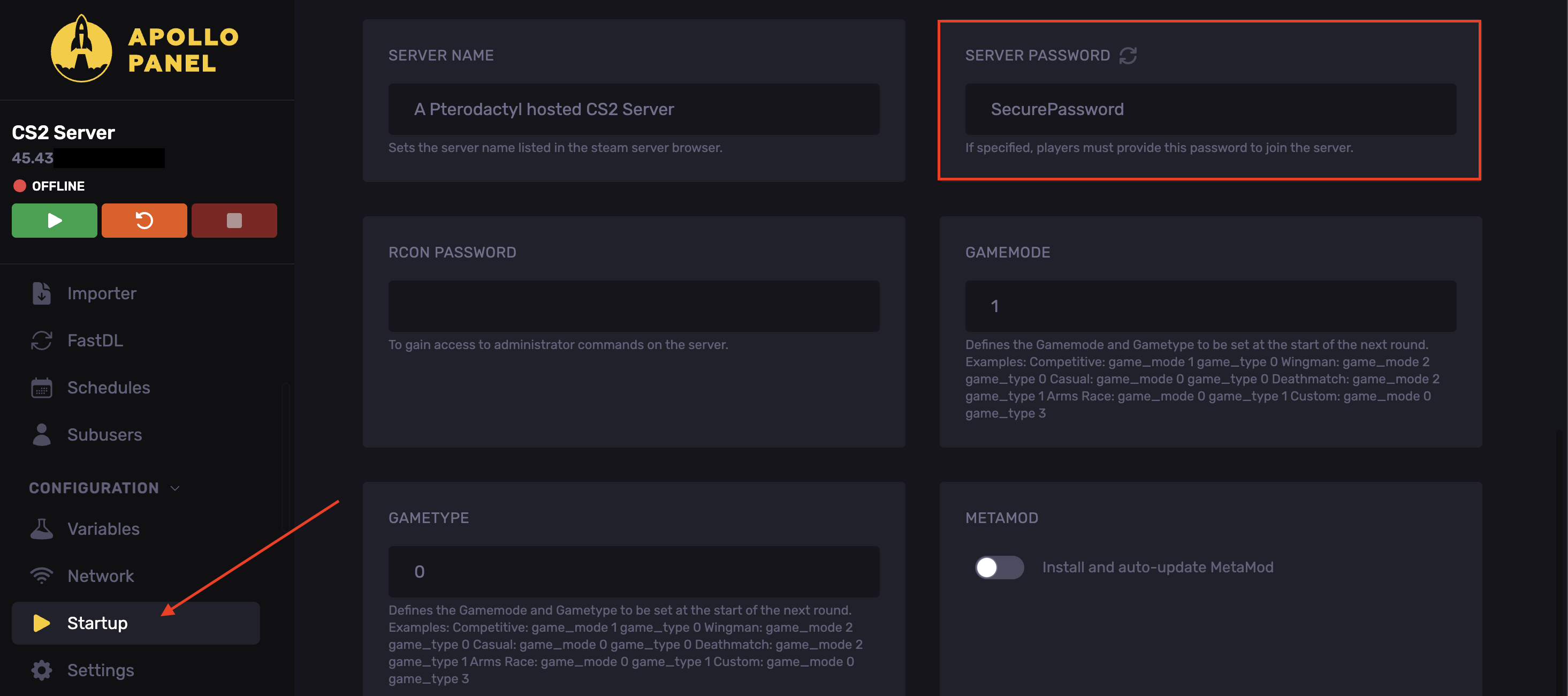
- Launch Counter-Strike 2
- Click on
~or ``` on the keyboard to open the console.
- In the console, type the following:
connect <IPAddress>; password \[ServerPassword\]
Updated on: 02/06/2026
Thank you!